

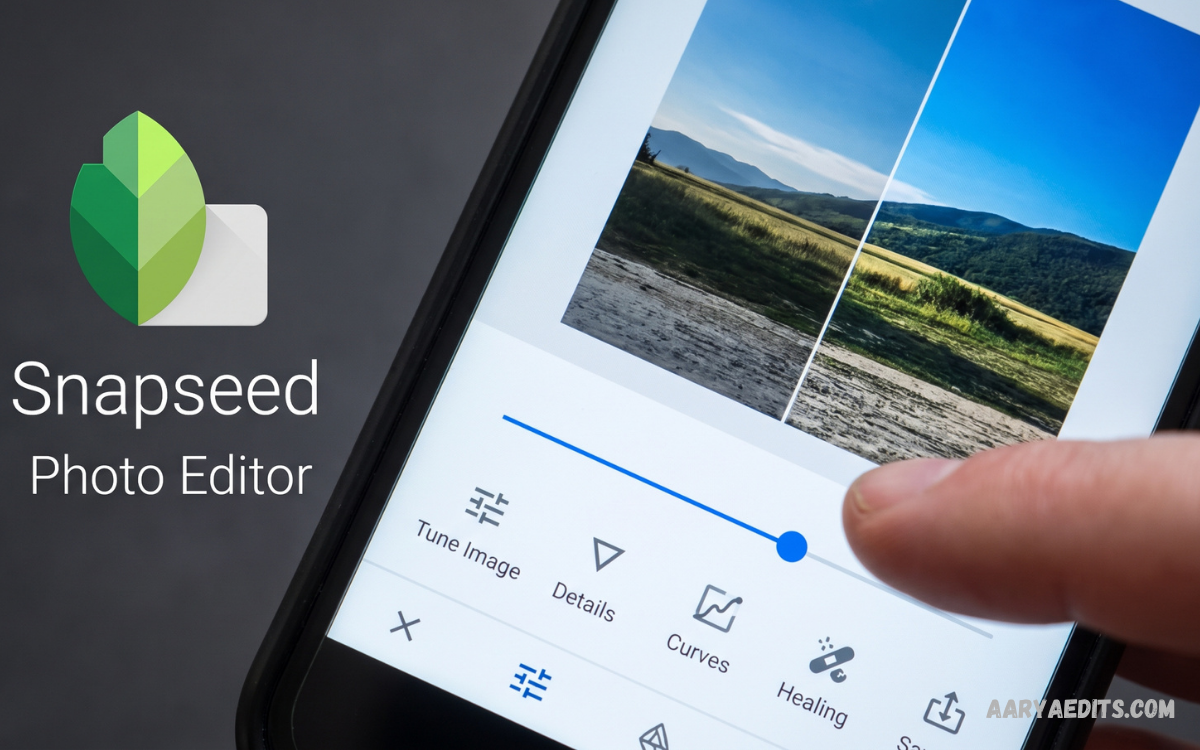
Snapseed Photo Editor is a powerful mobile photo editing application designed for users who want professional results without complicated software. The app combines advanced editing controls with a simple interface, making photo enhancement accessible for beginners, creators, photographers, and social media users.
Developed by Google, Snapseed has become a popular choice for mobile photography because of its wide range of editing features. Users can improve colors, correct exposure, remove unwanted elements, sharpen details, apply creative effects, and create customized photo styles from a smartphone.
Why Is Snapseed Photo Editor Popular?
The main strength of Snapseed photo editor comes from its combination of simplicity and professional editing capabilities. A new user can apply basic adjustments quickly, while experienced photographers can use advanced controls for detailed image refinement.
Snapseed offers numerous tools within one application, reducing the need to switch between different editing apps. Exposure, color, sharpness, perspective, selective adjustments, healing, curves, and creative effects can all be handled through its editing interface.
Snapseed Photo Editor Features
Snapseed photo editor includes a broad collection of tools designed for different photography requirements. Each feature serves a specific purpose, allowing users to build an editing workflow according to their preferred style.
Tune Image
Tune Image is one of the most useful tools available in Snapseed. It provides controls for brightness, contrast, saturation, ambiance, highlights, shadows, and warmth.
Brightness can improve an image that appears too dark or reduce excessive exposure in brighter photographs. Contrast can add separation between light and dark areas, while saturation controls the intensity of colors.
Details Tool
The Details tool helps improve texture and clarity within an image. Users can adjust structure and sharpening to make important visual elements appear more defined.
Sharpening can enhance fine edges, while structure can emphasize textures across the photograph. Moderate adjustments usually produce a cleaner result, while excessive settings can make an image look unnatural.
Curves
Curves is an advanced editing feature designed for users who want precise control over brightness and contrast. The curve interface allows adjustments to different tonal ranges instead of applying one general change across the entire image.
Users can create subtle contrast improvements by adjusting highlights and shadows independently. Curves can also support creative color grading when individual color channels are available for adjustment.
White Balance
White Balance helps correct unwanted color tones caused by different lighting conditions. Indoor lighting, cloudy environments, artificial lights, and mixed lighting can sometimes create warm or cool color casts.
Snapseed allows users to adjust temperature and tint to achieve a more natural appearance. Correct white balance can significantly improve portraits, landscapes, food photographs, and indoor images.
Crop Tool
The Crop tool allows users to change the composition and dimensions of a photograph. Several aspect ratios can help prepare images for different platforms, layouts, and creative projects.
Cropping can remove distracting areas and place greater attention on the primary subject. A carefully selected crop can improve composition without requiring additional effects.
Rotate and Perspective
Rotate provides a simple way to straighten images or change their orientation. Perspective tools can help correct visual distortion caused by shooting architecture, buildings, documents, or objects from an angle.
Perspective correction can make vertical and horizontal lines appear more natural. This feature is particularly useful for architectural photography and images containing strong geometric structures.
Healing Tool
The Healing tool helps remove small unwanted elements from photographs. Users can select areas containing distractions, and Snapseed attempts to blend the selected region with surrounding visual information.
Healing can be useful for removing minor spots, small objects, dust marks, or other distractions. Results depend on the surrounding image details, so complex backgrounds may require several careful adjustments.
Selective Editing
Selective editing allows adjustments to specific areas rather than changing the entire photograph. Users can place control points on selected regions and modify properties such as brightness, contrast, and saturation.
This feature provides greater precision than global adjustments. It can help brighten a subject, enhance a particular color, or reduce attention from a distracting background.
Brush Tool
The Brush tool provides another method for applying adjustments to selected portions of an image. Users can work with exposure, temperature, and other supported adjustments without affecting every part of the photograph.
Brush-based editing can be useful when only one section requires correction. Careful application helps maintain natural transitions between edited and unedited areas.
Creative Filters in Snapseed
Snapseed photo editor includes creative effects for users who want more than traditional corrections. These effects can change the mood, color treatment, texture, and overall visual character of an image.
Filters can create different styles ranging from vintage appearances to dramatic black-and-white photographs. Users can adjust the intensity of many effects instead of applying them at a fixed strength.
Snapseed Photo Editor for Portraits
Snapseed can be useful for portrait photography because it provides tools for improving lighting, skin tones, background balance, and overall image quality. Portrait-focused adjustments can be combined with selective editing to achieve a more controlled result.
Users can begin with exposure and white balance corrections before making targeted adjustments. Subtle editing generally produces a more natural portrait than applying strong filters across the entire image.
Snapseed for Landscape Photography
Landscape photographs often contain large differences between bright skies and darker foreground areas. Snapseed photo editor provides several tools that can help balance these tonal differences.
Tune Image can improve overall exposure, contrast, ambiance, and color intensity. Highlights and shadows can then be refined to create a more balanced appearance.
Snapseed for Social Media Photos
Social media creators can use Snapseed to prepare photographs before publishing them on different platforms. Cropping, color correction, sharpening, and creative effects can help create a consistent visual style.
A useful workflow starts with composition and exposure rather than immediately applying filters. Correcting the image first provides a stronger foundation for creative adjustments later.
RAW Photo Editing
One notable feature of Snapseed photo editor is support for RAW image editing on compatible devices and file formats. RAW files contain more image information than standard compressed photographs, providing additional flexibility during editing.
RAW editing can be especially useful for photographers who want greater control over exposure, white balance, and tonal adjustments. The available editing experience can vary depending on the device, operating system, and supported RAW format.
How to Edit Photos in Snapseed
Editing a photograph in Snapseed starts by opening the application and selecting an image from the device. Choosing a high-quality original image provides more flexibility for adjustments and helps maintain better final quality.
The next step is usually correcting basic problems such as exposure, white balance, and composition. These corrections establish a balanced foundation before creative effects are introduced.
Snapseed Editing Tips for Better Results
Start with the original photograph whenever possible because high-quality source files provide greater editing flexibility. Avoid repeatedly editing compressed versions because repeated processing can reduce visible image quality.
Make small adjustments instead of immediately moving sliders to extreme values. Professional-looking edits usually depend on controlled changes that improve the photograph without making every adjustment obvious.
Read Also: AI Photo Enhancer Online Free: Improve Image Quality Without Expensive Software
Snapseed Photo Editor for Beginners
Beginners can learn Snapseed gradually by starting with simple tools such as Crop, Tune Image, Details, and White Balance. Understanding these basic features provides a foundation for more advanced editing techniques.
A beginner does not need to use every available tool on every photograph. Selecting only the features that solve specific problems can produce cleaner results and make the editing process easier to understand.
Snapseed Photo Editor for Advanced Users
Advanced users can combine multiple tools to create detailed editing workflows. Curves, selective adjustments, brush-based corrections, healing, and creative effects provide significant control over the final appearance.
Experienced photographers can also use layered editing approaches through Snapseed’s supported workflow and editing history features. This makes it easier to review changes and refine the photograph without starting the entire process again.
Snapseed vs Basic Photo Editors
Many basic photo editors focus on filters, automatic enhancements, and simple adjustments. Snapseed stands apart by providing a broader collection of manual editing controls within a mobile-focused interface.
The choice between applications depends on the user’s requirements and experience. Someone looking for instant effects may prefer a simpler editor, while users who want detailed control can benefit from Snapseed’s advanced tools.
Advantages of Snapseed Photo Editor
One major advantage is the variety of professional-style editing tools available within a mobile application. Users can perform many common corrections without requiring desktop photo editing software.
Another advantage is the combination of precision and accessibility. Beginners can start with basic adjustments, while advanced users can explore detailed controls such as curves, selective editing, brush adjustments, and RAW processing.
Limitations to Consider
Although Snapseed offers powerful features, it may not replace specialized desktop editing software for every professional workflow. Users working with large photo libraries, complex compositing, extensive layer management, or advanced production requirements may need dedicated desktop solutions.
Some features can also behave differently depending on the image, device, and editing requirement. Learning how each tool responds to different photographs is important for achieving consistent results.
Best Snapseed Workflow
A practical Snapseed workflow begins with selecting the highest-quality available photograph. Basic composition, exposure, and white balance corrections should normally come before creative effects.
The next stage can focus on contrast, highlights, shadows, saturation, and tonal balance. Details and selective adjustments can then refine important areas without unnecessarily changing the entire image.
Frequently Asked Questions
What is Snapseed Photo Editor?
Snapseed photo editor is a mobile application designed for editing and enhancing digital photographs. It provides professional-style tools for adjusting exposure, colors, details, perspective, and creative effects.
Is Snapseed Photo Editor suitable for beginners?
Yes, Snapseed photo editor is suitable for beginners because its interface is relatively simple to navigate. New users can start with basic tools such as Tune Image, Crop, Details, and White Balance before exploring advanced features.
Can Snapseed edit RAW photos?
Snapseed supports RAW photo editing on compatible devices and supported RAW formats. RAW editing provides greater flexibility for adjusting exposure, white balance, highlights, shadows, and other image properties.
Does Snapseed have professional editing tools?
Snapseed includes several advanced editing tools that provide detailed control over photographs. Curves, Selective, Healing, Brush, Perspective, Details, and White Balance can support more precise editing workflows.
Can Snapseed remove unwanted objects?
The Healing tool can help remove small unwanted elements from photographs. Results depend on the surrounding image area, with simple backgrounds generally producing cleaner corrections.
Can Snapseed improve portrait photos?
Snapseed can enhance portraits through exposure, color, detail, selective, and healing adjustments. Users can make targeted corrections while maintaining a natural appearance.
Can Snapseed edit landscape photos?
Yes, Snapseed works well for landscape photography. Tools such as Tune Image, Curves, Details, White Balance, and Selective can improve tonal balance, colors, contrast, and landscape details.
Does Snapseed provide filters?
Snapseed includes several creative effects and filters for changing the visual style of photographs. Users can adjust the intensity of supported effects to create subtle or more noticeable results.
Can Snapseed improve photos for social media?
Snapseed can prepare photographs for social media through cropping, color correction, sharpening, and creative adjustments. Users can create consistent visual styles while adapting image composition for different platforms.
Is Snapseed good for professional photo editing?
Snapseed can handle many professional-style mobile editing tasks and offers detailed manual controls. However, photographers with complex workflows, extensive layers, large photo libraries, or advanced compositing requirements may prefer dedicated desktop software.
Conclusion
Snapseed photo editor remains a strong option for mobile users who want detailed control over their photographs without relying entirely on automatic filters. Its combination of basic adjustments, advanced tools, creative effects, selective editing, and RAW support makes it suitable for a wide range of photography needs.
The best results come from understanding why each adjustment is being used rather than applying every available feature. With regular practice and a controlled workflow, Snapseed can help transform ordinary smartphone photographs into polished and visually engaging images.
