

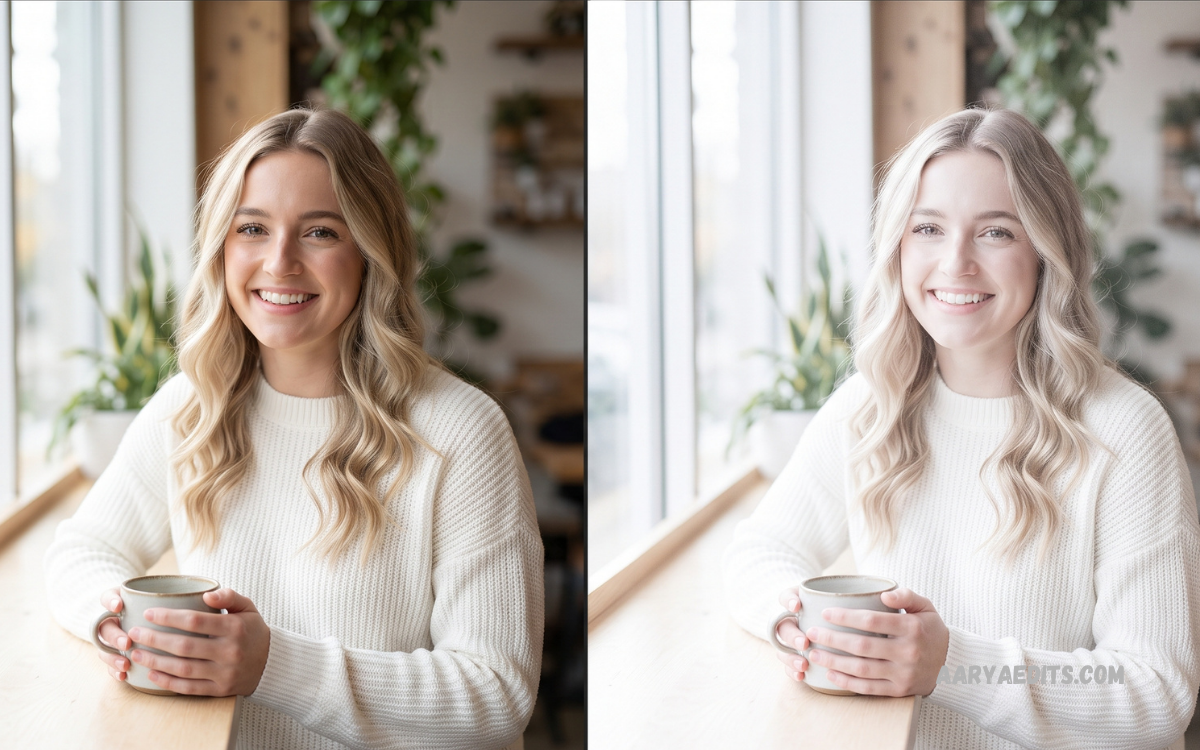
Lightroom White Presets have become popular among photographers, content creators, influencers, bloggers, and social media users seeking clean, bright, modern photo aesthetics. These presets create balanced white tones, soft highlights, neutral backgrounds, crisp details, and an elegant visual appearance with minimal editing effort.
Adobe Lightroom provides powerful editing controls for exposure, contrast, highlights, shadows, temperature, tint, texture, clarity, and color grading. A professionally designed white preset combines these adjustments into a reusable editing style, helping users achieve consistent results across portraits, products, interiors, lifestyle images, weddings, and social media content.
What Are Lightroom White Presets?
Lightroom White Presets are predefined editing settings designed to produce bright, clean, white-focused photography. Instead of adjusting every image manually, users can apply a preset and instantly establish a specific visual foundation.
The primary goal involves creating brighter whites without destroying image detail or producing an artificial appearance. Depending on the preset design, the final image can look airy, minimalist, soft, luxurious, crisp, or slightly warm.
Why Lightroom White Presets Are Popular
The popularity of white presets comes from their ability to create a recognizable photography style quickly. Content creators often require consistent visuals across Instagram feeds, websites, portfolios, online stores, and digital campaigns.
A consistent editing style also strengthens visual branding. When photographs share similar brightness, white balance, contrast, and color characteristics, an entire gallery appears more organized and professionally produced.
Key Features of White Lightroom Presets
A quality white preset generally focuses on brightness without sacrificing natural image quality. Exposure adjustments establish overall brightness, while highlights and whites control brighter portions of the photograph.
Temperature and tint adjustments influence whether white areas appear warm, cool, neutral, or slightly colored. Correct white balance remains essential because an overly warm image can make white surfaces appear yellow, while excessive coolness can create an unnatural blue cast.
Best Uses for Lightroom White Presets
White presets work particularly well for lifestyle photography. Bright rooms, neutral clothing, minimal interiors, coffee photography, stationery, beauty products, and modern architecture can benefit from a clean white editing style.
Portrait photographers can also use these presets as a starting point for bright editorial images. However, skin tones should always receive individual attention because preset adjustments can affect different complexions differently.
Lightroom White Presets for Instagram
Instagram content benefits from visual consistency, especially when creators publish photographs as part of a broader personal or commercial brand. Lightroom White Presets can help maintain similar brightness and color characteristics across different photos.
However, identical preset settings do not guarantee identical results. Lighting conditions, camera profiles, exposure levels, backgrounds, and skin tones vary between photographs, so minor adjustments remain important.
White Presets for Product Photography
Product photographers often need clean, consistent images that accurately represent products. A white preset can establish a reliable editing foundation for brightness, background neutrality, contrast, and overall color balance.
White backgrounds require particular attention because increasing exposure too aggressively can eliminate product edges. Professional editing preserves enough tonal separation to distinguish white products from white backgrounds.
White Presets for Portrait Photography
Portrait photography requires a different approach because human skin contains complex tones that can shift during editing. A white preset should brighten the environment while maintaining realistic skin color and natural facial detail.
Lowering saturation slightly can create a sophisticated appearance, but excessive desaturation may make skin appear dull. Adjusting orange and red tones through the Color Mixer can provide more precise control after applying the preset.
White Presets for Mobile Photography
Lightroom Mobile makes preset-based editing accessible for smartphone photographers. Users can import compatible presets, apply them to images, and fine-tune settings directly from a mobile device.
Mobile photography often includes mixed lighting, automatic exposure, and computational processing. Because of these differences, a preset may require adjustments to temperature, exposure, highlights, and shadows.
How to Apply Lightroom White Presets
Applying a preset in Lightroom is straightforward when the preset has been correctly imported. Open the desired photograph, access the Presets section, select the appropriate preset, and review the resulting image before exporting.
After applying the preset, check exposure first. Adjust temperature, tint, highlights, shadows, whites, and blacks according to the lighting conditions present in the original photograph.
How to Create Your Own Lightroom White Preset
Creating a custom white preset allows photographers to develop a distinctive editing style. Start with a well-exposed photograph containing neutral white elements and natural colors.
Adjust exposure until the image reaches the desired brightness without clipping important highlights. Refine contrast, highlights, shadows, whites, and blacks to establish the desired tonal structure.
Common Mistakes When Using White Presets
One common mistake involves increasing exposure too aggressively. Extremely bright settings can remove highlight detail and make photographs appear flat.
Another mistake involves ignoring white balance. A preset created under daylight may produce unwanted color shifts when applied to photographs captured under indoor, fluorescent, or mixed lighting.
Read Also: Lightroom Black Presets: Create Moody, Dramatic Photos in 2026
Lightroom White Presets and Professional Editing
Professional editing depends on balance rather than maximum brightness. A successful white aesthetic combines controlled highlights, natural colors, appropriate contrast, and sufficient detail.
Experienced photographers also consider the original lighting before applying a preset. A photograph captured during golden hour requires different adjustments from an image photographed inside a bright studio.
Free vs Premium Lightroom White Presets
Free Lightroom white presets can be useful for experimentation and learning. They allow beginners to understand how groups of editing adjustments interact without creating every setting manually.
Premium presets may provide more specialized styles, multiple variations, installation instructions, and professional adjustment ranges. However, price does not automatically determine quality.
Tips for Better Results
Always begin with a properly exposed photograph whenever possible. Presets cannot completely correct severe exposure problems, inaccurate focus, poor lighting, or significant color casts.
Use the histogram to monitor tonal distribution when working with bright images. This helps prevent excessive clipping while maintaining the clean appearance associated with white photography.
Frequently Asked Questions
What are Lightroom White Presets?
Lightroom White Presets are predefined editing settings designed to create bright, clean, neutral, and modern photographic styles. They can adjust multiple Lightroom controls simultaneously and provide a consistent editing foundation.
Are Lightroom White Presets free?
Some white presets are available for free, while others are premium products created by professional photographers and editors. Quality, flexibility, compatibility, and included variations can differ considerably between preset collections.
Can I use white presets on Lightroom Mobile?
Yes, compatible Lightroom presets can be used with Lightroom Mobile. After importing a supported preset, users can apply it to photographs and customize the settings according to individual lighting conditions.
Do white presets work with RAW photos?
Yes, presets can work particularly well with RAW photographs because RAW files provide extensive editing flexibility. Exposure, white balance, highlights, shadows, and color adjustments can be refined after applying the preset.
Are white presets suitable for portraits?
Yes, white presets can work well for portraits when skin tones remain natural. Exposure, temperature, tint, and Color Mixer settings should be adjusted whenever necessary to prevent unnatural skin colors.
Can white presets improve product photography?
White presets can create clean and consistent product imagery. However, commercial photographers should prioritize accurate product colors and preserve sufficient contrast between white products and white backgrounds.
Why does my preset look different from the preview?
Preset results vary because every photograph has different lighting, exposure, camera settings, colors, and composition. Adjusting exposure and white balance after applying the preset can usually improve consistency.
How can I make white areas look brighter?
Use the Whites and Highlights controls carefully while monitoring detail. Increasing exposure, whites, or highlights excessively can cause clipping, so brightness should be balanced with tonal preservation.
Can I create custom Lightroom White Presets?
Yes, Lightroom allows users to save customized editing settings as presets. Creating a personal preset provides greater control over brightness, white balance, contrast, colors, and overall photographic style.
Are Lightroom White Presets good for professional photography?
They can be highly useful in professional workflows when treated as starting points rather than automatic final edits. Consistent presets can save time while individual corrections maintain quality and accuracy.
Conclusion
Lightroom White Presets provide an efficient way to create clean, bright, elegant, and consistent photographs across different photography categories. Their strongest advantage comes from combining multiple editing adjustments into a reusable workflow that saves time while establishing a recognizable visual style.
The best results come from combining presets with professional judgment. Apply the preset, evaluate exposure and white balance, protect important highlights, maintain natural colors, and make individual adjustments before exporting the final image.
