

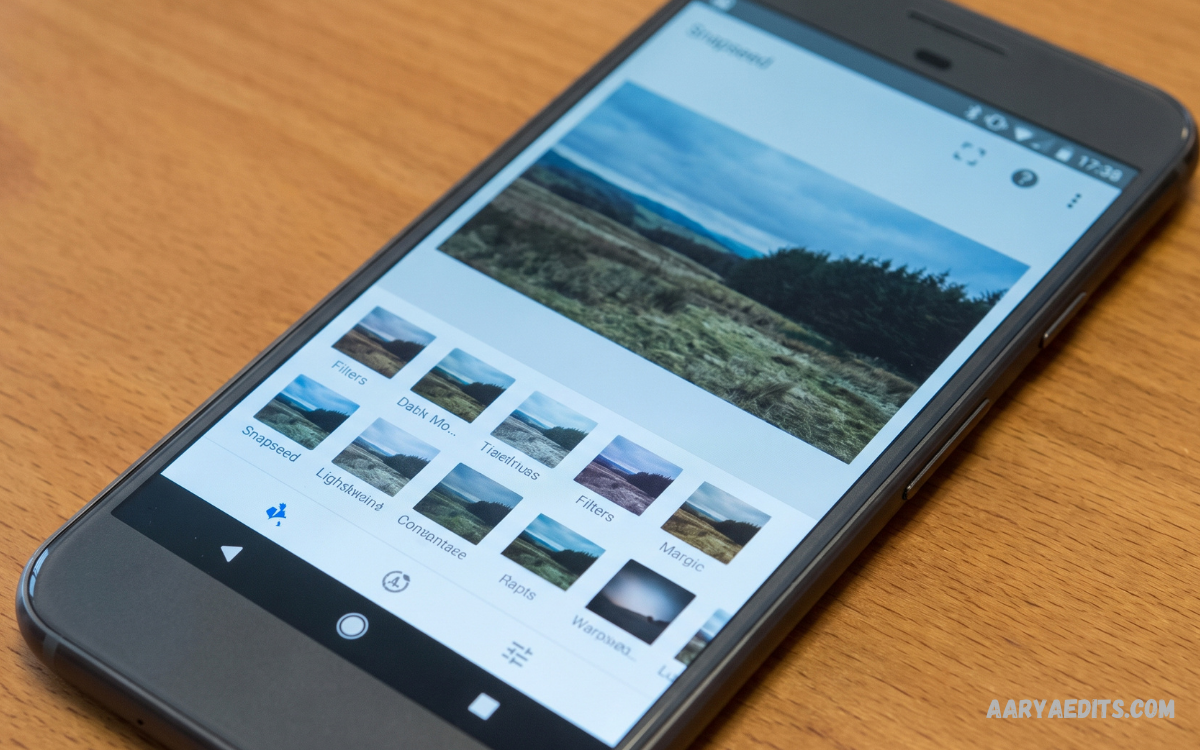
Snapseed editing app for Android is a professional photo-editing application designed for users who want detailed control over their images. Developed by Google, Snapseed provides a broad collection of editing tools, filters, adjustments, and creative features within a mobile-friendly interface.
The app supports simple edits as well as advanced photo enhancements. Users can adjust brightness, contrast, saturation, white balance, sharpness, perspective, and other image properties without requiring advanced desktop software.
Why Choose Snapseed for Android Photo Editing?
Snapseed stands out because it combines professional editing controls with a straightforward Android interface. Instead of relying only on automatic filters, users can manually fine-tune individual aspects of a photograph and create a more personalized result.
Another advantage is the variety of tools available in one application. From basic cropping and rotation to selective adjustments and RAW processing, Snapseed can handle many common editing requirements. This makes it useful for social media creators, photographers, bloggers, students, and everyday Android users.
Key Features of Snapseed Editing App for Android
Snapseed includes numerous features designed to improve image quality and provide creative control. The Tools section contains options for tuning exposure, color, details, composition, and perspective, while the Filters section provides ready-made visual styles.
The application also supports non-destructive editing through its editing workflow, allowing users to revisit previous adjustments and refine their results. This flexibility is especially helpful when experimenting with different styles or preparing several versions of the same photograph.
Tune Image for Better Photo Quality
The Tune Image tool is one of the most useful features in Snapseed. It allows users to adjust brightness, contrast, saturation, ambience, highlights, shadows, and warmth to create a balanced image.
These controls are useful when a photograph looks too dark, washed out, cold, or overly bright. Instead of applying a preset filter, users can make individual adjustments and maintain greater control over the final appearance.
Selective Editing in Snapseed
Selective editing allows users to enhance specific areas of a photograph rather than changing the entire image. This can be useful when one part of a picture needs additional brightness, contrast, or saturation.
For example, a user can improve the appearance of a subject while keeping the background relatively unchanged. This localized approach provides more precision than applying a single adjustment across the entire photograph.
Snapseed RAW Editing Support
Snapseed supports RAW image editing on compatible Android devices and files. RAW images contain more image information than standard compressed formats, giving photographers greater flexibility during post-processing.
RAW editing can be useful for correcting exposure, recovering details, and making color adjustments. Photographers who capture images using compatible cameras or smartphones can use Snapseed as a convenient mobile editing solution.
Healing Tool for Removing Unwanted Objects
The Healing tool helps remove small unwanted elements from photographs. Users can brush over a distracting object or area, allowing Snapseed to replace it using surrounding visual information.
This feature can be useful for cleaning up minor distractions such as small marks, unwanted spots, or background elements. Results depend on the image and the complexity of the area being edited, so careful application usually produces better results.
Curves Tool for Advanced Adjustments
The Curves tool provides greater control over brightness and contrast. Users can manipulate different parts of the tonal range to create subtle or dramatic changes.
Curves can be especially useful for advanced editing because it allows more precise adjustments than basic brightness controls. Beginners may need some practice, but learning the tool can significantly improve editing flexibility.
White Balance Adjustments
White Balance helps correct unwanted color casts caused by lighting conditions. Photographs taken under artificial, indoor, cloudy, or unusual lighting can sometimes appear too warm or too cool.
Snapseed provides temperature and tint controls that can help restore more natural-looking colors. These adjustments are also useful for creative editing when a warmer or cooler visual atmosphere is desired.
Perspective Correction
Perspective correction is valuable when architectural photographs, buildings, documents, or other subjects appear tilted or distorted. Snapseed provides tools for adjusting perspective and improving the overall composition.
This feature can make vertical and horizontal lines appear more balanced. It is particularly helpful for smartphone photography because images captured from different angles can produce noticeable perspective distortion.
Details Tool for Sharper Images
The Details tool provides controls for structure and sharpening. These adjustments can make textures and edges appear more defined when used carefully.
Over-sharpening can make an image look unnatural, so moderate adjustments are generally preferable. The goal should be to improve visible detail while preserving a clean and realistic appearance.
Cropping and Rotating Photos
Cropping is an essential part of photo editing because it helps remove unnecessary areas and improve composition. Snapseed offers multiple aspect ratios along with flexible cropping options.
The Rotate tool can correct images that are tilted or captured at an incorrect orientation. Together, cropping and rotation provide a quick way to improve framing before applying more advanced adjustments.
Snapseed Filters for Creative Editing
Snapseed includes several filters that can transform the appearance of an image with minimal effort. These filters can create vintage, black-and-white, cinematic, dramatic, or other visual effects.
Filters are useful when users want a particular style without manually adjusting every setting. However, applying filters with moderate intensity often produces a more natural result than using maximum-strength effects.
Black and White Photo Editing
Snapseed provides dedicated black-and-white editing options for creating monochrome photographs. Users can adjust brightness, contrast, grain, and other characteristics to develop a distinctive black-and-white appearance.
Monochrome editing can work particularly well with portraits, architecture, street photography, and images containing strong shapes or textures. The absence of color can also emphasize lighting and composition.
Portrait Editing Features
Snapseed includes tools that can help enhance portrait photographs. Users can make controlled adjustments to brightness, skin-related areas, eyes, and overall facial presentation while maintaining the original composition.
Portrait editing should focus on balanced improvements rather than excessive processing. Subtle adjustments to lighting, contrast, and color can help create a polished result while keeping the photograph natural.
Double Exposure Feature
The Double Exposure tool allows users to combine two images into one creative composition. This feature can be used for artistic designs, overlays, silhouettes, and experimental photography.
Users can choose blending modes and adjust opacity to control how the two photographs interact. Creative results often depend on selecting images with complementary shapes, lighting, and composition.
Text and Creative Design Options
Snapseed also provides text-related editing capabilities for users who want to add written elements to photographs. Different styles and positioning options can help create simple promotional graphics, announcements, or social media visuals.
Text should remain readable and appropriately positioned within the image. Choosing a suitable size and placement helps maintain the balance between the photograph and the added design elements.
How to Edit a Photo in Snapseed
Editing a photograph in Snapseed starts by opening the application and importing an image from the Android device. After selecting the photograph, users can access the Tools and Filters sections to choose an appropriate editing method.
A practical workflow is to begin with composition, followed by exposure and color adjustments. Users can then apply selective edits, creative effects, or sharpening before reviewing the complete image and exporting the finished version.
Best Snapseed Editing Workflow for Beginners
Beginners can start with basic adjustments instead of using every available tool. Cropping, brightness, contrast, saturation, white balance, and details are enough to improve many photographs.
After becoming comfortable with these controls, users can explore selective editing, curves, healing, perspective, and creative filters. Practicing one tool at a time makes it easier to understand how each adjustment changes the image.
Snapseed Editing for Social Media
Snapseed can be useful for preparing photographs for social media platforms. Users can crop images to suitable compositions, improve lighting, correct colors, and apply consistent visual styles before sharing.
Creating a consistent editing approach can help maintain a recognizable appearance across posts. Instead of using heavy effects, users can develop a simple style based on similar brightness, contrast, color, and sharpening choices.
Snapseed for Product Photography
Small businesses and online sellers can use Snapseed to improve product photographs captured with Android smartphones. Basic exposure correction, white balance, cropping, and selective adjustments can make product images clearer.
A clean background and accurate colors are particularly important for product photography. Editing should improve visibility without changing the product’s actual appearance, especially when customers rely on photographs to understand what they are buying.
Snapseed for Landscape Photography
Landscape photographs can benefit from controlled adjustments to exposure, contrast, highlights, shadows, and color. Snapseed allows users to enhance scenery while maintaining important details in bright skies and darker areas.
Selective editing can also be useful for improving particular parts of a landscape. For example, a user can make a subject or foreground slightly more prominent without applying the same adjustment to the entire image.
Read Also: Snapseed Editing App: Complete Guide to Professional Photo Editing
Snapseed for Portrait Photography
Portrait photographs often require careful control over lighting, skin tones, background appearance, and overall contrast. Snapseed provides several tools that can help users make these adjustments directly on an Android device.
A good portrait workflow usually begins with exposure and white balance before moving to localized improvements. Avoiding excessive filters and sharpening can help preserve natural facial details and realistic colors.
Advantages of Snapseed Editing App for Android
One major advantage of Snapseed is its combination of advanced tools and mobile accessibility. Users can perform many detailed editing tasks directly from an Android smartphone without moving photographs to a computer.
Another benefit is its broad collection of adjustment tools and creative effects. The application can accommodate different editing styles, from quick everyday corrections to more detailed photography workflows.
Limitations to Consider
Although Snapseed provides many useful features, it may not replace specialized desktop editing software for every professional workflow. Advanced users working with large projects, extensive asset management, or complex graphic design may require additional applications.
Mobile editing also depends on the capabilities of the Android device and the quality of the original photograph. A well-captured image generally provides more flexibility than a low-quality or heavily compressed source image.
Tips for Better Snapseed Editing
Start by making small adjustments and regularly compare the edited photograph with the original. This approach helps prevent excessive brightness, saturation, contrast, or sharpening.
It is also useful to zoom into important areas when checking details. Before exporting, review the entire photograph at normal viewing size to make sure the final result looks balanced and natural.
How to Maintain Natural-Looking Edits
Natural editing depends on moderation. Increasing every adjustment can make photographs appear artificial, so users should focus on correcting problems rather than changing every characteristic.
Pay particular attention to skin tones, highlights, shadows, and saturation. If an adjustment immediately attracts attention, reducing its intensity can often produce a more professional-looking result.
Snapseed Compared With Basic Android Editors
Many Android devices include built-in photo editors that provide simple adjustments and filters. These editors can be convenient for quick changes, but they may offer fewer advanced controls than Snapseed.
Snapseed provides a deeper set of tools for users who want more control over their photographs. Its combination of selective adjustments, curves, healing, perspective correction, RAW support, and creative effects makes it a stronger option for detailed mobile editing.
Who Should Use Snapseed?
Snapseed is suitable for Android users who want more control over photo editing than a basic gallery editor provides. Beginners can use its simple adjustment tools, while experienced users can explore advanced features for more precise results.
It can be useful for photographers, content creators, bloggers, students, small businesses, and social media users. The range of tools allows the same application to support both casual editing and more detailed creative projects.
Frequently Asked Questions
Is Snapseed good for Android photo editing?
Yes, Snapseed is a capable Android photo editor with tools for exposure, color, details, perspective, selective adjustments, healing, filters, and other editing tasks. Its interface is designed for touch-based editing.
Can Snapseed edit RAW photos?
Snapseed supports RAW editing on compatible devices and supported RAW files. RAW processing can provide additional flexibility for photographers who need greater control over exposure, color, and image details.
Is Snapseed suitable for beginners?
Yes. Beginners can start with simple tools such as Tune Image, Crop, Rotate, and Filters. Once they understand the basics, they can gradually learn more advanced options such as Curves and Selective editing.
Can Snapseed remove objects from photos?
The Healing tool can remove certain unwanted elements from photographs by replacing selected areas with information from surrounding parts of the image. Its effectiveness depends on the complexity and size of the object.
Can Snapseed improve portrait photos?
Yes, Snapseed offers tools that can help improve portrait lighting, color, details, and selected facial areas. Using moderate adjustments generally helps maintain a natural appearance.
Does Snapseed work for social media images?
Yes. Users can crop, resize through export settings, enhance colors, adjust lighting, and apply creative effects before preparing photographs for social media platforms.
Conclusion
Snapseed editing app for Android offers a versatile collection of tools for users who want detailed control over mobile photography. Its combination of basic adjustments, advanced editing features, selective controls, creative filters, and RAW support makes it a practical option for many Android users.
The best results come from using each tool with a clear purpose instead of applying excessive effects. By learning exposure, color, composition, selective editing, and sharpening techniques, users can turn ordinary smartphone photographs into polished images while maintaining a professional and natural appearance.
