

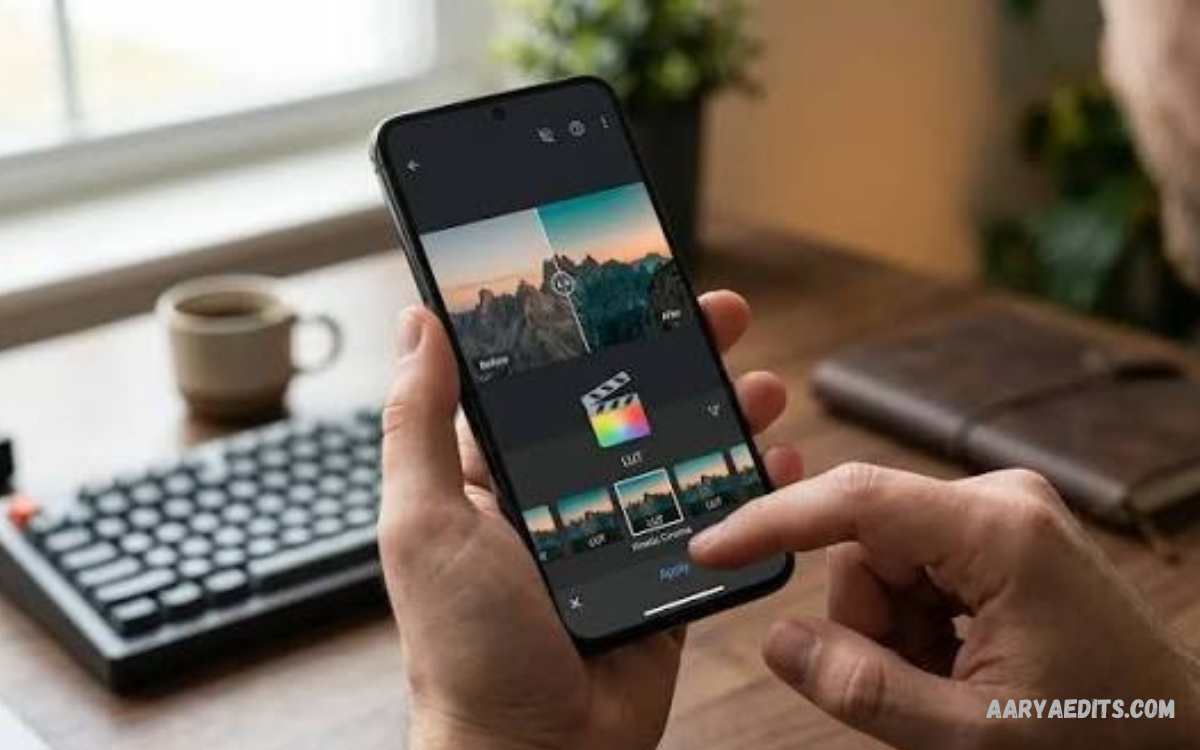
Snapseed mobile editor is a professional photo editing application developed by Google for users who want detailed control over their images without relying on complicated desktop software. The app combines essential editing controls, creative filters, selective adjustments, RAW processing, masking features, healing tools, and advanced color controls inside a mobile-friendly interface.
The biggest strength of the Snapseed mobile editor is its balance between simplicity and professional control. Beginners can improve photos using straightforward adjustments, while experienced photographers can fine-tune exposure, contrast, color, details, perspective, selective areas, and creative effects.
What Is Snapseed Mobile Editor?
Snapseed mobile editor is a photography application designed for detailed image enhancement on mobile devices. Instead of focusing only on automatic filters, Snapseed provides individual controls that let users decide how an image should look. Its toolset includes adjustments for exposure, color, sharpness, perspective, cropping, white balance, selective editing, healing, text, vignettes, and several artistic effects.
Snapseed is particularly useful for photographers, content creators, social media users, bloggers, students, and anyone who wants stronger control over mobile photography. A simple phone photograph can be corrected, enhanced, retouched, stylized, and prepared for sharing without requiring a desktop editing application. The combination of precision and accessibility makes the Snapseed mobile editor suitable for both quick edits and more advanced workflows.
Key Features of Snapseed Mobile Editor
One of the most important advantages of Snapseed mobile editor is its broad selection of editing tools. Users can work with basic adjustments such as brightness, contrast, saturation, ambience, highlights, shadows, and warmth before moving into more advanced controls. Tools such as Crop, Rotate, Perspective, White Balance, Brush, Selective, Healing, Vignette, and Text provide additional control over composition and visual presentation.
Creative editing is another major part of the application. Snapseed includes filters and effects such as Lens Blur, Glamour Glow, Tonal Contrast, HDR Scape, Drama, Grunge, Grainy Film, Vintage, Retrolux, Noir, Black and White, Frames, and Face. Newer Google Play information also highlights film simulations, Halation, Bloom, smart masking, batch editing, and a Snapseed Camera experience.
Tune Image for Better Exposure and Color
Tune Image is one of the most useful starting points in Snapseed mobile editor. It allows users to correct the overall appearance of a photograph before applying specialized effects. Exposure can be adjusted to make an image brighter or darker, while contrast can create stronger separation between light and dark areas. Saturation can enhance or reduce color intensity, depending on the desired result.
A practical workflow begins with small adjustments rather than extreme changes. Increasing exposure too aggressively can remove detail from bright areas, while excessive saturation can make colors appear unnatural. A balanced combination of exposure, contrast, ambience, highlights, shadows, and warmth usually produces a more natural result. This approach helps preserve the original character of the photograph while improving its visual quality.
Details Tool for Sharpness and Texture
The Details tool helps improve the definition of subjects and textures. Snapseed provides controls such as Sharpening and Structure, allowing users to increase perceived detail without relying exclusively on heavy filters. Google explains that Structure can enhance texture while preserving object edges, while the Sharpening control increases the apparent sharpness of image details.
The tool works especially well for architecture, landscapes, product photography, food photography, and photographs containing visible textures. However, moderation is important. Excessive sharpening can create harsh edges, while excessive structure can make skin and smooth surfaces appear unnatural. A professional editing workflow uses Details as a finishing adjustment rather than applying maximum intensity.
Selective Editing for Precise Adjustments
Selective editing is one of the defining features of Snapseed mobile editor. Instead of changing the entire photograph, users can target particular areas and adjust brightness, contrast, or saturation. The Selective tool uses control points to identify an area and lets users modify the affected region with touch gestures.
This feature becomes useful when a photograph contains uneven lighting. For example, a subject may appear slightly dark while the surrounding background already has sufficient brightness. Instead of increasing brightness across the entire image, a selective adjustment can target the subject. This creates a more controlled result and reduces the need for complicated manual selections.
Healing Tool for Removing Small Distractions
The Healing tool can help clean up photographs by removing minor unwanted elements. It is useful for distractions such as small marks, spots, or objects that interfere with an otherwise clean composition. Google includes Healing among Snapseed’s core tools, making it part of the standard mobile editing workflow.
Healing should be used carefully because removing large objects from complicated backgrounds can produce visible artifacts. Simple backgrounds usually provide better results than detailed textures. For professional-looking edits, users should zoom into the image, make small corrections, inspect the surrounding area, and undo changes that produce unnatural patterns.
RAW Editing in Snapseed Mobile Editor
RAW support gives Snapseed mobile editor additional value for photography enthusiasts. RAW files preserve more original sensor information than compressed JPEG images, giving editors greater flexibility when adjusting exposure, shadows, highlights, contrast, temperature, and tint. Snapseed’s RAW Develop workflow provides controls specifically designed for RAW editing.
On Android, Google states that Snapseed can edit DNG RAW files on devices that can capture DNG and on many recent devices. RAW compatibility can vary according to device and file type, so users should check compatibility when working with camera-generated RAW files.
White Balance for Natural Colors
White Balance is essential when photographs have unwanted color casts. Indoor lighting, cloudy weather, shade, and artificial lights can shift colors toward blue, yellow, green, or other tones. Snapseed’s White Balance tool helps users correct these shifts so that colors appear more natural.
A good editing process starts by identifying a neutral reference within the photograph. White, gray, and neutral surfaces can help determine whether the image has a noticeable color cast. Instead of simply increasing warmth or coolness until the photograph looks attractive, aim for a believable result first, then introduce creative color adjustments if needed.
Curves for Advanced Color Control
Curves provide greater control over brightness and tonal relationships. Experienced editors can use curves to brighten highlights, deepen shadows, create contrast, or produce a particular tonal style. Snapseed also provides color-related controls for more advanced adjustments, making it suitable for users who want more than basic filter-based editing.
Curves can appear complicated at first, but the basic concept is straightforward. The lower portion of a tonal curve affects darker areas, while the upper portion affects brighter areas. Small changes can create a subtle contrast boost, while stronger adjustments produce a more dramatic appearance. Beginners should experiment gradually and compare the result with the original image.
Black and White Photography
Snapseed mobile editor provides a dedicated Black and White tool for creating monochrome photographs. Users can select different black-and-white styles and adjust brightness, contrast, and grain. Google also documents the ability to use color-filter effects to influence how different colors translate into grayscale.
Black-and-white editing works especially well when color distracts from the subject, composition, texture, or lighting. Portraits, architecture, street photography, and dramatic landscapes can benefit from monochrome treatment. Strong results usually come from balancing contrast and tonal separation rather than simply applying a black-and-white preset.
Lens Blur for Background Separation
Lens Blur is designed to create a shallow-depth-of-field appearance by softening selected areas of a photograph. This effect can help direct attention toward a subject and create a more photographic presentation. Snapseed lists Lens Blur among its available creative filters.
For realistic results, the blur should support the existing depth of the photograph. Excessive blur can make an image appear artificial, especially when the transition between sharp and blurred areas is obvious. Applying a moderate effect and carefully positioning the focus region generally produces a more convincing result.
Glamour Glow for Portraits and Creative Images
Glamour Glow adds a soft appearance that can work well with portraits, lifestyle photography, and creative images. The effect can reduce the harshness of certain details while creating a smoother visual atmosphere. Snapseed includes Glamour Glow as part of its collection of creative filters.
The most professional approach is to use creative effects as enhancement rather than replacement. A photograph with good exposure, composition, and color balance should remain recognizable after the effect is applied. Subtle adjustments often produce a cleaner result than applying the strongest available setting.
Vintage and Film-Inspired Editing
Film-inspired editing has become popular among mobile photographers who want photographs with a distinctive visual identity. Snapseed provides Vintage, Retrolux, Grainy Film, and other creative options, while current Google Play information highlights realistic film simulations and additional effects such as Halation, Bloom, and Grain.
These effects can transform ordinary photographs into images with a recognizable style. Vintage effects work particularly well for travel photographs, street scenes, lifestyle content, and creative social media posts. Instead of applying identical filters to every image, users can adjust intensity and combine effects selectively to develop a consistent editing style.
Smart Masking and Targeted Editing
Smart masking provides a faster method for isolating subjects or backgrounds during targeted edits. Current Google Play information describes smart masking as a way to isolate subjects or backgrounds with a single tap, allowing users to make localized adjustments more efficiently.
Targeted editing is valuable because professional photo correction rarely requires identical adjustments across an entire frame. A sky, subject, foreground, and background can have very different lighting conditions. Selective controls and masking help maintain this distinction, allowing editors to improve individual areas without unnecessarily changing the entire photograph.
Non-Destructive Editing and Stacks
Non-destructive editing is an important advantage for anyone who frequently experiments with different styles. Snapseed allows users to undo changes, revert to the original image, and work with Stacks. Google explains that the editing workflow allows previously applied Tools and Filters to be adjusted even after saving.
Stacks also expand the masking workflow. A tool or filter can be applied to an image and then brushed onto selected areas instead of affecting the entire photograph. This approach creates more advanced editing possibilities while keeping the original image available for further adjustments.
Batch Editing for Multiple Photos
Batch editing can save considerable time when multiple photographs require similar adjustments. Current Google Play information lists Batch Edit as a Snapseed feature that allows favorite looks and edits to be applied across a group of photos.
This feature can be useful for event photography, travel albums, product collections, or social media content where photographs share similar lighting conditions. A consistent editing approach also helps maintain visual continuity across a collection. However, each image should still receive a final review because exposure and composition can vary from photograph to photograph.
Snapseed Mobile Editor for Social Media
Snapseed mobile editor can be useful for preparing photographs for social media platforms. Users can correct exposure, improve colors, remove distractions, enhance details, crop compositions, and add creative effects before publishing. The app provides enough control to create polished photographs without requiring a separate desktop workflow.
Social media photography benefits from clarity and consistency. A strong editing process should emphasize the subject, maintain believable colors, and avoid excessive effects. Cropping is equally important because different platforms and content formats can display photographs at different proportions. Preparing the composition before publishing can make the final image more effective.
Snapseed Mobile Editor for Portrait Photography
Portrait editing requires careful control because excessive processing can make skin, hair, eyes, and facial features appear unnatural. Snapseed provides selective adjustments, healing, details, tonal controls, and creative filters that can be combined for controlled portrait enhancement.
A practical portrait workflow begins with exposure and white balance, followed by selective corrections and minor cleanup. Details should be applied carefully, especially around skin. Creative effects such as Glamour Glow can then be used at moderate strength if a softer appearance is desired. The objective should remain natural-looking enhancement rather than excessive alteration.
Snapseed Mobile Editor for Landscape Photography
Landscape photographs often benefit from improvements in exposure, contrast, color, detail, and perspective. Snapseed’s Tune Image, Details, White Balance, Curves, Selective, and creative tools can help strengthen these elements. The application also provides Dehaze and other tools that can improve atmospheric scenes.
For landscapes, editing should preserve natural depth. Shadows can be lifted to recover visible detail, highlights can be controlled to prevent bright areas from becoming distracting, and saturation can be adjusted carefully. Selective editing can then emphasize important parts of the scene without making every area equally intense.
Snapseed Mobile Editor for Product Photography
Product photography requires accurate colors, clean backgrounds, sharp details, and consistent presentation. Snapseed can help correct exposure and white balance, remove small distractions, improve detail, and make controlled color adjustments. Selective editing is particularly useful when the product and background require different treatments.
Consistency becomes important when editing several product photographs. Similar exposure, white balance, crop ratios, and background appearance create a more professional catalog. Batch editing can speed up repetitive adjustments, followed by individual corrections where necessary.
How to Edit a Photo in Snapseed
Start by opening an image and entering the Tools section. A reliable workflow usually begins with basic corrections such as exposure, contrast, white balance, and color. After the foundation is established, use Details, Crop, Perspective, Selective, Healing, or other specialized tools according to the photograph’s needs. Google recommends using Tools and Filters as part of a structured editing workflow, with the order of applied edits affecting the final result.
After completing the main corrections, compare the edited image with the original. Snapseed supports before-and-after comparison, allowing users to check whether the changes actually improve the photograph. If an effect becomes distracting, reduce its intensity or remove it. The final stage should focus on balance, detail, color accuracy, and composition rather than adding more effects.
Best Snapseed Editing Workflow for Beginners
Beginners should avoid using every available tool on a single image. Start with Crop and Straighten, then adjust exposure and white balance. After that, refine contrast, shadows, highlights, and color. Details can provide a final improvement, while Selective or Healing can address specific problems.
Once the basic workflow becomes familiar, experiment with creative filters and advanced tools. Try Black and White, Vintage, Lens Blur, Grain, Tonal Contrast, or other effects while comparing each version with the original. Learning what each tool does is more valuable than memorizing fixed settings because every photograph has different lighting and composition.
Tips for Professional Snapseed Editing
Professional-looking results depend more on controlled adjustments than maximum settings. Avoid excessive saturation, sharpening, structure, HDR effects, or blur. Pay attention to skin tones, highlight detail, shadow detail, and the overall relationship between colors. A successful edit should improve the photograph without making the editing process more noticeable than the subject.
Another useful habit is editing at an appropriate zoom level. Examine the full image to judge composition and overall balance, then zoom in to inspect details and retouching. Snapseed supports zooming and detailed inspection during editing. This combination helps prevent small editing mistakes from becoming visible in the final image.
Read Also: Snapseed Latest Version: Complete Guide to Features, Tools, Editing & Updates
Advantages of Snapseed Mobile Editor
One major advantage of Snapseed mobile editor is its combination of professional features and accessibility. The current Google Play listing describes more than 30 tools and filters, RAW support, smart masking, batch editing, non-destructive editing, and a workflow without subscriptions, ads, or watermarks.
Another advantage is editing flexibility. Users can perform simple corrections in seconds or create detailed multi-stage workflows using selective adjustments, Stacks, masking, RAW development, and creative filters. This makes Snapseed suitable for casual photographers and users who want to develop more advanced mobile editing skills.
Limitations to Consider
Snapseed is powerful, but it is not designed to replace every type of professional desktop editing workflow. Mobile editing can become less comfortable when working with very large projects, complex image collections, or highly detailed professional production requirements. Screen size can also limit precision compared with a large monitor.
RAW compatibility also depends on device and file type. Google’s documentation specifies different compatibility conditions for Android and iOS, so photographers working with camera RAW files should verify support for their particular workflow. These limitations do not reduce Snapseed’s value for everyday mobile photography, but they are important when planning a more advanced workflow.
Is Snapseed Mobile Editor Worth Using?
For users searching for a powerful mobile photo editor, Snapseed remains a strong option. Its combination of detailed adjustments, creative filters, selective editing, RAW support, masking, batch editing, and non-destructive workflows provides substantial control from a smartphone or tablet. Current Google Play information continues to position it as a complete professional photo editor from Google.
The application is especially valuable for users who want manual control without paying for a subscription-based editing workflow. Beginners can start with basic corrections and gradually learn advanced tools, while experienced photographers can build more sophisticated editing processes around RAW files, selective adjustments, curves, masking, and Stacks.
Frequently Asked Questions
What Is Snapseed Mobile Editor?
Snapseed mobile editor is a professional photo editing application designed for smartphones and tablets. It provides tools for exposure, color, sharpness, cropping, healing, selective adjustments, filters, RAW editing, and creative effects.
Is Snapseed Mobile Editor Free?
Yes, Snapseed is available as a free photo editing application. Users can access its core editing tools without requiring a subscription-based plan, making it a popular option for mobile photography.
Can Snapseed Edit RAW Photos?
Yes, Snapseed supports RAW photo editing on compatible devices and file formats. RAW editing provides greater flexibility for adjusting exposure, highlights, shadows, white balance, contrast, and other image properties.
Is Snapseed Good for Beginners?
Yes, Snapseed is suitable for beginners because its interface provides straightforward editing controls. New users can start with basic tools such as Tune Image, Crop, Rotate, and Details before learning advanced features.
Does Snapseed Have Professional Editing Tools?
Yes, Snapseed includes advanced editing features such as Curves, Selective adjustments, Healing, RAW Develop, masking, Stacks, and detailed color controls. These features provide greater control than basic filter-focused photo editors.
Can Snapseed Remove Objects From Photos?
Snapseed includes a Healing tool that can remove or correct small unwanted elements in photographs. Results depend on the size and complexity of the object and the surrounding background.
Can Snapseed Edit Portrait Photos?
Yes, Snapseed can be used for portrait editing. Exposure, white balance, selective adjustments, healing, details, and creative filters can help improve portrait photographs while maintaining a natural appearance.
Can Snapseed Improve Landscape Photos?
Yes, Snapseed works well for landscape photography. Tools such as Tune Image, Details, Curves, White Balance, Selective, and Perspective can improve lighting, color, detail, and composition.
Does Snapseed Support Selective Editing?
Yes, selective editing allows users to adjust specific areas instead of applying changes across the entire photograph. This can be useful for correcting localized brightness, contrast, and saturation.
Does Snapseed Add a Watermark?
Snapseed does not normally add a watermark to exported photographs. This allows users to create and share edited images without an automatically added Snapseed logo.
Can Snapseed Edit Multiple Photos?
Snapseed includes batch editing capabilities that can help apply saved edits or looks across multiple photographs. Individual images can then receive additional adjustments when required.
Is Snapseed Better Than Basic Photo Editors?
Snapseed can be a stronger choice for users who want detailed manual controls rather than simple filters. Its combination of advanced adjustments, RAW support, selective editing, masking, and creative effects makes it suitable for more demanding mobile photography workflows.
Does Snapseed Work Without a Subscription?
Snapseed is designed around a free editing experience rather than a recurring subscription model. Users can access its editing features without depending on a premium monthly plan.
What Is the Best Snapseed Editing Tool?
There is no single best tool for every photograph. Tune Image is useful for general corrections, Selective works well for localized adjustments, Healing helps remove small distractions, Details improves definition, and Curves provides advanced tonal control.
Is Snapseed Good for Social Media Photos?
Yes, Snapseed can prepare photographs for social media by improving exposure, colors, composition, sharpness, and unwanted distractions. Its cropping and creative tools also make it useful for creating platform-ready images.
Can Snapseed Replace Professional Photo Editing Software?
Snapseed can handle many everyday and advanced mobile editing tasks, but it may not replace full desktop software for complex professional workflows. Its biggest advantage is providing substantial editing control directly on mobile devices.
Conclusion
Snapseed mobile editor provides a versatile approach to mobile photography by combining simple controls with advanced editing capabilities. Its toolset covers everyday corrections, creative styling, selective enhancements, RAW development, detailed retouching, and non-destructive editing. Features such as Selective, Healing, Details, Curves, White Balance, Lens Blur, Black and White, Stacks, and RAW Develop give users multiple ways to create polished photographs.
For anyone building a mobile photography workflow, Snapseed offers a strong combination of control, flexibility, and ease of use. The best results come from making small, purposeful adjustments, comparing edits with the original, and using creative effects only when they support the photograph.
