

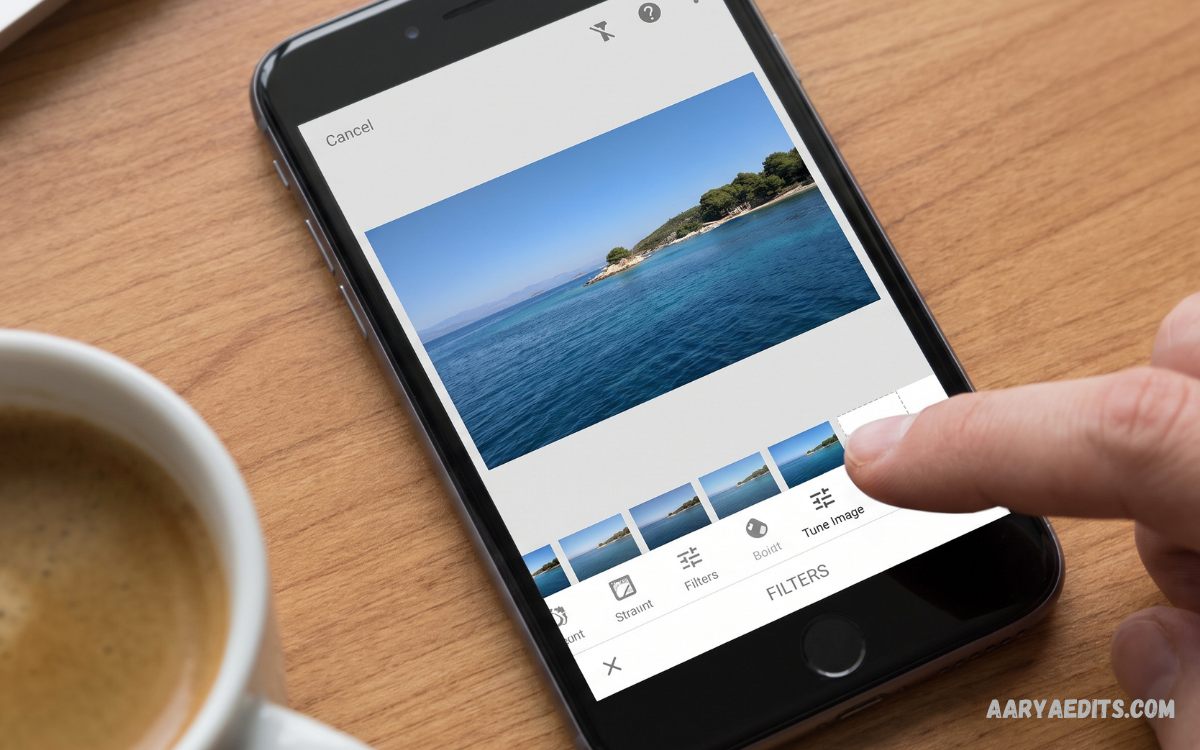
Snapseed editing has become a popular way to transform ordinary mobile photos into polished, professional-looking images without requiring complicated desktop software. Developed by Google, Snapseed provides powerful editing tools designed for beginners, creators, photographers, bloggers, and social media users.
Modern mobile photography often produces high-quality images, but a good camera capture does not always look perfect immediately. Lighting conditions, unwanted objects, dull colors, weak contrast, and distracting backgrounds can reduce the impact of an otherwise excellent photograph.
What Is Snapseed Editing?
Snapseed editing refers to the process of improving, correcting, enhancing, or creatively transforming photographs through the Snapseed mobile application. Instead of relying only on preset filters, users can manually control individual aspects of an image.
One major advantage of Snapseed editing is flexibility. A user can make a quick improvement with a simple adjustment or spend more time creating a detailed professional composition. Tools such as Tune Image, Details, Curves, White Balance, Selective, Healing, Lens Blur, Perspective, and Double Exposure provide different methods for achieving specific results.
Why Is Snapseed Editing Popular?
The popularity of Snapseed editing comes from its combination of accessibility and advanced functionality. Many photo-editing applications focus heavily on filters, subscriptions, or automated effects, while Snapseed provides detailed manual controls that encourage users to understand how each adjustment changes an image. This makes it suitable for both casual photography and more serious mobile editing.
Another important benefit is the ability to edit photographs without needing advanced desktop software. Smartphone photography has become an important part of everyday content creation, and Snapseed gives users an efficient editing environment directly on their mobile devices.
Getting Started With Snapseed Editing
The first step in Snapseed editing is choosing a photograph with enough quality and detail for the intended result. Open the image inside Snapseed and examine the original exposure, colors, composition, highlights, shadows, and distracting elements.
A professional workflow usually starts with basic corrections before moving toward creative adjustments. Fix exposure, contrast, white balance, and composition first. Once the photograph has a balanced foundation, you can add selective adjustments, texture, color grading, or creative effects.
Tune Image for Basic Corrections
Tune Image is one of the most useful tools for beginners because it provides several fundamental adjustments in one place. Brightness can improve overall exposure, while contrast controls the difference between darker and lighter areas. Ambiance can enhance tonal balance, highlights can reduce overly bright areas, and shadows can reveal information hidden in darker regions.
The key to effective Snapseed editing is moderation. Increasing every slider dramatically can make a photograph look artificial and reduce important details. Small adjustments often produce better results than extreme changes. Compare the edited photograph with the original regularly to ensure the image is actually improving.
Adjusting Brightness
Brightness is one of the first settings many users consider when editing a photograph. An underexposed image may appear dark and lack visible detail, while excessive brightness can make the photograph look washed out. Snapseed allows users to adjust overall brightness until the image reaches a more balanced appearance.
When changing brightness, pay attention to important subjects rather than judging only the background. A portrait may require enough brightness to reveal facial details without making the sky or surrounding highlights excessively bright. Balanced exposure creates a stronger foundation for additional editing.
Improving Contrast
Contrast determines how strongly light and dark areas differ from one another. Increasing contrast can make an image appear more dramatic, while reducing contrast can create a softer appearance. The appropriate setting depends on the photograph and the desired style.
Landscape photographs often benefit from controlled contrast because it can make textures and shapes more noticeable. Portraits usually require greater care because excessive contrast may produce harsh-looking skin tones and shadows. Professional Snapseed editing focuses on maintaining detail while creating visual depth.
Using Ambiance Effectively
Ambiance is another useful Snapseed adjustment for improving tonal balance. It can bring attention to darker regions while influencing the overall visual atmosphere of a photograph. This can be especially useful when an image contains uneven lighting.
However, excessive ambiance can produce an unnatural appearance. A photograph may begin to look overly processed when too much detail is recovered from shadows. Apply the adjustment gradually and compare the result with the original image before continuing.
Highlights and Shadows
Highlights represent brighter areas, while shadows represent darker areas. Controlling these elements can significantly improve photographs captured under difficult lighting conditions. Reducing highlights can help recover detail in bright skies, windows, or illuminated surfaces.
Increasing shadows can reveal details in darker portions of a photograph. However, excessive shadow recovery can introduce a flat appearance. The best Snapseed editing workflow balances highlights and shadows rather than attempting to brighten every part of the image equally.
White Balance for Natural Colors
White Balance helps correct unwanted color casts caused by lighting conditions. Indoor lighting, cloudy weather, fluorescent lights, and other environments can make photographs appear unusually warm or cool. Snapseed provides controls for adjusting temperature and tint.
Correct white balance is especially important for portraits, food photography, products, and professional content. Natural colors generally make an image appear more realistic and polished. Once white balance is corrected, additional color adjustments become easier and more predictable.
Using Details for Sharpness
The Details tool can enhance structure and sharpness within a photograph. Structure can emphasize texture, while sharpening can improve the perception of fine details. These adjustments can make landscapes, architecture, objects, and product photographs appear more defined.
Over-sharpening is one of the common mistakes in mobile photo editing. Excessive sharpening can create unnatural edges and make images appear harsh. Apply Details carefully, particularly when working with portraits or photographs containing smooth surfaces.
Curves for Advanced Snapseed Editing
Curves provide greater control over brightness and contrast than basic sliders. Users can manipulate specific tonal ranges by creating points along the curve. This allows detailed control over shadows, midtones, and highlights.
Beginners may initially find Curves confusing, but understanding the basic concept can significantly improve Snapseed editing skills. A subtle S-curve can create additional contrast, while other curve adjustments can produce softer or more cinematic results. Experiment gradually and observe how each point affects the photograph.
Selective Editing
Selective editing allows users to modify specific areas instead of changing the entire photograph. This is particularly valuable when one part of an image requires correction while the rest already looks balanced. Users can place a control point over an area and adjust brightness, contrast, saturation, or structure.
Selective adjustments can create a more professional result because real photographs often contain uneven lighting. Instead of applying a global adjustment that affects everything, targeted editing gives greater precision. This technique is useful for portraits, landscapes, products, architecture, and social media photography.
Healing Tool for Removing Distractions
The Healing tool can help remove small unwanted elements from photographs. It is useful for eliminating minor distractions such as small objects, spots, or visual imperfections. The tool works by blending surrounding image information into the selected area.
Healing should be used carefully, especially on detailed backgrounds. Large or complicated objects may require more precise editing to avoid visible inconsistencies. For best results, zoom into the photograph and work on small sections rather than attempting large corrections in one action.
Portrait Editing With Snapseed
Portrait editing requires a balanced approach because natural skin texture and facial details should remain believable. Basic adjustments such as exposure, white balance, contrast, and selective brightness can improve a portrait without making it appear overly processed.
Snapseed editing can also be used to draw attention toward the subject. Selective adjustments can brighten the face or important areas while keeping the surrounding environment slightly less prominent. The goal should be enhancing the photograph rather than completely changing the subject’s natural appearance.
Landscape Photo Editing
Landscape photographs often contain skies, mountains, buildings, water, vegetation, and other detailed elements. Snapseed provides several tools that can help emphasize these characteristics. Tune Image can improve overall exposure, while Details can enhance textures and Curves can add controlled contrast.
Selective adjustments can also be useful for landscape photography. A darker sky may require different treatment from the foreground, especially when the original photograph contains challenging lighting. Carefully balancing different regions can create a more visually engaging landscape without making the image look unrealistic.
Food Photography Editing
Food photography depends heavily on color, brightness, texture, and composition. Snapseed editing can help make food images appear clearer and more appealing by correcting exposure and improving controlled color intensity.
Avoid excessive saturation because it can make food colors appear unnatural. Instead, focus on balanced white balance, moderate contrast, and selective enhancements. Details can also be useful for emphasizing textures such as crispy surfaces, fresh ingredients, or layered dishes.
Product Photography With Snapseed
Small businesses and creators can use Snapseed to improve product photographs before publishing them online. Clean exposure, accurate colors, strong contrast, and distraction-free backgrounds can make products easier to understand visually.
White balance is particularly important for product photography because incorrect color can make an item appear different from its real appearance. Use selective adjustments when specific areas need improvement, and avoid heavy filters when accurate product representation matters.
Snapseed Editing for Social Media
Social media photographs often need to look clear and visually consistent across different posts. Snapseed can help users create a recognizable editing style by using similar brightness, contrast, color, and sharpness settings across their images.
Instead of applying a completely different filter to every photograph, develop a consistent editing approach. A consistent visual style can make a collection of photographs appear more organized and professional. Save or remember successful adjustment combinations so future edits can follow a similar direction.
Creating Cinematic Effects
Cinematic editing generally relies on controlled contrast, carefully balanced colors, deeper shadows, and a distinctive tonal atmosphere. Snapseed’s Curves, Tune Image, White Balance, and selective tools can help create this style.
A cinematic effect does not require extreme color changes. Subtle adjustments often produce a more convincing result. Reduce distracting colors, control highlights, deepen selected shadows, and maintain enough detail to keep the photograph visually natural.
Black-and-White Snapseed Editing
Black-and-white photography removes color and places greater emphasis on light, shadow, shape, texture, and composition. Snapseed includes tools that make monochrome editing accessible even for beginners.
When converting an image to black and white, examine how different objects respond to tonal changes. Strong contrast can create a dramatic appearance, while softer tones can produce a calmer visual style. Details and Curves can further refine the final result.
Double Exposure Effects
Double Exposure combines two photographs to create a layered composition. This feature can produce artistic results when images are selected carefully. Portraits combined with nature, architecture, textures, or city scenes can create interesting visual compositions.
Successful Double Exposure editing depends on choosing photographs with compatible shapes and lighting. Randomly combining two images may produce a confusing result. Consider the subject, background, negative space, and tonal balance before applying the effect.
Lens Blur for Creative Depth
Lens Blur can create an effect similar to shallow depth of field by softening selected areas of an image. This can help draw attention toward a central subject while reducing background distractions.
Use Lens Blur carefully because excessive blur can make the image appear artificial. The transition between sharp and blurred areas should feel believable. Subtle blur usually produces a more convincing result than extremely strong background separation.
Perspective Correction
Perspective problems can occur when photographing buildings, signs, interiors, or objects from unusual angles. Snapseed’s Perspective tool can help correct certain distortions and improve the visual alignment of an image.
Perspective correction should be performed before final cropping because changing the geometry of a photograph can alter its edges. After applying the correction, review the entire composition and crop unwanted areas if necessary.
Cropping and Composition
Cropping is more than simply removing unwanted edges. It can improve the composition and direct attention toward the main subject. Snapseed provides different aspect ratios that can help prepare images for various publishing formats.
When cropping, consider the subject’s position, surrounding space, and visual balance. Avoid cutting important details unnecessarily. A carefully selected crop can sometimes improve a photograph more than heavy color editing.
Read Also: Snapseed Editor: Complete Guide to Professional Photo Editing
Rotation and Straightening
A slightly tilted horizon can make an otherwise strong photograph appear unbalanced. Snapseed’s rotation tools can help straighten landscapes, buildings, tables, and other elements where alignment matters.
Always inspect horizontal and vertical lines after making adjustments. Straightening is especially important for architecture and landscape photography because even a small tilt can become noticeable.
Vignette Effects
Vignettes darken or alter the outer portions of an image while emphasizing the central area. Snapseed allows users to create controlled vignette effects that can help direct attention toward a subject.
A subtle vignette can support a composition without becoming obvious. Strong vignettes may make photographs appear dated or heavily processed. Adjust the center position and intensity according to the subject rather than applying identical settings to every photograph.
Snapseed Editing Workflow
A reliable workflow can make photo editing faster and more consistent. Start by opening the original image and evaluating its main weaknesses. Next, correct composition and perspective, followed by exposure, white balance, contrast, highlights, and shadows. After basic corrections, move toward selective adjustments and creative effects.
Finally, inspect the complete photograph at normal viewing size. Zoomed-in editing can make small details appear more important than they actually are. Compare the final version with the original and ask whether the changes improve the photograph’s purpose, clarity, and visual balance.
Common Snapseed Editing Mistakes
One of the most common mistakes is using too much saturation. Strong saturation may initially look impressive, but it can quickly make photographs appear unrealistic. Another mistake is excessive sharpening, which can create harsh edges and distracting textures.
Applying too many filters is another common issue. Each adjustment should have a purpose. Professional editing generally involves improving specific visual characteristics rather than adding effects simply because they are available.
How to Make Snapseed Editing Look Professional
Professional-looking editing is usually based on consistency, balance, and restraint. Start with a high-quality original photograph and make corrections that support the subject. Avoid changing every available setting because excessive editing can reduce image quality.
Pay attention to lighting and color relationships. Shadows should retain useful information, highlights should not dominate the composition, and colors should work together naturally. With practice, users can develop a recognizable editing style while maintaining realistic photographs.
Snapseed Editing Tips for Beginners
Beginners should learn one tool at a time instead of attempting to understand every feature immediately. Start with Tune Image, Details, White Balance, Crop, and Selective adjustments. Once these controls become familiar, move toward Curves, Healing, Perspective, Lens Blur, and Double Exposure.
Always keep the original photograph available for comparison. Editing can gradually become excessive when users repeatedly adjust the same image without checking the starting point. Comparing before and after versions helps identify whether each change genuinely improves the result.
How to Develop an Editing Style
An editing style develops through repeated experimentation rather than a single preset. Study the types of photographs you enjoy and identify common characteristics such as warm or cool colors, soft or strong contrast, bright or dark shadows, and natural or dramatic tones.
Then apply those principles consistently to your own images. Avoid copying another creator’s style exactly. Use inspiration as a starting point and gradually develop adjustments that match your own photography, subjects, and creative goals.
Snapseed Editing for Beginners vs Advanced Users
Beginners can achieve impressive improvements using only a few basic tools. Tune Image, Crop, White Balance, Details, and Selective adjustments are enough for many everyday photographs. The most important skill is understanding why an adjustment is being made.
Advanced users can combine multiple tools to create more detailed results. Curves, selective editing, healing, perspective correction, double exposure, and creative effects can be incorporated into sophisticated workflows. Advanced editing is not necessarily about using more tools; it is about using the right tools with greater precision.
Frequently Asked Questions
What is Snapseed editing?
Snapseed editing is the process of enhancing and transforming photos using Snapseed’s collection of professional editing tools. It allows users to adjust brightness, contrast, colors, sharpness, perspective, and other visual elements.
Is Snapseed good for professional photo editing?
Yes, Snapseed is suitable for professional-level mobile photo editing. It offers advanced tools such as Curves, Selective adjustments, Healing, Perspective, Double Exposure, and White Balance.
Is Snapseed editing suitable for beginners?
Yes, beginners can easily learn Snapseed editing by starting with basic tools such as Tune Image, Crop, Details, and White Balance. More advanced features can be learned gradually through practice.
Can Snapseed improve photo quality?
Snapseed can improve the appearance of a photograph by correcting exposure, enhancing details, adjusting colors, reducing distractions, and improving composition. The final result depends on the quality of the original image and editing choices.
How can I make photos look professional in Snapseed?
Start with exposure and white balance corrections, then adjust contrast, highlights, shadows, and details. Use selective editing for specific areas and avoid excessive filters, saturation, and sharpening.
Can Snapseed remove unwanted objects?
Yes, Snapseed includes a Healing tool that can remove certain small unwanted objects, spots, and distractions from photographs. Results depend on the size and complexity of the object and its surrounding background.
Can Snapseed edit RAW photos?
Snapseed supports RAW photo editing on compatible mobile devices. RAW files provide additional image information, allowing greater flexibility when adjusting exposure, colors, shadows, and highlights.
Is Snapseed useful for social media photos?
Yes, Snapseed is useful for preparing photographs for social media. Users can improve colors, composition, brightness, sharpness, and overall visual consistency before publishing images.
Can Snapseed create cinematic photo effects?
Yes, Snapseed can create cinematic-looking photographs by combining tools such as Curves, Tune Image, White Balance, Selective adjustments, and Vignette. Subtle adjustments usually produce more natural results.
How can I learn Snapseed editing quickly?
The best approach is to practice one tool at a time using different types of photographs. Start with basic corrections, then learn selective editing, Curves, Healing, Perspective, and creative effects as your skills improve.
Conclusion
Snapseed editing offers a powerful way to improve photographs directly from a mobile device. Its combination of basic corrections, selective adjustments, creative tools, and advanced controls makes it suitable for a wide range of photography styles.
The most effective approach is to focus on balance rather than excessive effects. Good Snapseed editing should improve the strengths of an image, correct visual weaknesses, and preserve important details. With regular practice, careful observation, and a consistent workflow, mobile photographers can turn ordinary captures into polished photographs ready for websites, portfolios, blogs, and social media.
