

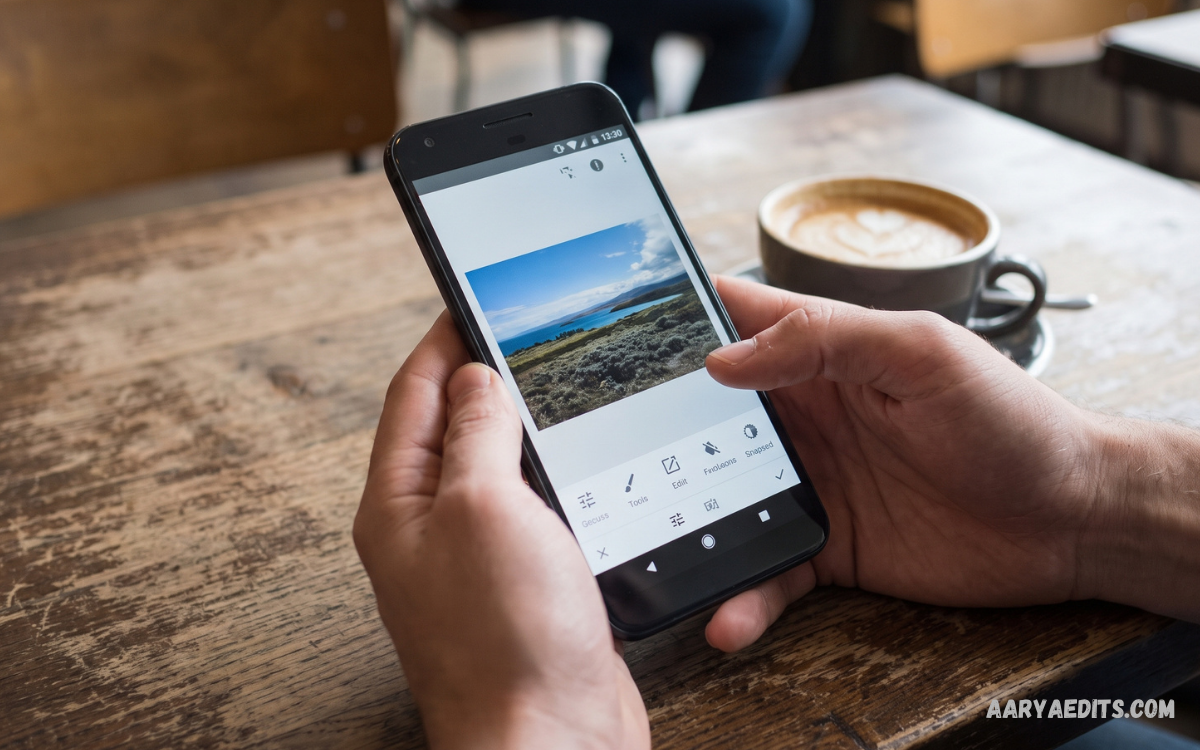
Snapseed Android is a powerful photo editing application designed for users who want professional editing tools directly on a smartphone. Developed by Google, Snapseed combines advanced photo adjustments with a simple interface, making detailed editing accessible for beginners, content creators, photographers, bloggers, and social media users.
Unlike basic photo editors that focus mainly on filters, Snapseed Android provides precise controls for brightness, contrast, saturation, exposure, white balance, curves, details, perspective, and selective adjustments. Its combination of professional features and straightforward controls makes Snapseed a popular choice for improving everyday photographs without requiring complicated desktop editing software.
What Is Snapseed Android?
Snapseed Android is a mobile photo editing app created for Android smartphones and tablets. The application provides a wide collection of editing tools that allow users to correct photographs, enhance colors, remove distractions, create artistic effects, and apply professional-looking adjustments.
The app supports both quick editing and detailed image correction. Users can select a photograph from their device, choose an editing tool, adjust specific settings, and save the finished image. This workflow makes Snapseed Android suitable for casual photography as well as more advanced mobile photo editing.
Why Does Snapseed Android Stand Out?
One major advantage of Snapseed Android is the level of control available through its editing tools. Instead of applying a single filter to an entire image, users can fine-tune individual characteristics and create a result that matches their preferred visual style.
Snapseed also provides selective editing features that can target specific areas of a photograph. This capability is useful when one part of an image needs brighter exposure, stronger contrast, improved color, or additional detail while the rest of the photograph should remain unchanged.
Snapseed Android Interface
Snapseed Android uses a clean interface designed around simple navigation. After opening an image, users can access editing tools, filters, adjustments, and export options without navigating through complicated menus.
The interface separates tools from styles, helping users understand the difference between manual adjustments and ready-made effects. Beginners can start with automatic improvements and filters, while experienced editors can explore advanced controls for more precise results.
Snapseed Android Editing Tools
Snapseed Android includes numerous editing tools designed for different photography requirements. These tools cover basic corrections, advanced adjustments, creative effects, portrait improvements, perspective correction, and localized editing.
Understanding each tool can help users build a consistent editing workflow. Instead of applying every available effect, effective editing usually involves selecting only the adjustments needed to improve the original photograph.
Tune Image
Tune Image is one of the most useful tools inside Snapseed Android. It provides controls for brightness, contrast, saturation, ambience, highlights, shadows, and warmth.
These controls can transform the overall appearance of a photograph. Brightness can correct an image that looks too dark, contrast can improve separation between tones, saturation can strengthen colors, and highlights or shadows can help recover visual balance.
Details Tool
The Details tool helps improve perceived sharpness and texture. It generally provides controls associated with structure and sharpening, allowing users to make photographs appear more defined.
Careful use of sharpening is important because excessive adjustments can make an image look unnatural. A moderate approach can produce clearer details while maintaining a realistic appearance.
Curves
Curves is an advanced editing feature available in Snapseed Android. It allows users to modify tonal values through a curve interface, giving greater control than basic brightness and contrast adjustments.
Curves can be useful for creating a softer appearance, increasing contrast, adjusting highlights, controlling shadows, or developing a specific visual style. Beginners may need some practice before using this tool comfortably, but learning curves can significantly improve editing skills.
White Balance
White Balance helps correct unwanted color casts caused by lighting conditions. Indoor lighting, outdoor shade, artificial lights, and different camera settings can cause photographs to appear too warm or too cool.
Snapseed Android allows users to adjust temperature and tint to achieve more natural colors. Correct white balance can make skin tones, landscapes, buildings, food, and everyday photographs look more balanced.
Crop Tool
The Crop tool allows users to change the composition and dimensions of an image. Users can remove unnecessary areas, improve framing, or prepare photographs for different publishing formats.
Cropping can also strengthen visual composition. Removing distracting edges and placing the main subject more effectively within the frame can make a photograph appear cleaner without requiring complex editing.
Rotate and Perspective
Snapseed Android provides tools for correcting image orientation and perspective. Rotate can fix photographs that appear tilted, while Perspective can help correct visual distortion.
Perspective correction is especially useful for photographs of buildings, documents, architecture, and other subjects containing strong vertical or horizontal lines. Proper correction can create a more balanced and professional appearance.
Healing Tool
The Healing tool can help remove small unwanted elements from photographs. Users can apply it to selected areas where distractions need to be reduced.
This feature can be useful for cleaning up minor visual distractions, such as small marks or unwanted objects in suitable photographs. Results can vary depending on image complexity, so careful editing and zooming can improve accuracy.
Selective Editing
Selective editing is one of the features that makes Snapseed Android useful for advanced mobile photography. Instead of modifying an entire photograph, users can target specific areas and adjust selected characteristics.
For example, a photographer may want to brighten a subject while keeping the background unchanged. Selective editing provides a practical way to make localized corrections without repeatedly editing the complete image.
Brush Tool
The Brush tool provides another method for localized adjustments. Users can apply certain corrections to chosen areas instead of changing the entire photograph.
Brush-based editing can be useful when an image requires different exposure or color treatment across separate areas. Working with a zoomed-in view can make detailed adjustments easier and more controlled.
HDR Scape
HDR Scape is a creative feature designed to produce a stronger high-dynamic-range appearance. It can increase perceived detail and create a more dramatic visual result.
This effect can work well with landscapes and certain architectural photographs. However, strong HDR effects can make images appear artificial, so moderate settings often provide a more natural outcome.
Portrait Editing
Snapseed Android includes portrait-focused editing features that can help enhance photographs featuring people. Users can make controlled adjustments to facial lighting and other portrait characteristics.
Portrait editing should maintain natural-looking results. Excessive smoothing, sharpening, or color adjustments can reduce realistic detail, while subtle corrections can improve overall presentation.
Lens Blur
Lens Blur creates a depth-style effect by emphasizing a selected area while reducing visual focus around it. This can simulate aspects of shallow depth of field.
The effect can be useful for portraits, products, food photography, and creative compositions. Positioning and intensity matter because realistic depth effects depend on the subject and background relationship.
Vignette
Vignette can darken or modify the outer areas of an image while keeping attention closer to the center. It can help create a focused composition or a particular photographic mood.
A subtle vignette can guide attention without becoming obvious. Strong settings may create a stylized appearance, which can work for creative photography but may not suit every image.
Double Exposure
Double Exposure allows users to combine visual elements from multiple images. This tool can create artistic compositions by blending photographs together.
Creative editing with Double Exposure can produce posters, conceptual artwork, atmospheric backgrounds, and experimental photography. Results depend heavily on image selection, blending, positioning, and opacity.
Text and Creative Editing
Snapseed Android also provides options for adding text and applying creative styles to photographs. Text can be useful for simple visual content, announcements, social media graphics, and personal projects.
Creative tools can help turn ordinary photographs into more distinctive designs. Combining typography with appropriate image composition can produce clean visual content without requiring separate design software for basic projects.
RAW Photo Editing
RAW support is an important feature for photographers who want greater editing flexibility. RAW photographs generally contain more image information than standard compressed formats, providing additional possibilities for exposure and tonal adjustments.
Snapseed Android can be useful for photographers who capture RAW files on compatible devices. RAW editing allows greater control during post-processing, especially when photographs require significant corrections.
Snapseed Android for Social Media
Social media creators can use Snapseed Android to prepare photographs before publishing them. Adjustments can improve brightness, color balance, composition, and overall visual consistency.
A consistent editing style can make a social media feed appear more organized. Rather than applying the same heavy filter to every image, creators can use manual adjustments to maintain similar brightness, color, and contrast across different photographs.
Snapseed Android for Instagram Photos
Snapseed Android can help prepare photographs for Instagram-style visual content. Users can crop images, adjust colors, correct exposure, enhance details, and apply creative effects before exporting the final version.
The editing process can be adapted to different content types, including portraits, travel photography, food images, products, architecture, and lifestyle photographs. Choosing adjustments based on the original image generally produces better results than using identical settings everywhere.
Snapseed Android for Photography Beginners
Beginners can start with simple tools such as Tune Image, Crop, Rotate, Details, and White Balance. These features provide a strong introduction to fundamental photo editing concepts.
As users become more comfortable, they can move toward Curves, Selective editing, Brush, Perspective, Double Exposure, and other advanced tools. Learning one feature at a time makes the editing process easier and reduces unnecessary adjustments.
Snapseed Android for Professional Users
Professional photographers can use Snapseed Android for quick edits when desktop software is unavailable. Its mobile workflow can be useful for reviewing and improving images while traveling or working away from a computer.
Although mobile editing cannot replace every professional desktop workflow, Snapseed can provide many practical controls in a portable environment. Photographers can make corrections, experiment with creative treatments, and prepare images for digital publishing.
Best Snapseed Android Editing Workflow
A good Snapseed Android workflow begins with selecting a high-quality original photograph. Starting with a properly exposed image gives editing tools more useful information to work with.
After importing the image, users can correct composition with Crop and Perspective, adjust overall exposure and color through Tune Image, refine details, apply selective corrections, and then use creative effects when appropriate. Reviewing the final image before export helps prevent excessive editing.
How to Make Photos Look Natural
Natural editing depends on maintaining realistic colors, balanced exposure, and appropriate detail. Editing should improve the photograph rather than completely change its visual identity unless a specific artistic effect is intended.
One useful approach is to make small adjustments and compare the result with the original. If an effect immediately becomes the most noticeable part of the photograph, reducing its intensity can often create a more polished result.
Snapseed Android Filters
Snapseed Android includes various styles and filters that can quickly change the mood of a photograph. Filters can save time when users want an immediate creative appearance.
However, manual adjustments often provide greater control. Users can combine a suitable style with additional corrections instead of relying entirely on a preset look.
Editing Portraits in Snapseed Android
Portrait editing requires careful attention to exposure, skin tones, background distractions, and overall sharpness. Snapseed Android provides several tools that can help refine these areas without requiring complicated software.
A strong portrait edit usually begins with balanced exposure and white balance. After basic correction, selective adjustments can improve the subject while preserving important background details.
Editing Landscape Photos
Landscape photographs can benefit from adjustments to contrast, saturation, highlights, shadows, structure, and perspective. Snapseed Android provides tools that allow users to enhance these characteristics individually.
When editing landscapes, preserving natural colors is important. Increasing saturation or structure too aggressively can produce an unrealistic appearance, while controlled adjustments can make the scene more visually engaging.
Read Also: Snapseed Photo Editing: Complete Guide to Professional Mobile Photo Editing
Editing Product Photos
Product photography often requires accurate colors, clean composition, and strong detail. Snapseed Android can help improve these characteristics through cropping, white balance, brightness, contrast, and selective corrections.
Accurate color is particularly important when an image represents a real product. Editing should enhance visibility without changing the product’s actual appearance.
Editing Food Photography
Food photographs can benefit from balanced warmth, contrast, saturation, and selective brightness. Snapseed Android can help emphasize important visual details while keeping the photograph natural.
Careful cropping can also improve food photography. Removing unnecessary background areas and placing the main dish prominently can create a cleaner composition.
Snapseed Android for Bloggers
Bloggers can use Snapseed Android to prepare images for articles, websites, social posts, and promotional graphics. Quick mobile editing can reduce the time required to move photographs between devices and editing platforms.
Consistent image dimensions and visual treatment can also improve website presentation. Bloggers can create reusable editing workflows based on the type of content they publish most frequently.
Snapseed Android for Content Creators
Content creators often need to produce visual material quickly. Snapseed Android provides a practical mobile workflow for improving photographs before publishing them across digital platforms.
Creators can use different editing approaches for different content categories. Portraits may require selective lighting adjustments, while travel images may benefit from perspective correction and balanced color enhancement.
Common Snapseed Android Editing Mistakes
One common mistake is excessive saturation. Increasing color intensity too much can make photographs appear unnatural and reduce visual quality.
Another common mistake is excessive sharpening or structure. Detail enhancement should support the photograph rather than create harsh edges. Beginners can improve quickly by making smaller adjustments and checking the image at normal viewing size.
How to Improve Snapseed Android Skills
The best way to improve editing skills is consistent practice. Users can take the same photograph and create several versions using different tools to understand how each adjustment affects the final result.
Studying basic photography concepts can also improve Snapseed Android results. Understanding exposure, contrast, color temperature, composition, shadows, highlights, and perspective makes it easier to decide which editing tools are actually needed.
Snapseed Android vs Basic Photo Editors
Basic photo editors often focus on quick filters and simple adjustments. Snapseed Android goes further by providing more detailed controls for users who want greater creative flexibility.
The biggest difference is control. Users can move from simple one-tap editing to advanced localized corrections within the same application, making Snapseed suitable for a wide range of photography experience levels.
Is Snapseed Android Easy to Use?
Snapseed Android is relatively easy to start with because basic tools are straightforward. New users can make useful improvements without learning complicated professional software.
Advanced tools require more practice, especially Curves, Selective adjustments, Perspective, and creative blending. The learning process becomes easier when users focus on understanding what each control changes rather than applying random settings.
Advantages of Snapseed Android
Snapseed Android offers several advantages for mobile photographers. Its broad toolset provides more control than many simple filter-focused applications, while its mobile interface keeps editing convenient.
Another advantage is flexibility. Users can perform basic corrections, detailed adjustments, creative edits, and localized improvements within one editing workflow rather than switching between multiple applications.
Limitations of Snapseed Android
Snapseed Android is powerful, but it may not provide every feature found in advanced desktop photography applications. Users who require complex layer-based workflows, extensive asset management, or specialized professional production tools may need additional software.
The app is best viewed as a capable mobile editing solution rather than a complete replacement for every professional desktop workflow. Its strengths are portability, accessible controls, and practical image adjustments.
Tips for Better Snapseed Android Results
Always begin with the original image and make corrections gradually. Fix composition and exposure before applying creative effects, because strong filters cannot compensate for poor basic adjustments.
Use selective tools when only one area needs modification. Keep an eye on natural colors and realistic details, and compare the edited photograph with the original before saving the final version.
Snapseed Android for Everyday Photography
Snapseed Android is useful beyond professional photography. Smartphone users can improve family photographs, travel pictures, school projects, personal collections, and social media images with relatively simple adjustments.
Its broad selection of tools means users can choose how much editing they want to perform. A quick brightness correction may take only seconds, while detailed editing can involve multiple tools and localized adjustments.
Conclusion
Snapseed Android remains a strong option for users who want meaningful photo editing controls on a mobile device. Its combination of basic adjustments, advanced tools, selective editing, creative effects, and RAW support gives photographers considerable flexibility without making the entire process unnecessarily complicated.
For beginners, the best approach is to start with essential adjustments and gradually learn advanced features. For experienced photographers and content creators, Snapseed Android can serve as a convenient mobile editing tool for producing polished photographs, preparing social media content, and making creative adjustments wherever a smartphone is available.
