

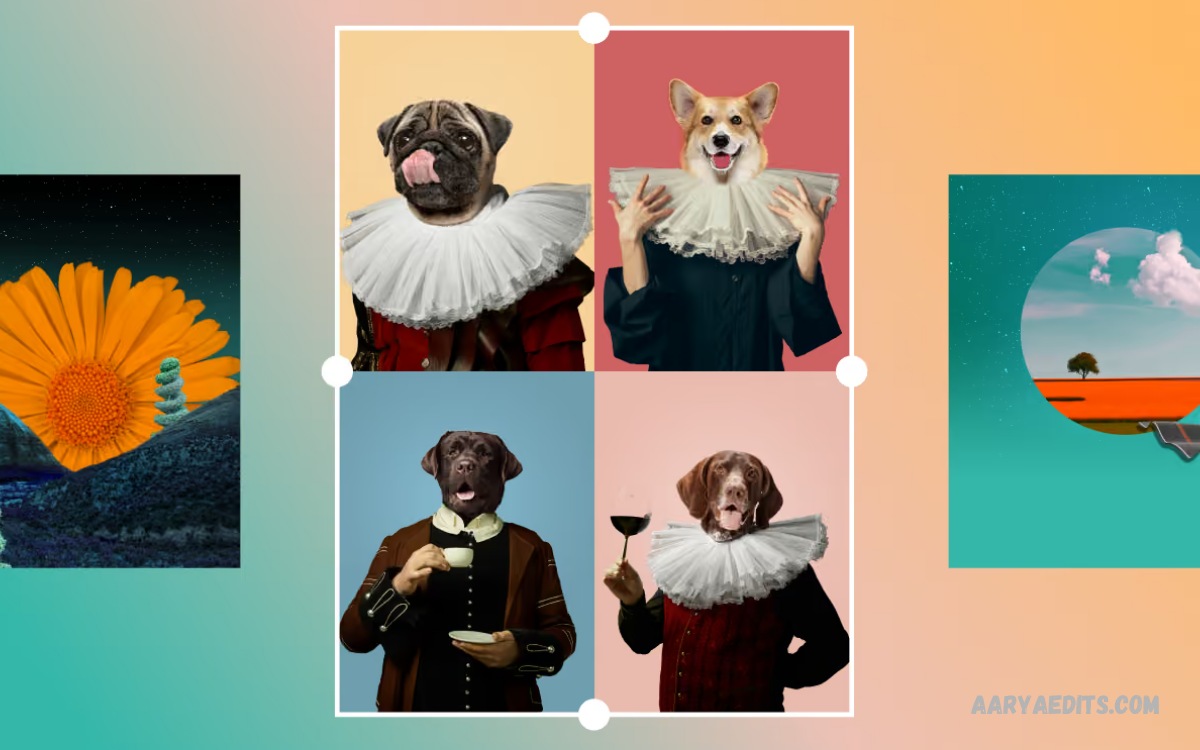
PicsArt collage editing is a creative process that combines multiple photos into one organized visual composition. Users can select different images, arrange them within customizable layouts, adjust spacing, add backgrounds, and apply creative effects.
PicsArt provides flexible editing tools that make collage creation accessible for beginners and useful for experienced creators. A collage can contain two images or many photographs depending on the chosen layout and design concept.
How PicsArt Collage Editing Works
The PicsArt collage workflow starts with selecting photographs that share a visual theme or tell a connected story. After choosing the images, users can explore available collage layouts and place each photo in its own section.
Once the basic arrangement is complete, you can continue editing with backgrounds, borders, spacing, filters, stickers, text, and other creative elements. The goal is to enhance the relationship between the photos without letting decorative elements overpower the main subjects.
Choosing Photos for a Collage
Photo selection plays an important role in PicsArt collage editing because every image contributes to the overall appearance. Choose photographs with a common subject, color palette, occasion, location, or visual story. Similar lighting conditions can also help multiple images appear more naturally connected when placed together.
Avoid filling a collage with photographs that have completely different compositions unless contrast is part of the intended design. A collection of carefully selected images can communicate an idea more effectively than a large group of unrelated pictures. Before editing, review each photograph and remove images that do not contribute to the intended theme.
Selecting the Right Collage Layout
A suitable layout provides the structural foundation for a collage. PicsArt offers different arrangements that can accommodate portrait photographs, landscape images, square pictures, and mixed compositions. Select a layout based on the number of photographs and the visual hierarchy you want to establish.
A simple two-photo layout can work well for comparisons, before-and-after concepts, or paired memories. Larger grids are useful for travel collections, event photography, product showcases, and photo summaries. Consider the subject placement before selecting a layout so important details do not become difficult to see after the images are positioned.
Creating a Balanced Composition
Balance is one of the most important principles in PicsArt collage editing. A composition should distribute visual weight across the available space instead of concentrating every important element in one area. Consider subject size, image brightness, colors, and empty space when arranging photographs.
A balanced collage does not necessarily require identical image sizes. Different proportions can create visual interest when used carefully. Larger photographs can highlight primary subjects, while smaller sections can support the main visual message. Consistent spacing between sections can also help the design appear organized and intentional.
Adjusting Image Position and Size
After selecting a layout, adjust each photograph so its most important subject remains visible. Many images contain unnecessary empty areas around the main subject, while others require careful positioning to prevent faces, products, or important details from being cropped. Small adjustments can significantly improve the final composition.
Try different placements before finalizing the collage. Zooming in can emphasize an important subject, while zooming out can reveal additional environmental details. Maintaining a consistent visual scale across related images can also make the finished design easier to view and understand.
Using Backgrounds in PicsArt Collage Editing
Background selection can influence the entire appearance of a collage. A neutral background can create a clean presentation, while a textured or colorful background can provide a more expressive style. Choose a background that complements the photographs rather than competing with them.
White, black, soft neutral tones, gradients, and subtle textures can work effectively for many collage styles. When photographs already contain strong colors, a simpler background can provide visual balance. For themed designs, a carefully selected background can reinforce the mood without distracting from the primary images.
Managing Borders and Spacing
Borders and spacing help separate individual photographs within a collage. A small amount of space can prevent images from visually merging and can make the composition easier to scan. However, excessive spacing may reduce the impact of the photographs and create unnecessary empty areas.
Experiment with consistent margins around each image. Matching internal spacing with the outer border can create a more structured appearance. For minimalist designs, narrow gaps may be effective, while creative scrapbook-style compositions can benefit from wider spacing and decorative framing.
Applying Filters Consistently
Filters can help unify photographs captured under different lighting conditions. If one image has warm tones and another has cool tones, applying compatible adjustments can make them appear more cohesive. Consistency is particularly useful when creating a collage from photographs taken at different times.
Avoid applying strong filters simply because they are visually noticeable. Excessive effects can reduce image clarity and make important details harder to recognize. A subtle adjustment to brightness, contrast, saturation, or color temperature can often provide enough consistency for a professional-looking collage.
Adjusting Brightness and Contrast
Brightness and contrast adjustments can improve the relationship between photographs. Images with significantly different exposure levels may appear disconnected when placed together. Correcting these differences can create a smoother visual flow throughout the collage.
When adjusting brightness, preserve important highlights and shadows whenever possible. Increasing contrast can make photographs appear more defined, but excessive contrast may remove subtle details. Make small adjustments and compare the images side by side to maintain a consistent appearance.
Adding Text to a Photo Collage
Text can provide context, titles, dates, names, captions, or short messages within a collage. PicsArt allows creators to combine photographs with typography and other design elements. Select fonts that match the overall theme and remain readable against the chosen background.
Keep text concise when the photographs are the primary focus. Large blocks of writing can make a collage feel crowded and reduce attention on the images. Consider font size, alignment, spacing, and contrast so every text element remains easy to read without dominating the composition.
Using Stickers and Decorative Elements
Stickers can add personality to a collage, particularly for celebrations, travel memories, birthdays, seasonal projects, and social media graphics. PicsArt includes creative elements that can be positioned around photographs or incorporated into the overall design.
Use decorative elements selectively. Too many stickers can make the composition difficult to follow and can distract from the photographs. A few strategically placed elements can communicate the intended theme while maintaining a clean visual hierarchy.
Creating Social Media Collages
PicsArt collage editing can be useful for creating social media content because multiple photographs can be presented within one graphic. Travel highlights, event memories, product collections, personal projects, and themed photo sets can all benefit from a carefully planned collage.
Before exporting, consider the dimensions required by the intended platform. Keep important subjects away from areas that may be cropped or covered by interface elements. A clear focal point and readable text can also help viewers understand the content quickly.
Making a Travel Photo Collage
Travel photography provides an excellent opportunity for collage editing because a single trip may generate many related photographs. Combine landscapes, landmarks, food, architecture, activities, and memorable moments to create a visual summary of the experience.
Arrange photographs according to a simple story or visual progression. For example, a collage can move from arrival to exploration and then to memorable locations. Consistent colors and moderate spacing can help different scenes feel like parts of one cohesive travel story.
Designing a Birthday Photo Collage
Birthday collages can combine portraits, group photographs, decorations, gifts, and memorable moments. A colorful background and carefully selected decorative elements can establish a celebratory atmosphere while keeping the photographs central to the design.
Arrange the most meaningful photograph in a prominent position and use supporting images around it. Adding a short birthday message or date can provide useful context. Keep decorative elements organized so the finished collage remains attractive and easy to view.
Creating a Before-and-After Collage
Before-and-after collages are useful for demonstrating visual changes in a clear format. They can present photography edits, room transformations, artwork development, design projects, or other visual comparisons. The two images should have enough similarity to make the differences easy to identify.
Use consistent dimensions and alignment when creating this type of composition. Place the photographs in a logical order and consider adding simple labels when necessary. Avoid excessive decoration because the primary purpose is to make the comparison immediately understandable.
PicsArt Collage Editing for Product Photos
Businesses and creators can use collage layouts to showcase multiple product views within one image. A single composition can display different angles, colors, features, or product variations. This approach can provide viewers with more information without requiring multiple separate graphics.
Use consistent lighting and backgrounds whenever possible. Align products carefully and maintain similar visual proportions. Text can identify individual features, but it should remain secondary to the product photographs. A clean layout can make a product collage appear more professional and easier to understand.
Using Creative Photo Effects
Creative effects can give a collage a distinctive visual identity. PicsArt includes tools for artistic adjustments, overlays, filters, textures, and other effects that can change the mood of photographs. Select effects according to the purpose of the composition rather than applying them randomly.
A consistent effect across several images can create stronger visual unity. Alternatively, a single highlighted photograph can receive a stronger effect while supporting images remain relatively natural. Maintain enough visual consistency that the collage still feels like one complete design.
Layering Elements in PicsArt
Layer-based editing provides additional flexibility when creating complex collage designs. You can arrange images, text, stickers, shapes, and other elements at different visual levels. This lets creators control which elements appear in front and which stay in the background.
Layer organization becomes increasingly important as a project becomes more detailed. Keep related elements arranged logically and review overlaps carefully. Proper layering can create depth and improve a collage’s structure without making the design unnecessarily complicated.
Read Also: PicsArt Stickers: Tips for Better Photo Editing
Creating a Minimalist Collage
Minimalist collage editing focuses on simplicity, spacing, and visual clarity. Use a limited number of photographs, restrained colors, clean typography, and subtle backgrounds. The objective is to allow the photographs to communicate the main message without unnecessary decoration.
A minimalist design can still feel creative when image proportions and spacing are carefully considered. Empty space is not wasted space when it helps separate elements and direct attention. Use only the visual components required to support the concept.
Creating a Creative Grid Collage
Grid collages organize multiple photographs into a structured arrangement. Equal-sized sections can create a clean and symmetrical appearance, making grids suitable for portfolios, event collections, product showcases, and social media content.
Although a grid provides structure, photographs should still be selected carefully. Similar image tones can create consistency, while intentional variation can add visual interest. Keep alignment and spacing consistent throughout the composition for a polished result.
Improving Color Harmony
Color harmony can make PicsArt collage editing appear more professional. Examine the dominant colors within each photograph and determine whether they work together. Similar tones can create a calm and unified appearance, while complementary colors can produce stronger visual contrast.
Color adjustments should support the subject rather than alter photographs beyond recognition. Minor changes to saturation, warmth, or tint may be enough to establish consistency. When the images already have strong colors, keep the surrounding design elements relatively restrained.
Using Shapes in Collage Designs
Shapes can provide framing, labels, dividers, and decorative accents within a collage. Circles, rectangles, lines, and other geometric elements can help establish visual structure. They can also guide attention toward specific photographs or sections.
Use shapes consistently to maintain design unity. Matching corner styles, spacing, and proportions can make the composition appear intentional. Avoid filling every available area because excessive geometric decoration can compete with the photographs.
Adding Frames and Photo Borders
Frames can emphasize individual photographs and separate them from surrounding elements. A thin border can provide definition without changing the composition significantly. Decorative frames may be suitable for themed designs when they support the overall concept.
Keep frame thickness consistent across related photographs unless a specific image needs special emphasis. Strong borders can create visual weight, so consider how they interact with the background and other design elements. Simple framing often works well for professional layouts.
Common PicsArt Collage Editing Mistakes
One common mistake is adding too many photographs to a single composition. Although a large collection can provide more memories or information, overcrowding makes individual images harder to appreciate. Select photographs based on relevance rather than trying to include every available picture.
Another issue is inconsistent editing. Large differences in brightness, color, cropping, and visual style can make a collage look disconnected. Review the complete composition after editing individual photographs and make adjustments that improve consistency across the entire design.
How to Make a Professional-Looking Collage
Start with a clear purpose before opening the editing tools. Decide whether the collage will tell a story, compare photographs, showcase products, summarize an event, or create social media content. This decision helps determine the number of photographs, layout, background, and decorative style.
Next, create a visual hierarchy by identifying the most important image or message. Supporting photographs should complement that focal point rather than compete with it. Finish by reviewing spacing, alignment, colors, typography, and image quality before exporting the completed design.
Tips for Better PicsArt Collage Editing
Choose high-quality photographs whenever possible because low-resolution images can become noticeably soft after resizing. Keep the main subjects clearly visible and avoid unnecessary cropping. Consistent image quality creates a stronger foundation for the entire composition.
Review the collage at both full size and reduced size. Details that appear obvious while editing may become difficult to see when the final graphic is viewed on a smaller screen. A final review can reveal alignment issues, distracting elements, unreadable text, or inconsistent image adjustments.
Exporting Your Finished Collage
After completing PicsArt collage editing, review the entire design before saving. Check image positioning, text spelling, borders, spacing, background selection, and overall balance. Zoom out to understand how the composition appears as a complete visual rather than as individual editing elements.
Select an appropriate output quality for the intended use. Social media graphics may require different dimensions from prints or high-resolution project files. Keep an original version when possible so you can make future changes without rebuilding the collage from the beginning.
Frequently Asked Questions
What is PicsArt collage editing?
PicsArt collage editing combines multiple photographs into one visual composition using layouts, backgrounds, borders, effects, text, and other creative tools. You can use it for personal projects, social media graphics, photo albums, and professional visual content.
How do I create a collage in PicsArt?
Open PicsArt, select the collage feature, then choose photos and an appropriate layout. Adjust image positions, spacing, background, borders, and other elements before reviewing and exporting the completed composition.
How many photos can I use in a PicsArt collage?
The number of photographs depends on the selected collage layout and the available editing options. Choose a number that supports the design instead of filling every section just because more space is available.
Can I add text to a PicsArt collage?
Yes, you can add text to a collage for titles, captions, dates, labels, or short messages. Choose readable typography and position text carefully so it supports the photographs without distracting from the primary visual content.
How can I make a PicsArt collage look professional?
Use high-quality photographs, choose a suitable layout, keep spacing consistent, coordinate colors, and avoid excessive effects. A clear focal point and simple visual hierarchy can make the final collage easier to understand and more polished.
Can PicsArt collages be used for social media?
Yes, you can create collages for different types of social media content. Choose dimensions suited to the intended platform, keep important details visible, and use concise text so the design stays clear on smaller screens.
What background should I use for a collage?
Choose a background that complements the photographs and supports the intended mood. Neutral backgrounds often look clean, while gradients, textures, and colors can work well for more creative or themed compositions.
Why does my collage look crowded?
A collage can look crowded when it includes too many photographs, too much text, large decorative elements, or too little spacing. Remove unnecessary components and prioritize the photographs and information that communicate the main idea.
How can I keep photos consistent in a collage?
Adjust brightness, contrast, color temperature, and saturation so photographs have compatible visual characteristics. Consistent cropping and spacing can also help separate images feel like parts of one cohesive composition.
Is PicsArt collage editing suitable for beginners?
Yes, the collage workflow can be approachable for beginners because layouts provide a structured starting point. New users can begin with simple compositions and gradually explore backgrounds, filters, typography, stickers, and more advanced editing techniques.
Conclusion
PicsArt collage editing provides a flexible way to combine photographs, typography, backgrounds, effects, and decorative elements into a single visual composition.
Whether you are creating a travel memory, birthday design, product showcase, social media graphic, or personal photo collection, a structured editing process can improve the final result.
