

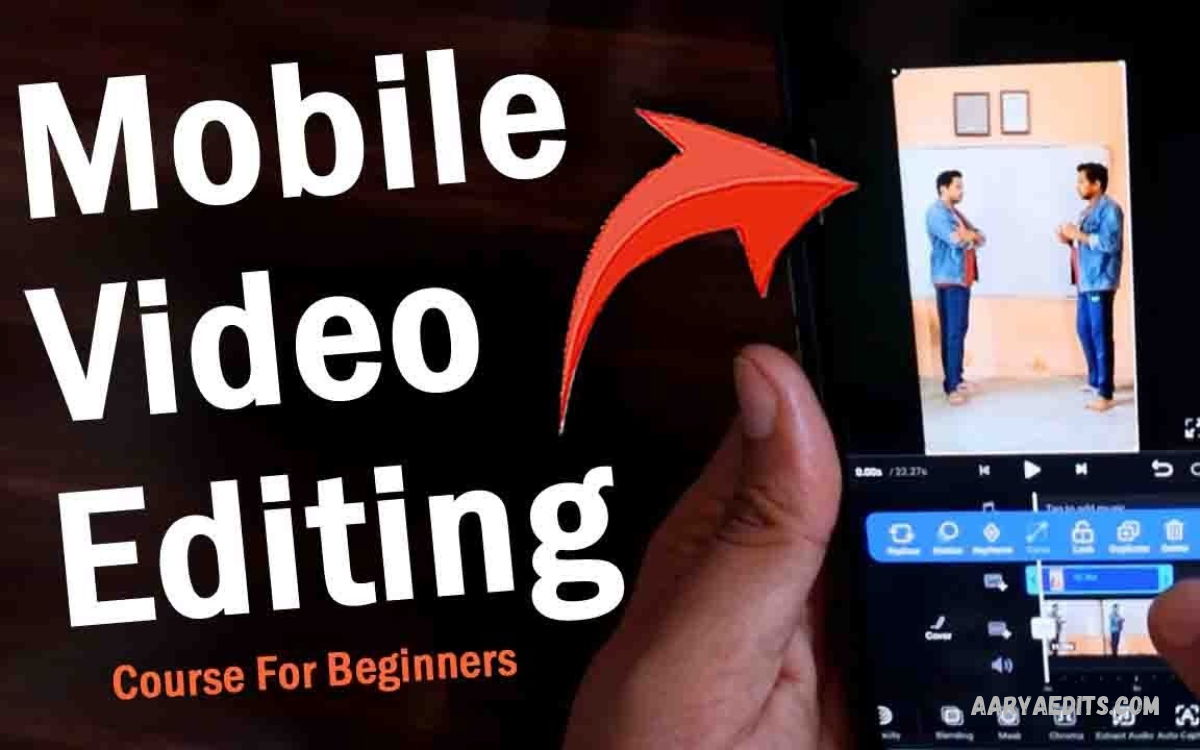
Mobile video editing has become an accessible way to create engaging videos without expensive computers or professional editing equipment.
This Mobile Video Editing Guide explains essential editing techniques, popular mobile applications, creative effects, audio improvements, and export settings.
Understanding Mobile Video Editing
Mobile video editing involves arranging clips, trimming unwanted footage, adjusting colors, adding music, inserting text, and combining visual elements on a smartphone or tablet.
The main goal of editing is to communicate a clear message while keeping viewers interested. Good editing does not require excessive effects or complicated transitions.
Choosing the Best Mobile Video Editing App
Choosing the right editing app is an important step toward creating professional-looking videos. Different applications offer different tools, including automatic captions, keyframe animation, color correction, background removal, audio controls, and ready-made templates.
Before choosing an app, consider your editing experience, phone specs, preferred video format, and project needs. Some apps focus on quick social media content, while others provide advanced timeline controls for detailed projects. Check current pricing, export limits, watermarks, and feature availability before committing to an app.
Popular Mobile Video Editing Applications
CapCut
CapCut is widely used for creating short videos, social media content, captions, transitions, and music-based edits. Its interface offers a range of creative tools that can help beginners build engaging videos without learning complicated editing software.
Depending on regional availability, subscription status, and app version, certain features may differ. Review the available tools and export options before starting a large project, particularly if you need high-resolution output or specific effects for professional content.
VN Video Editor
VN Video Editor offers timeline-based editing tools suitable for creators who want greater control over clip arrangement, speed adjustments, transitions, and music. Its workflow supports travel videos, tutorials, cinematic clips, and other projects that require careful sequencing.
Consider the app if you prefer working directly with clips rather than relying entirely on templates. Explore its current features and supported export settings to see whether they meet your requirements and your device’s capabilities.
InShot
InShot is useful for editing short videos, resizing footage, adding text, adjusting playback speed, and preparing content for different social media platforms. Its straightforward interface makes it easy for beginners to complete basic editing tasks quickly.
The app can also help creators combine photos, video clips, music, stickers, and simple visual effects. Before exporting, check the available resolution options and any restrictions associated with free or paid features.
Adobe Premiere Rush and Other Alternatives
Adobe Premiere Rush offers mobile-focused editing features, while other apps provide tools for trimming, audio adjustment, captions, and timeline editing. Availability and support can change, so verify whether an application is currently offered and maintained for your device.
Alternatives such as iMovie on supported Apple devices and other reputable mobile editors may suit different workflows. Compare ease of use, supported file formats, device compatibility, privacy practices, and export quality before selecting your preferred editor.
Preparing Your Footage Before Editing
Good editing starts before you open an editing application. Record footage with a clear subject, stable framing, suitable lighting, and a consistent orientation. Clean your camera lens, check available storage, and make sure your phone has enough battery for recording and editing.
Organize your clips into folders or albums based on the project. Separate interviews, background footage, music, voice recordings, and reference images where possible. This simple preparation makes it easier to find suitable material and reduces the time spent searching for files during editing.
Importing Clips and Understanding the Timeline
The timeline is the central workspace in most video editing applications. It displays clips in sequence and lets you arrange scenes, trim footage, add shots, and control when different visual or audio elements appear.
Start by importing the clips you need and placing them in a logical order. Watch the footage before making major changes, identify the strongest moments, and remove unnecessary sections. A clear timeline structure makes the rest of the editing process easier and helps maintain a consistent story.
Trimming and Cutting Video Clips
Trimming removes unwanted material from the beginning or end of a clip, while splitting divides a clip into separate sections. These functions help remove mistakes, long pauses, repeated information, and moments that do not contribute to the final video.
Use cuts to improve pacing and keep viewers engaged. For tutorials, remove unnecessary delays while preserving important explanations. For travel or cinematic videos, give meaningful scenes enough time to develop instead of cutting too quickly.
Creating a Strong Video Story
An effective video has a clear beginning, middle, and ending. The opening should establish the subject, the middle should deliver the main information or experience, and the ending should provide a satisfying conclusion or explain what viewers should remember.
Arrange clips according to their purpose rather than simply following the order in which they were recorded. Supporting footage can illustrate narration, close-ups can highlight key details, and establishing shots can help viewers understand a location or situation.
Improving Video Transitions
Transitions control how one clip moves into another. A direct cut is often the cleanest option because it keeps attention on the content, while fades and dissolves can communicate a passage of time or create a softer visual change.
Use more elaborate transitions only when they support the style or meaning of your video. Excessive spinning, zooming, flashing, and other effects can distract viewers from the subject. Consistent transitions generally look more professional than switching effects between every scene.
Adding Text, Titles, and Captions
Text helps communicate information that may not be obvious from the footage alone. Titles can introduce a topic, labels can identify important objects, and captions can make spoken information easier to follow, particularly when viewers watch without sound.
Choose readable fonts, suitable text sizes, and strong contrast between lettering and the background. Keep sentences concise and position text away from important visual details.
Using Music and Sound Effects
Audio strongly influences how viewers experience a video. Suitable background music can set a mood, while sound effects can emphasize movement, highlight key actions, or make transitions feel more natural.
Choose music that matches the subject and does not overpower dialogue or narration. Use audio controls to balance tracks, reduce distracting background noise where possible, and add gentle fades at the start and end of music.
Recording and Improving Voiceovers
A voiceover can explain a process, provide context, or guide viewers through footage without requiring the speaker to appear on camera. Recording directly on a smartphone works well when the environment is quiet and the microphone is positioned properly.
Speak clearly, maintain a comfortable pace, and leave short pauses between important ideas. If the recording contains distracting noise, use available noise-reduction tools carefully. Excessive processing can make voices sound unnatural, so prioritize clear recording over trying to repair poor audio afterward.
Applying Color Correction
Color correction helps footage look balanced and consistent. It typically involves adjusting exposure, contrast, white balance, highlights, shadows, and saturation to improve the original recording.
Begin with small adjustments and compare clips from the same scene. Different lighting conditions can make consecutive shots look noticeably different, even when they were recorded on the same phone. Correcting these differences before applying creative color effects produces a more cohesive video.
Exploring Color Grading
Color grading gives a video a particular visual mood or style. Warmer tones can create a welcoming atmosphere, while cooler tones can create a different cinematic feel. The best treatment depends on the subject, lighting, and intended audience.
Avoid increasing saturation or contrast so much that skin tones, skies, and other important details become unrealistic. When possible, review the footage on more than one screen, because display brightness and color settings can affect how the final video looks.
Using Slow Motion and Speed Effects
Speed controls let you slow down or accelerate selected footage. Slow motion can emphasize a sports movement, reveal a small detail, or create a dramatic moment, while faster playback can summarize repetitive activities and make long processes more concise.
Record footage with the intended speed effect in mind. Slow motion works best when the original recording has enough frames to keep movement smooth. Extreme speed changes may produce choppy playback or unnatural motion, depending on the source video and the editor’s capabilities.
Learning Keyframes and Animation
Keyframes allow you to change a visual property over time. Depending on the application, you may animate position, scale, rotation, opacity, volume, or other settings to create movement within a clip.
For example, a gradual zoom can direct attention toward an important detail, while an animated title can enter the frame smoothly. Begin with simple movements and consistent timing. Too many animated elements can make the video feel busy and reduce the clarity of its main message.
Creating Picture-in-Picture Videos
Picture-in-picture places a smaller video layer over a larger background video. This technique is useful for tutorials, commentary, demonstrations, gaming content, presentations, and reaction-style videos where viewers need to see two visual sources at the same time.
Position the smaller frame so it doesn’t cover essential information. Check the size, alignment, and audio balance of both layers before exporting. When the format allows it, maintain a consistent layout throughout the video to make the presentation easier to follow.
Editing Videos for Social Media
Different platforms support different video dimensions, durations, and presentation styles. Vertical video is common for short-form mobile content, while horizontal video still works well for traditional YouTube videos, demonstrations, and cinematic presentations.
Choose the intended platform before finalizing the edit. Keep important text and subjects within the visible area, because platform interfaces may cover parts of the screen. Preview the video in its final aspect ratio to confirm that titles, captions, faces, and key actions remain visible.
Editing YouTube Videos on a Smartphone
YouTube videos often benefit from clear introductions, organized sections, readable graphics, and consistent audio throughout. Mobile editors can handle many tasks involved in producing tutorials, reviews, educational videos, travel content, and gaming highlights.
Focus on delivering useful information rather than adding effects to every scene. Cut repetitive explanations, use supporting footage only when it clarifies a point, and keep a comfortable pace.
Read Also: How to Edit Photos Like a Professional Using Your Mobile Phone
Editing Reels and Short-Form Videos
Short-form videos need a clear idea and efficient presentation. Introduce the subject early, use footage that supports the message, and avoid long introductions that delay the main point. Captions can help communicate the message when audio is unavailable.
Music-based edits should follow the rhythm naturally without forcing every cut to match a beat. Keep text concise and avoid covering important visual details. A strong short video combines a clear concept, suitable pacing, readable text, and a meaningful ending rather than depending entirely on trends.
Improving Gaming Videos on Mobile
Gaming videos can include highlights, tutorials, match summaries, commentary, and entertaining moments. Use cuts to remove downtime, arrange key gameplay sequences logically, and add brief labels when viewers need help understanding a strategy or game mechanic.
Balance game audio with commentary and background music so important sounds remain audible. If the recording contains many visual effects, avoid adding too many extra overlays. A clean presentation helps viewers focus on the gameplay and understand why each selected moment matters.
Managing Smartphone Storage and Performance
Video projects can consume significant storage because high-resolution footage and temporary editing files can take up a lot of space. Keep enough free storage for imported clips, project files, cached previews, and the final export.
Close unnecessary applications when editing slows down, and consider lowering preview quality if the editor supports it. Back up important footage before deleting files or clearing application data. Avoid removing source clips until you have confirmed that the finished export is complete and the project no longer needs them.
Choosing the Right Video Resolution and Frame Rate
Resolution determines the video’s dimensions, while frame rate describes how many frames appear each second. Common delivery options include Full HD and 4K, although the best choice depends on the original recording, editing performance, storage capacity, and publishing platform.
For smooth results, choose export settings that suit your footage and intended destination. Increasing resolution beyond the original material’s quality doesn’t restore missing detail. Likewise, changing the frame rate unnecessarily can affect motion appearance, so keep settings consistent unless a creative effect requires a change.
Exporting High-Quality Videos
Exporting converts your edited project into a video file that can be played or shared independently. Most mobile editing apps offer settings for resolution, frame rate, and file quality, though options vary by device and app version.
Select settings appropriate for your intended platform and available storage. Watch the exported file from beginning to end to check for missing audio, unexpected black frames, cropped text, or visual glitches.
Common Mobile Video Editing Mistakes
Beginners sometimes use too many transitions, apply too many filters, choose distracting music, or add hard-to-read text. Other frequent problems include inconsistent audio levels, abrupt cuts, poor framing, and exporting with unsuitable settings.
Improve your workflow by making deliberate choices and regularly reviewing the project. Ask whether each effect, clip, and sound contributes to the message. Removing unnecessary elements often improves clarity more effectively than adding additional visual decoration.
Developing a Faster Editing Workflow
A repeatable workflow helps reduce editing time and makes projects easier to manage. Start by organizing footage, selecting the strongest clips, arranging the main sequence, and completing basic cuts before moving to color adjustments, captions, sound, and visual effects.
Save project versions when the application supports them, and keep a backup of important original files. Reusable title styles, consistent audio levels, and simple editing templates can also help when producing similar videos regularly. However, customize each project so the final result suits its particular purpose.
Protecting Privacy and Copyright
Video editing sometimes involves personal photographs, private conversations, location information, or footage featuring other people. Review your material before sharing it, remove sensitive details when appropriate, and obtain permission when recording or publishing footage requires it.
Copyright rules also apply to music, images, video clips, and other creative material used in an edit. Use original assets, properly licensed resources, or materials that you are authorized to use.
Frequently Asked Questions
Which mobile video editing app is best for beginners?
The best application depends on your device, editing goals, and preferred interface. CapCut, VN Video Editor, InShot, iMovie on supported Apple devices, and other established editors offer different combinations of basic and advanced tools.
Can I create professional videos using only a smartphone?
Yes, a smartphone can be enough for many professional-looking video projects. Image quality, lighting, composition, audio clarity, editing choices, and export settings all shape the final result.
How can I make mobile videos look cinematic?
Start with intentional composition, stable footage, consistent lighting, and deliberate camera movement. In editing, correct exposure and white balance, keep colors consistent, and use transitions that support the story.
How can I improve video quality during editing?
Use good source footage, remove unnecessary sections, correct exposure, balance colors, and improve audio clarity. Export at a resolution and frame rate that suit the original footage and intended platform.
Why does my phone become slow during video editing?
Editing can demand substantial processing power, memory, and storage, especially with high-resolution footage, multiple layers, or complex effects. Older devices may struggle with demanding projects even when the app works properly.
What export settings should I use for social media?
Choose the aspect ratio, resolution, and frame rate your intended platform supports. Vertical formats are common for short-form content, while horizontal formats are widely used for traditional videos and tutorials.
Conclusion
This Mobile Video Editing Guide covers the essential skills you need to turn raw smartphone footage into clear, engaging videos. By learning clip trimming, timeline organization, transitions, captions, sound design, color correction, and export settings, you can steadily improve your projects.
Consistent practice is the key to becoming a better mobile video editor. Start with simple edits, focus on storytelling, and introduce advanced effects as your skills develop.
