

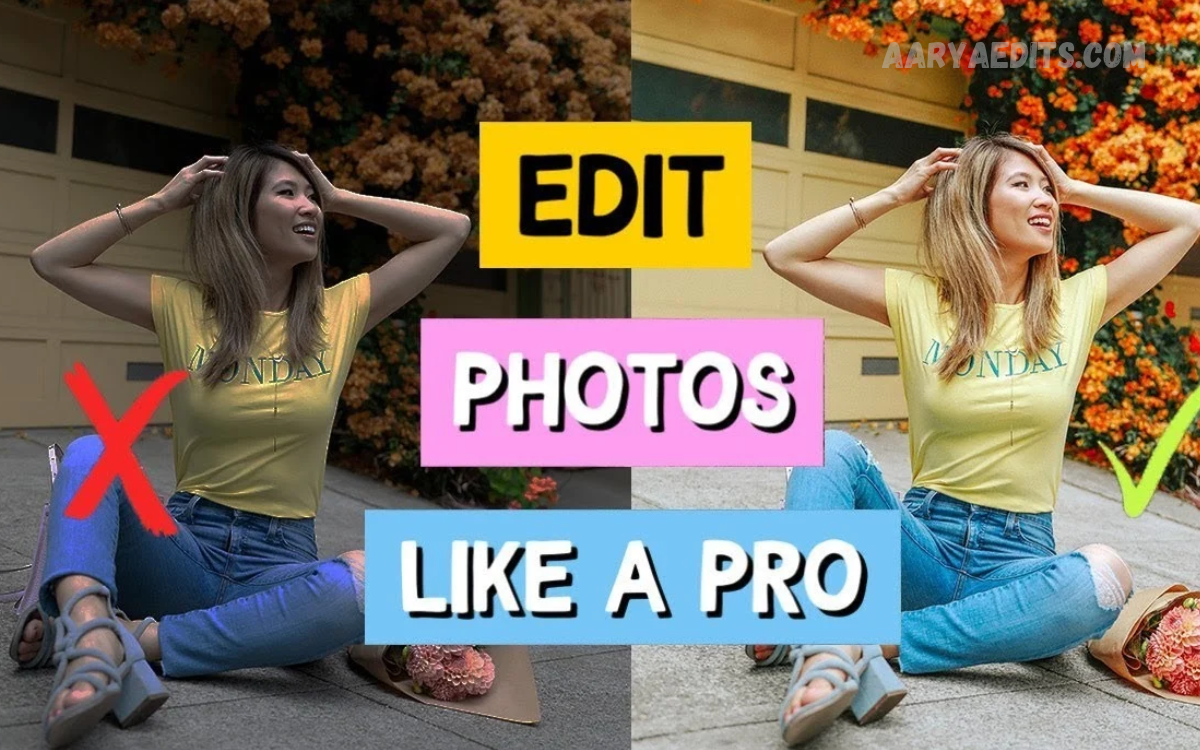
Taking beautiful photographs no longer requires an expensive camera or advanced photography equipment. Modern smartphones have powerful cameras and editing tools that let anyone capture and enhance impressive images. With the right techniques, even an ordinary photo can become a professional-looking image for social media, websites, portfolios, and personal collections.
Learning to edit photos like a professional on your mobile phone mainly comes down to understanding light, color, composition, and detail. You don’t need to be an experienced photographer to get excellent results. A few simple adjustments, the right editing app, and a little practice can make a big difference in your photos.
Choose the Right Photo Editing App
The first step toward professional mobile photography is choosing an application that suits your needs. Different photo editing apps offer different features, including exposure correction, color grading, background removal, portrait enhancement, and advanced retouching. Beginners should start with an easy-to-use application before exploring more advanced editing tools.
Popular options include Snapseed, Lightroom Mobile, and Picsart. Snapseed offers useful adjustment tools, Lightroom Mobile provides detailed control over lighting and color, and Picsart suits creative designs and artistic effects. Many apps offer free features, though some advanced tools require a paid subscription.
Start With a High-Quality Photograph
Professional editing begins with a good original photograph. Editing can improve an image, but it cannot always fix problems caused by severe blur, poor focus, or missing details. Whenever possible, use your phone’s main camera, keep the lens clean, and ensure the subject is properly focused before you shoot.
Pay attention to the background and light direction when capturing an image. Avoid unnecessary objects that distract attention from your subject, and keep your phone steady to prevent motion blur. A well-composed original photograph requires fewer corrections and usually produces a more natural final result.
Adjust Brightness and Exposure
Brightness and exposure are among the most important settings in mobile photo editing. Exposure controls how light or dark an image appears, while brightness adjustments change its overall look. If your photograph looks too dark, increase the exposure gradually until the subject becomes clearly visible without losing important details.
Avoid making the entire image excessively bright, particularly when photographing people outdoors or capturing scenes with strong sunlight. Overexposed areas may lose detail and appear completely white. Professional editors aim for balanced lighting that preserves highlights, shadows, and the subject’s natural appearance.
Improve Contrast for a Professional Look
Contrast determines the difference between a photograph’s lighter and darker areas. Slightly increasing contrast can make an image appear sharper, more defined, and more visually engaging. This adjustment is especially useful for landscape photography, architecture, street scenes, and pictures with clearly defined shapes.
However, excessive contrast can make shadows too dark and remove subtle details. If you are editing portraits, keep the adjustment moderate to preserve natural skin tones and facial features. The goal is to create depth and clarity without making the photograph look artificial.
Correct Colors and White Balance
Color correction helps photographs look natural and consistent. White balance controls an image’s overall color temperature, letting you correct photos that look too yellow, too blue, or unnaturally tinted. Careful adjustment can make skin tones, white objects, and environmental colors appear closer to real life.
Temperature and tint controls are especially useful for photos taken under indoor lighting or at sunset. Warm tones can create a cozy, inviting atmosphere, while cooler tones can produce a clean, modern look. Choose colors to match the mood you want to convey, rather than applying the same settings to every photograph.
Use Saturation and Vibrance Carefully
Saturation controls color intensity throughout an image, while vibrance selectively emphasizes less-saturated colors. These tools can make dull photographs look lively and attractive. They are especially helpful for travel photos, food photography, colorful landscapes, and outdoor scenes.
The key is to avoid pushing colors too far. Too much saturation can make skin look orange, grass unnaturally green, and skies unrealistically blue. Increase vibrance slightly first, then adjust saturation only if necessary. Natural-looking colors often look more professional than exaggerated effects.
Crop and Straighten Your Photos
Cropping is one of the simplest ways to improve a photograph without applying complicated effects. It allows you to remove distracting edges, unwanted objects, and unnecessary empty space. A carefully cropped image directs attention toward the main subject and creates a cleaner visual composition.
Straightening is equally important, particularly when editing photographs of buildings, horizons, roads, and interiors. A tilted horizon can make an otherwise beautiful image look unfinished. Use the crop and rotation tools to align important elements, and consider the intended platform before choosing the final aspect ratio.
Read Also: Lightroom Color Grading Tutorial: Master Professional Photo Editing
Enhance Details and Sharpness
Sharpness helps emphasize edges and small details, making photographs appear clearer. Most mobile editing applications include sharpening tools that can improve images of products, buildings, landscapes, and other subjects with fine textures. Apply sharpening gradually, and check the photograph at its normal viewing size.
Avoid increasing sharpness too much because it can introduce visible noise, rough edges, and unnatural textures. Portrait photographs require special care, as excessive sharpening may exaggerate skin imperfections. If the original image is noisy, use noise reduction sparingly to clean it up without losing important details.
Retouch Portraits Without Overediting
Portrait editing requires a balanced approach: enhance a person’s appearance while preserving their natural features. Small adjustments to exposure, white balance, shadows, and contrast can greatly improve a portrait. If necessary, use selective tools to reduce temporary distractions or brighten specific areas of the face.
Avoid removing every natural skin texture or applying extreme face-smoothing effects. Overedited portraits can look artificial and lose their original character. For a professional result, keep realistic skin tones, natural facial details, and consistent lighting, and make only the corrections that genuinely improve the image.
Use Filters to Create a Consistent Style
Filters offer a quick way to change a photograph’s mood. They can introduce warm tones, cooler colors, faded highlights, stronger contrast, or a vintage appearance. Filters are particularly useful when you want to develop a recognizable visual style for your social media profiles or photography portfolio.
Instead of applying a filter at full strength, reduce its intensity until the image looks balanced. You can also adjust exposure, contrast, and white balance after applying the filter. Consistency matters more than using dramatic effects, especially when editing several photographs for the same page or project.
Remove Unwanted Objects and Distractions
Unwanted objects can reduce the visual impact of an otherwise excellent photograph. Many modern mobile editing applications include healing, object removal, or AI-assisted editing tools that can help eliminate small distractions. These features help remove minor background clutter, dust spots, and objects that draw attention away from the subject.
Object removal works best when the surrounding background is relatively simple. Complicated patterns, detailed textures, and overlapping subjects can make the edited area look unnatural. Always zoom in and inspect the result after removing an object. For professional work, accuracy and realistic details are more important than making every photograph look perfectly clean.
Edit Photos for Social Media
Different social media platforms display images in different formats, so prepare your photograph for its intended destination. A portrait image may work well for a story or reel cover, while a landscape composition may suit a website banner or certain feed layouts. Check the platform’s current image dimensions before exporting your work.
Keep your editing style consistent when publishing several photographs together. Similar color tones, balanced brightness, and clean compositions can make a profile look more organized and visually appealing. Avoid excessive text, stickers, and decorative effects unless they support the purpose of the image.
Export Your Photos in the Best Quality
Export settings determine how your finished photograph is saved and displayed. JPEG suits most everyday photography and social media uploads because it balances quality and file size. HEIF may also work when your device and destination support it, while PNG is generally better for graphics that require transparency.
Whenever possible, choose a high-quality export setting and keep the original photograph separate. Avoid repeatedly saving and recompressing the same JPEG file, as this can gradually reduce image quality. Before sharing your work, check the exported image for unwanted cropping, color changes, compression artifacts, and other visible problems.
Common Photo Editing Mistakes to Avoid
One common mistake is making too many adjustments at once. Over-increasing brightness, contrast, saturation, and sharpness can make an image look unnatural. Instead, make small changes one at a time, and compare the edited version with the original to ensure each adjustment improves the result.
Another mistake is relying entirely on filters or automatic enhancement features. These tools can save time, but they may not suit every lighting condition or subject. Developing a professional editing style requires understanding why a photograph needs correction and choosing the appropriate tool rather than applying the same effect repeatedly.
Frequently Asked Questions
Can I Edit Photos Like a Professional Using My Mobile Phone?
Yes, you can produce professional-looking photos with a modern smartphone and the right editing app. Learning exposure, color correction, cropping, and detail enhancement will help you improve your results without investing in expensive equipment.
Which Is the Best Mobile Photo Editing App?
The best application depends on your requirements. Snapseed is a strong choice for free, detailed editing, Lightroom Mobile suits advanced lighting and color adjustments, and Picsart offers creative effects and design tools.
Can You Edit Photos Professionally for Free?
Yes, several mobile editing apps offer useful free tools to adjust brightness, contrast, color, sharpness, and composition. You can achieve excellent results without paying for a subscription if the available features meet your needs.
How Can I Make My Mobile Photos Look More Expensive?
Focus on balanced lighting, accurate colors, clean composition, and subtle editing. Avoid excessive filters and artificial effects; a natural, carefully edited photo often looks more polished than one with dramatic adjustments.
Should I Edit Photos Before Posting Them on Social Media?
Editing before posting can help improve brightness, correct colors, and prepare photographs for the platform’s preferred format. However, keep the adjustments appropriate for the subject and avoid making changes that misrepresent important details.
How Do I Make Photo Colors Look Natural?
Adjust white balance first, then fine-tune temperature, tint, vibrance, and saturation. Compare the edited image with the original and reduce any adjustments that make skin tones or environmental colors appear unrealistic.
Can I Remove Unwanted Objects Using My Phone?
Yes, many modern photo editing apps include healing and object removal tools. These features work especially well on simple backgrounds, but complex scenes may take several attempts to look natural.
How Can I Edit Portraits Without Making Them Look Fake?
Use moderate lighting corrections and subtle retouching. Preserve natural skin texture, realistic facial features, and accurate colors instead of relying on heavy smoothing or excessive beauty filters.
What Is the Best Format for Saving Edited Photos?
JPEG is a practical option for most photographs shared online because it combines good visual quality with manageable file sizes. Choose a high-quality setting and use other formats when your workflow requires specific features such as transparency.
How Long Does It Take to Learn Mobile Photo Editing?
You can learn basic editing skills in a few practice sessions, while advanced color grading and retouching take longer to master. Regular practice, experimentation, and comparing original images with edited versions will help you improve steadily.
Conclusion
Learning to edit photos like a professional on your mobile phone is achievable for anyone willing to practice and understand the basics. With the right app, careful lighting adjustments, accurate color correction, thoughtful cropping, and subtle retouching, you can turn ordinary photos into attractive, polished images.
The most important principle is to edit with a clear purpose rather than applying every available effect. Start with small adjustments, preserve natural details, and develop a consistent style that reflects your creative preferences.
