

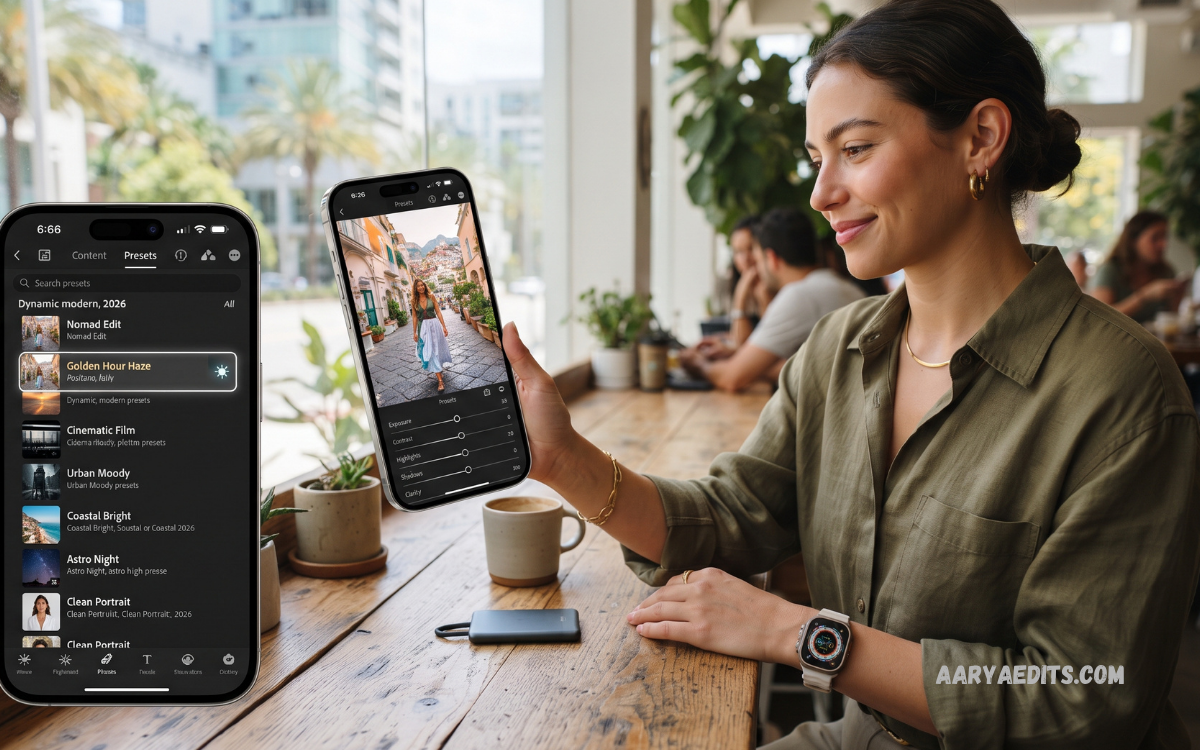
Lightroom Presets for iPhone have become an essential tool for mobile photographers seeking professional-looking results without spending hours adjusting individual settings. Adobe Lightroom offers powerful editing controls, while presets provide ready-made adjustments for exposure, contrast, colors, highlights, shadows, saturation, and other visual elements with a single application.
Modern iPhone cameras capture impressive images, yet the right editing style can transform ordinary photographs into polished visual content. Lightroom Presets for iPhone help create consistent aesthetics across travel photos, portraits, landscapes, food photography, social media posts, and professional portfolios while reducing repetitive editing work.
What Are Lightroom Presets for iPhone?
Lightroom presets are predefined editing configurations designed to modify multiple image settings simultaneously. Instead of manually adjusting dozens of controls, photographers can apply a preset and fine-tune individual settings according to the lighting conditions and personal preferences.
Lightroom Presets for iPhone can create specific visual styles such as cinematic, warm, moody, bright, minimal, vintage, black-and-white, or natural. Presets do not permanently lock an image into one appearance, allowing users to adjust exposure, white balance, contrast, and other parameters after applying the selected style.
Why Use Lightroom Presets on iPhone?
The primary advantage of Lightroom Presets for iPhone is editing efficiency. Mobile photographers can apply a carefully designed look within seconds, making presets especially useful when editing large collections of images captured during trips, events, or daily photography sessions.
Presets also improve visual consistency. Creators publishing images across Instagram, portfolios, websites, or other platforms can use similar editing styles across multiple photographs, creating a recognizable aesthetic without manually rebuilding the same adjustments for every image.
Best Lightroom Preset Styles for iPhone
Natural Presets
Natural presets are ideal for photographers who want realistic colors and balanced contrast. These presets typically preserve skin tones, maintain natural highlights, and enhance overall clarity without producing an overly edited appearance.
Natural Lightroom Presets for iPhone work particularly well for everyday photography, family moments, travel scenes, lifestyle content, and outdoor images. Small adjustments after application can further match the preset to the original lighting conditions.
Cinematic Presets
Cinematic presets create dramatic images through controlled contrast, deeper shadows, muted colors, and carefully balanced highlights. This style is popular among creators who want photographs with a film-inspired atmosphere.
Cinematic Lightroom Presets for iPhone can be particularly effective for urban photography, architecture, nighttime scenes, vehicles, and storytelling images. The final result depends heavily on the original photograph, so exposure and white balance adjustments may still be necessary.
Portrait Presets
Portrait presets are designed to enhance photographs featuring people while maintaining natural-looking skin tones. They can improve overall color balance, soften harsh contrasts, and create a polished appearance without requiring extensive manual adjustments.
Lightroom Presets for iPhone designed for portraits should be selected carefully because aggressive color changes can affect skin tones. A subtle preset combined with manual exposure and white balance correction generally produces more professional results.
Travel Presets
Travel presets are designed for landscapes, city scenes, beaches, mountains, architecture, and outdoor photography. They often enhance colors, improve contrast, and add visual depth while preserving important details.
Travel Lightroom Presets for iPhone can help create a consistent look across an entire trip. Applying one preset family to multiple photographs can make travel albums and social media collections appear more cohesive.
Moody Presets
Moody presets create atmospheric photographs through darker tones, controlled highlights, reduced saturation, and stronger contrast. They are frequently used for street photography, interiors, cloudy landscapes, and creative lifestyle images.
Moody Lightroom Presets for iPhone work best when the original photograph contains sufficient tonal range. Extremely bright or poorly exposed photographs may require additional exposure and shadow adjustments before the desired mood becomes visible.
How to Apply Lightroom Presets on iPhone
Start by opening the Lightroom mobile application and importing the photograph you want to edit. Select the Presets section within the editing interface, browse available preset categories, and choose a style that matches the photograph.
After applying a preset, inspect exposure, contrast, highlights, shadows, white balance, and saturation. Presets are starting points rather than universal solutions, so small manual adjustments can produce a more balanced and natural final image.
How to Import Presets on iPhone
Users can import compatible preset files into Lightroom Mobile and organize them into collections for easier access. Common preset formats may include DNG-based mobile presets or compatible preset files, depending on the Lightroom workflow and version being used.
After importing a preset, test it on several photographs rather than judging it from one image alone. Different lighting conditions can produce significantly different results, making preset customization an important part of professional mobile editing.
Free Lightroom Presets for iPhone
Free Lightroom Presets for iPhone can be useful for beginners who want to experiment with different editing styles before investing in premium preset collections. Many free presets focus on popular aesthetics such as cinematic colors, warm tones, vintage effects, portraits, landscapes, and social media photography.
Quality varies significantly between free preset collections. Download presets from trustworthy sources, verify compatibility with your Lightroom version, and avoid files or websites that request unnecessary personal information or suspicious software installations.
Premium Lightroom Presets
Premium presets generally provide more carefully developed color profiles and specialized editing styles. Professional preset creators often organize collections around specific photography genres, lighting conditions, and visual aesthetics.
A premium collection can be valuable for photographers who frequently edit similar types of images. However, purchasing presets does not automatically guarantee professional results because composition, lighting, exposure, and original image quality remain important factors.
Lightroom Presets for iPhone Photography
The iPhone camera produces photographs with different characteristics depending on the camera lens, lighting environment, HDR processing, and capture settings. Consequently, a preset created for one type of image may require adjustments when applied to another photograph.
For outdoor images, pay particular attention to highlights and saturation. For indoor photography, white balance and exposure may require correction, while portraits often benefit from careful skin-tone adjustments after applying Lightroom Presets for iPhone.
Presets for Instagram Photos
Social media creators often use presets to maintain consistent visual branding across their feeds. A unified color palette can make individual photographs appear connected, even when they were captured in different locations and at different times.
When preparing images for Instagram, avoid excessive sharpening, saturation, or contrast. Mobile screens can emphasize strong editing effects, so subtle adjustments usually create a cleaner and more professional appearance.
How to Create Your Own Lightroom Preset
Creating a custom preset begins with editing one photograph until the desired visual style is achieved. Adjust exposure, contrast, highlights, shadows, white balance, color mix, texture, clarity, and other relevant settings according to the intended aesthetic.
Once the editing style is complete, save the configuration as a custom preset. Give it a descriptive name and organize it into a dedicated group, making future Lightroom Presets for iPhone easier to locate and apply.
Read Also: Best Lightroom Presets for Android: Enhance Your Mobile Photos Like a Pro
Tips for Choosing the Right Preset
Choose presets according to the lighting, subject, and intended mood of your photograph. A preset designed for bright outdoor landscapes may not produce the same quality when applied to an indoor portrait or nighttime street photograph.
Preview several styles before making a final decision. The best Lightroom Presets for iPhone should enhance the original photograph rather than completely hide its natural characteristics through excessive effects.
Common Mistakes When Using Presets
One common mistake is applying a preset and leaving every setting unchanged. Because every photograph has different exposure, lighting, colors, and composition, presets often require minor adjustments to achieve balanced results.
Another mistake is using highly dramatic presets on every photograph. Consistent editing does not require identical intensity, and professional photographers often adjust preset strength or individual settings depending on the subject and environment.
Lightroom Presets for Professional Mobile Editing
Professional mobile editing combines presets with manual adjustments. Presets can establish the overall visual direction, while detailed corrections refine exposure, colors, highlights, shadows, and composition.
This workflow provides greater control without sacrificing speed. Photographers can develop a repeatable editing process where Lightroom Presets for iPhone handle initial adjustments and manual editing delivers the final professional finish.
Benefits for Content Creators
Content creators can save considerable editing time by developing a small collection of reliable presets. Instead of rebuilding the same color treatment repeatedly, creators can apply a preferred preset and make only the adjustments required for each individual photograph.
Presets can also support brand identity. Consistent color treatment across social media posts, websites, promotional materials, and digital portfolios helps establish a recognizable visual style.
Are Lightroom Presets Worth Using?
Lightroom Presets for iPhone are worthwhile for users who want faster, more consistent, and more organized photo editing. They are particularly useful for photographers managing multiple images or creators who publish visual content regularly.
Presets should be viewed as editing foundations rather than instant solutions. Understanding Lightroom’s basic controls remains important because manual corrections allow photographers to adapt a preset to different lighting conditions and photographic subjects.
Frequently Asked Questions
What Are Lightroom Presets for iPhone?
Lightroom Presets for iPhone are pre-configured editing settings that quickly apply specific colors, tones, contrast, and effects to photos.
Can I Use Lightroom Presets on an iPhone?
Yes. Adobe Lightroom for iPhone supports preset-based editing, allowing users to apply and customize presets directly on their mobile devices.
Are Lightroom Presets for iPhone Free?
Some presets are available for free, while premium collections may require payment. Free presets can be useful for beginners exploring different editing styles.
How Do I Install Lightroom Presets on iPhone?
You can import compatible preset files into Lightroom Mobile and access them through the Presets section within the editing interface.
What Are the Best Presets for iPhone Photography?
Popular choices include natural, cinematic, portrait, travel, vintage, and moody presets. The best option depends on your photo and preferred style.
Can Lightroom Presets Improve iPhone Photos?
Yes. Presets can enhance colors, contrast, exposure, and overall tone. Manual adjustments may still be needed for the best results.
Are Lightroom Presets Suitable for Instagram?
Yes. Presets can help create a consistent visual style across Instagram photos and other social media content.
Can I Create My Own Lightroom Presets on iPhone?
Yes. After editing a photo, you can save your preferred adjustments as a custom preset for future use.
Do Lightroom Presets Work on Every iPhone Photo?
Presets can be applied to different photos, but results vary depending on lighting, exposure, colors, and the original image quality.
Are Lightroom Presets Worth Using?
Yes. They can significantly reduce editing time and help maintain a consistent photography style while still allowing detailed manual adjustments.
Conclusion
Lightroom Presets for iPhone provide an efficient way to enhance photographs while maintaining a consistent creative style. From natural and cinematic looks to portrait, travel, vintage, and moody aesthetics, presets offer flexible starting points for different photography requirements.
The best results come from combining presets with thoughtful manual adjustments. By selecting suitable styles, correcting exposure and white balance, controlling color intensity, and maintaining consistency, iPhone photographers can build an efficient editing workflow and create polished images directly from their mobile devices.
