

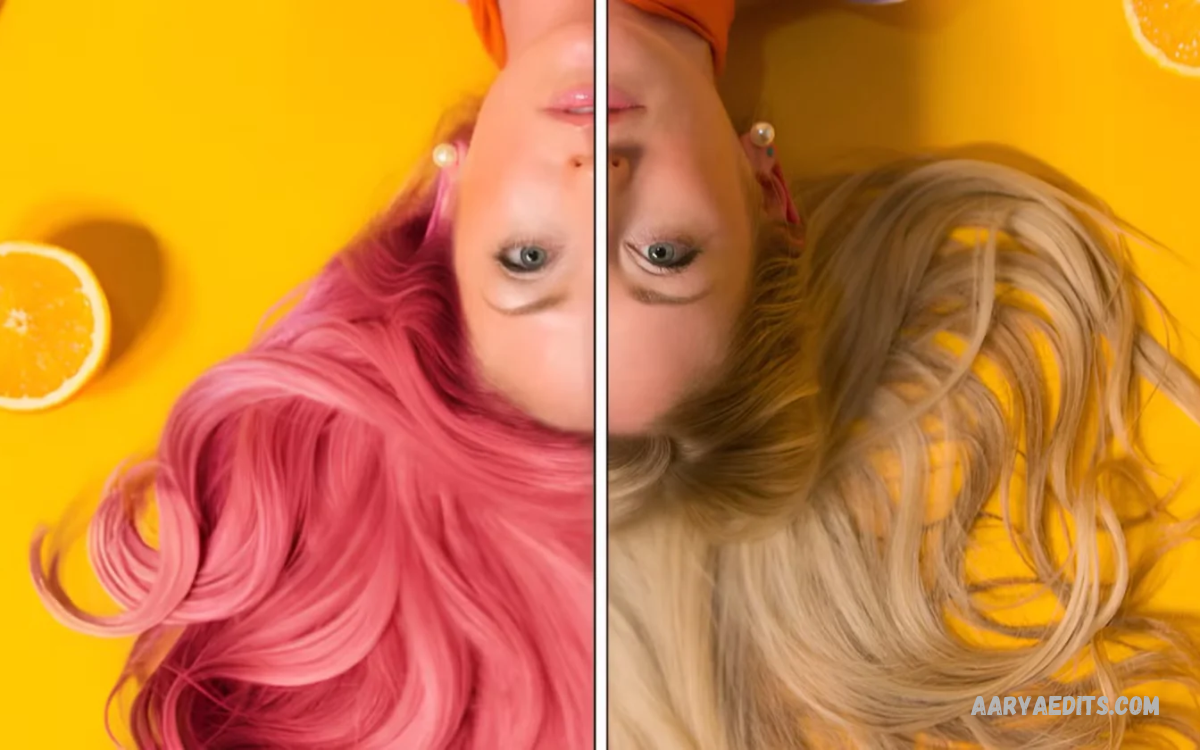
PicsArt Tools Explained helps beginners understand essential photo-editing features, creative effects, and design options. PicsArt offers tools for transforming ordinary photos into attractive images.
Whether creating social media posts, editing portraits, designing thumbnails, or improving pictures, PicsArt provides accessible editing features. Understanding these tools makes photo editing easier, faster, and more creative.
What Is PicsArt?
PicsArt is a popular photo-editing and graphic-design application available for mobile devices and other supported platforms. It combines photo adjustments, artistic effects, text editing, stickers, drawing features, and design templates.
Users can edit personal photographs, create digital artwork, prepare social media graphics, and customize visual content. Some features are free, while advanced tools may require a paid subscription.
Understanding the PicsArt Editing Interface
The PicsArt editing interface provides access to different creative tools, depending on the selected editing mode and application version. Users can open an image, explore editing options, and apply changes through simple controls.
Most tools appear in menus, panels, or toolbars. Learning where common features are located helps users complete editing tasks efficiently without repeatedly searching through different options.
PicsArt Crop Tool Explained
The Crop Tool removes unwanted areas from photos and improves image composition. Users can adjust the visible frame to focus attention on important subjects, such as people, products, landscapes, or objects.
Cropping also helps prepare images for different platforms and layouts. Choosing the right aspect ratio can make photos suitable for profile pictures, social media posts, banners, and thumbnails.
PicsArt Resize Tool Explained
The Resize Tool changes an image’s dimensions to meet specific design requirements. It helps users prepare photos for websites, digital artwork, presentations, and social media graphics.
Users should consider image quality when changing dimensions. Enlarging a small image too much can cause blur, while reducing dimensions can create smaller files for easier sharing and uploading.
PicsArt Background Remover
The Background Remover separates a subject from its surrounding background. This feature is particularly useful for product photographs, portraits, profile pictures, promotional graphics, and creative compositions.
After removing a background, users can place the subject over a different image or colored canvas. Availability, processing limits, and editing controls may vary according to the application version and subscription.
PicsArt Cutout Tool Explained
The Cutout Tool helps isolate specific objects or people from photographs. Depending on the available interface, users may select a subject automatically or refine the selection manually for better results.
Cutouts work well for creative collages, promotional designs, digital posters, and personalized artwork. Carefully check the edges around hair, clothing, and small objects to improve the final composition.
PicsArt Remove Tool Explained
The Remove Tool helps eliminate unwanted objects or distracting elements from photographs. It can help clean up backgrounds, remove minor distractions, or improve an image’s overall appearance.
Results depend on the photograph’s complexity and the surrounding details. Simple backgrounds generally produce more natural results, while complicated patterns may require additional editing or repeated adjustments.
PicsArt Clone Tool Explained
The Clone Tool copies visual information from one area of an image to another. It can help repair small imperfections, cover unwanted details, or recreate parts of a background.
Successful cloning requires careful attention to lighting, texture, and alignment. Using smaller brush sizes around detailed areas can help create a more natural appearance without making the edited section obvious.
PicsArt Adjust Tool Explained
The Adjust Tool improves a photo’s overall appearance with settings such as brightness, contrast, saturation, highlights, and shadows. Available adjustments may differ between editing modes and application versions.
Brightness changes the overall light level, while contrast controls the difference between lighter and darker areas. Saturation affects color intensity, letting users create subtle or vibrant visual styles.
PicsArt Brightness Tool
The Brightness Tool makes a photograph appear lighter or darker. It can improve images taken in dim environments or reduce excessive brightness when a photo looks washed out.
Small adjustments usually preserve more natural details. Over-increasing brightness can remove visible texture from bright areas, while reducing it too much can make important subjects hard to see.
PicsArt Contrast Tool
The Contrast Tool controls the visual difference between light and dark portions of an image. Increasing contrast can make photographs appear stronger, while reducing contrast produces a softer appearance.
Portraits, landscapes, and product photographs often benefit from balanced contrast. Extreme settings may hide shadows or remove detail from bright areas, so gradual adjustments usually provide better results.
PicsArt Saturation and Temperature Tools
The Saturation Tool controls color intensity throughout an image. Higher saturation creates more vivid colors, whereas lower saturation produces a muted appearance that can support minimalist or cinematic designs.
The Temperature Tool changes a photograph’s overall color warmth. Warmer settings add a golden glow, while cooler settings create a bluish tone that may suit certain moods or environments.
PicsArt Filters Explained
Filters apply predefined visual styles to photographs with minimal effort. They can change colors, contrast, brightness, and other characteristics to create different moods or consistent visual themes.
Users can experiment with filters for portraits, travel photographs, food images, and social media posts. Applying a filter at the right intensity helps preserve natural details while achieving the desired look.
PicsArt Effects Tool Explained
The Effects Tool provides creative treatments that transform photographs into different visual styles. Depending on the options available, users may find artistic, vintage, glitch, blur, sketch, or other stylized effects.
Effects can help images stand out, but excessive editing may distract viewers from the main subject. Choosing one or two complementary effects often produces a cleaner, more professional result.
PicsArt Blur Tool Explained
The Blur Tool softens selected details or areas within a photograph. It can reduce background distractions, create depth, or add artistic effects to portraits and creative compositions.
Different blur styles may create different results, depending on the available controls. Use blur carefully to avoid softening important facial features, text, product details, or other essential elements.
PicsArt Beautify Tools Explained
Beautify tools offer portrait-focused adjustments, including skin smoothing, blemish correction, and other appearance-related enhancements. Available features vary by platform, version, and subscription level.
For natural-looking portraits, moderate adjustments generally work better than extreme changes. Preserving skin texture and individual features helps keep photos realistic while improving lighting, clarity, and overall presentation.
PicsArt Face Editing Tools
Face editing features help users make selected portrait adjustments. Depending on the available tools, these may include localized retouching, facial detail enhancement, or other portrait-focused controls.
Good portrait editing should support the photograph rather than remove its natural character. Balanced lighting, accurate colors, and subtle corrections often create more convincing results than excessive retouching.
PicsArt Text Tool Explained
The Text Tool adds words, titles, captions, labels, and other written elements to images. Users can customize font styles, sizes, colors, alignment, spacing, and positioning according to the design.
Text is especially important for thumbnails, announcements, posters, and promotional graphics. Choosing readable fonts and maintaining strong contrast between text and background helps viewers understand the message quickly.
PicsArt Fonts and Typography
Typography affects a design’s readability, personality, and overall appearance. Bold fonts often work well for headlines, while simpler fonts can improve readability in supporting text and longer captions.
Using too many different fonts can make a composition look inconsistent. Combining two complementary typefaces and maintaining clear spacing helps establish a professional visual hierarchy across different design projects.
PicsArt Sticker Tool Explained
The Sticker Tool adds decorative graphics, illustrations, symbols, and other visual elements to photographs. Stickers can convey emotions, highlight key details, or make social media designs more engaging.
Users should choose stickers that complement the image rather than overcrowding the composition. Proper positioning, appropriate sizing, and consistent visual styles help balance the main photograph with decorative elements.
PicsArt Shape Tools Explained
Shape tools let users add geometric elements such as circles, rectangles, lines, and other available forms. These elements can organize information, highlight subjects, or create structured graphic designs.
Shapes are useful for promotional banners, thumbnails, announcements, and educational visuals. Adjusting transparency, borders, colors, and placement helps integrate shapes into the design without overwhelming the main content.
PicsArt Drawing Tool Explained
The Drawing Tool provides a creative workspace for sketching, painting, and adding freehand details to images. Available controls may include brushes, colors, stroke sizes, and other artistic settings.
Users can create illustrations, add handwritten annotations, highlight objects, or develop original artwork. When supported, working on a separate drawing layer can make experimentation easier and preserve the original photograph.
PicsArt Brush Tool Explained
Brush tools control how digital strokes appear when you draw or paint. Different brush styles can produce smooth lines, textured marks, soft shading, or other artistic effects.
Brush size and opacity influence the final result. Smaller brushes provide more control over detailed areas, while larger brushes work well for broad strokes, backgrounds, and simple color effects.
PicsArt Layers Explained
Layers keep different visual elements separate within a composition. Depending on the editing mode, users can work independently with photographs, text, stickers, drawings, and other elements.
Layer-based editing makes creative changes easier because individual elements can be adjusted without rebuilding the entire design. When supported, layer ordering also controls which objects appear in front of or behind others.
Read Also: Digital Photography Editing Guide: Tips, Tools, Techniques for Better Photos
PicsArt Blend Tool Explained
Blend tools combine images or layers through different visual interactions. Depending on the available interface, blending can help create double exposures, artistic overlays, light effects, or textured compositions.
The best blending method depends on the colors and brightness levels of the selected images. Experimenting with blend modes and opacity can create interesting results while keeping the main subject visible.
PicsArt Opacity Tool Explained
The Opacity Tool controls the transparency of an image, sticker, shape, text element, or layer when the selected editing mode supports it. Lower opacity allows underlying content to remain visible through the element.
Opacity helps create subtle overlays, watermarks, shadows, and layered designs. Balancing transparency carefully helps decorative elements support the main composition without becoming unnecessarily distracting.
PicsArt Frame Tool Explained
Frame tools add borders or decorative edges around photographs. Frames can give images a polished appearance, create a specific visual theme, or separate photographs from surrounding design elements.
Choosing a frame that matches the photograph improves consistency. Simple borders often work well for professional designs, while decorative frames may suit invitations, personal collages, and themed social media posts.
PicsArt Collage Maker Explained
The Collage Maker combines multiple photos into a single composition. Users can arrange images in grids, freestyle layouts, or other available templates to tell a visual story.
Collages are useful for travel memories, product comparisons, family albums, and social media collections. Selecting compatible photographs and maintaining consistent spacing helps the finished design appear organized and visually appealing.
PicsArt Grid Tool Explained
Grid layouts organize multiple photographs into a structured arrangement. They can create balanced collages, comparison graphics, and visual collections for digital platforms.
A well-designed grid uses consistent spacing and appropriately sized images. Keeping important subjects visible and avoiding excessive decorative elements helps viewers understand each photograph without losing sight of the overall composition.
PicsArt Add Photo Tool Explained
The Add Photo Tool inserts another image into an existing editing project. This feature helps users create composite designs, combine backgrounds, add product images, or incorporate additional visual elements.
After inserting a photo, users can resize, rotate, reposition, or adjust its transparency. Combining images successfully requires attention to lighting, perspective, and color consistency.
PicsArt Shadow Tool Explained
Shadow effects create depth by placing a darker or softer area behind an object. When available, shadow controls may allow adjustments to direction, blur, distance, and intensity.
Shadows can help text, stickers, and product images stand out against busy backgrounds. Keeping the effect subtle usually produces a more natural result than using dark, oversized shadows.
PicsArt Border Tool Explained
The Border Tool adds an outline around an image or selected element. Borders can separate a subject from its background, improve visual structure, or establish a consistent style across multiple graphics.
Color, thickness, and placement influence how the border affects the composition. Thin borders often suit minimalist designs, while stronger outlines may help emphasize objects in promotional artwork or thumbnails.
PicsArt AI Tools Explained
PicsArt offers AI-powered features in supported versions and editing modes. Depending on current availability, these may include background processing, image generation, object removal, or tools that assist with creative editing.
AI features can reduce manual work, but their results may require review and refinement. Users should inspect generated details, confirm that the image matches their intended purpose, and check subscription requirements before using premium options.
PicsArt AI Image Generator
AI image-generation features can create visual content from written prompts where supported. Users describe the subject, style, setting, or composition they want, and the available tool produces a generated image.
Clear prompts generally communicate creative goals more effectively than vague descriptions. Reviewing generated results and adjusting the prompt can help users develop images suitable for illustrations, concepts, backgrounds, or other creative projects.
PicsArt AI Replace Tool
AI replacement features may allow users to modify selected parts of an image using available editing controls. Depending on the feature, a selection and text prompt can guide the replacement of an object or visual area.
The final result depends on image complexity and the instructions provided. Users should examine edges, lighting, and surrounding details to ensure the replacement fits naturally within the original photograph.
PicsArt Export and Save Tools Explained
Export and save options allow users to store edited images on supported devices or share them through available services. Depending on the platform, users may choose image formats, dimensions, or quality settings.
Before exporting, review the final composition, spelling, cropping, and image clarity. Saving a high-quality version can preserve details, while smaller file sizes may be more practical for websites and quick sharing.
PicsArt Photo Editing Tips for Beginners
Beginners should start with simple adjustments, including cropping, brightness, contrast, and color correction. Once comfortable with these basics, they can explore filters, stickers, text, layers, and other creative features.
Working through one tool at a time makes learning easier and helps users understand how each setting changes an image. Keeping an original copy also allows experimentation without losing the untouched photograph.
Common PicsArt Editing Mistakes
Excessive filters, oversaturated colors, unreadable text, and unnecessary stickers can weaken a design. Using every available effect does not automatically improve an image, particularly when several elements compete for attention.
Another common mistake is ignoring image dimensions and export quality. Checking composition, maintaining visual balance, and choosing appropriate output settings can help prevent these problems and produce more consistent results.
Frequently Asked Questions
Which PicsArt tools should beginners learn first?
Beginners should start with cropping, resizing, brightness, contrast, filters, and text. These features provide a strong foundation for everyday photo editing and help users understand the application’s basic workflow.
Is PicsArt free to use?
PicsArt provides free features, but access to particular tools, effects, templates, and AI functions may depend on the current subscription plan. Availability can also vary according to the device, region, and application version.
Which PicsArt tool removes backgrounds?
The Background Remover is designed to separate a subject from its background where the feature is available. The Cutout Tool can also help isolate selected subjects or objects through supported automatic or manual selection methods.
Can PicsArt improve blurry photos?
PicsArt offers image-adjustment and enhancement options that may improve the appearance of some photographs. However, ordinary adjustments cannot reliably restore details that were never captured in a severely blurry image.
How can users add text in PicsArt?
Users can open a photograph, select the Text Tool, enter their message, and customize its appearance through the available controls. Options may include font style, size, color, alignment, and placement.
Can PicsArt create thumbnails and social media posts?
Yes. PicsArt supports creative workflows for thumbnails, promotional graphics, social media posts, collages, and other digital designs. Available templates and tools help users adapt their content to different formats.
Conclusion
PicsArt Tools Explained introduces the essential editing features used to transform photographs into creative and polished designs. From cropping and color adjustments to layers, collages, and AI-powered features, each tool serves a different purpose.
Learning these tools gradually helps users develop stronger editing skills and create more effective visual content. With thoughtful adjustments, balanced compositions, and appropriate export settings, PicsArt can support a wide range of personal and creative projects.
