

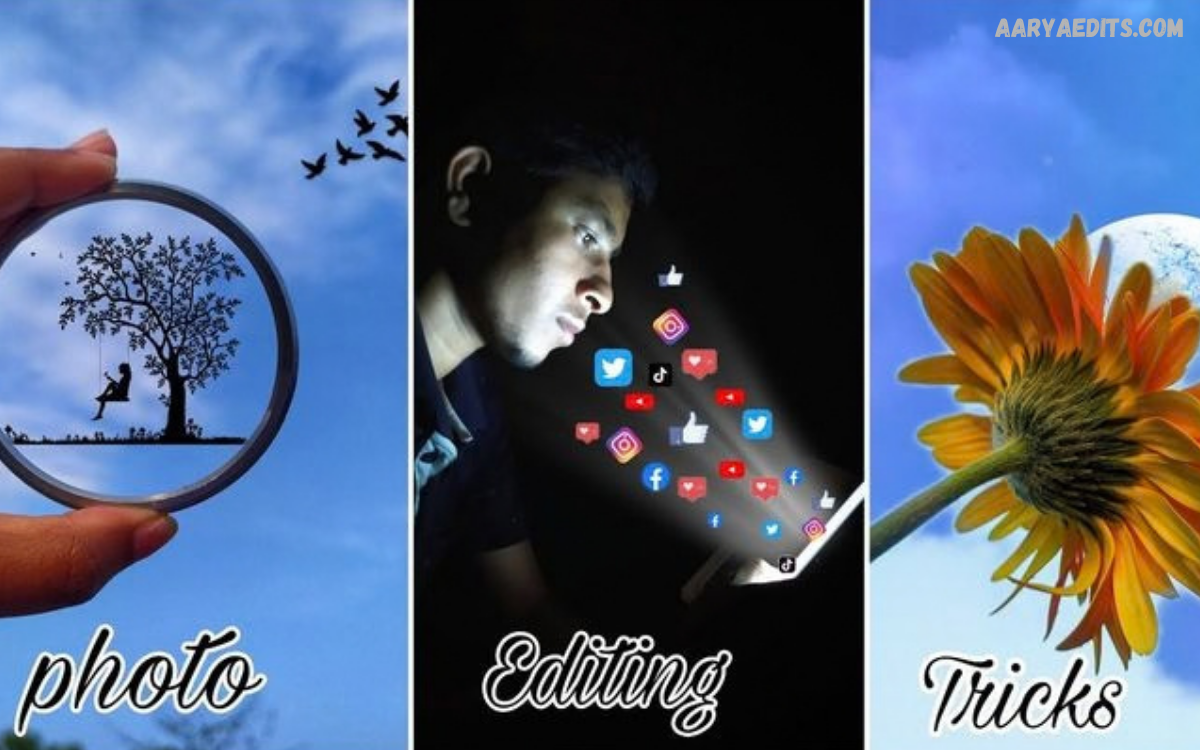
PicsArt Editing Tricks help transform ordinary photos into polished, creative visuals through practical editing techniques. PicsArt combines filters, effects, layers, masks, text, brushes, and adjustment tools in one editing platform.
Effective editing does not depend only on adding multiple effects. Strong results come from selecting suitable adjustments, controlling intensity, maintaining visual balance, and using layers carefully.
Understanding PicsArt Editing Tricks
PicsArt editing tricks start with understanding the purpose of each tool. Adjustments can improve brightness, contrast, saturation, sharpness, highlights, shadows, and overall color balance. Using these controls carefully builds a stronger foundation before you apply creative effects.
A professional editing workflow usually starts with basic corrections before moving toward advanced effects. Instead of changing every setting, focus on the areas that require improvement. This approach keeps the original image recognizable while producing a refined, balanced final result.
Start With Better Image Selection
A quality source image makes editing easier and produces stronger results. Select photographs with suitable lighting, clear subjects, balanced composition, and enough resolution for the intended design. A weak source image may require excessive corrections that reduce natural detail.
Before applying effects, inspect the image carefully for distracting elements, uneven lighting, or unwanted background objects. Cropping can improve composition and remove unnecessary areas. A clean starting image helps PicsArt Editing Tricks produce more consistent results.
Use Adjustments Before Effects
Adjustment tools are among the most useful features for improving a photograph. Brightness can correct exposure, contrast can strengthen separation, and saturation can improve color intensity. Small changes often create a more professional appearance than aggressive adjustments.
Experiment with highlights and shadows when an image contains uneven lighting. Reduce excessive brightness in highlighted areas while recovering useful detail from darker regions. The goal should remain natural balance rather than maximum intensity across every adjustment.
Improve Colors With Precision
Color editing can completely change a photograph’s mood. PicsArt provides tools that allow users to control color intensity and overall visual temperature. Warm tones can create a comfortable appearance, while cooler tones can produce a modern or dramatic atmosphere.
Avoid increasing saturation without considering the entire image. Highly saturated colors can distract from the main subject and reduce realism. A controlled color palette usually creates stronger visual consistency, especially when preparing images for social media or digital projects.
Explore PicsArt Filters
Filters offer a quick way to change a photograph’s visual character. PicsArt offers numerous filter styles that can introduce cinematic, vintage, artistic, dramatic, or colorful appearances. Filters can save time when you already have a specific visual direction in mind.
Professional results often require reducing filter intensity after selection. A filter does not need to dominate the entire image to be effective. Lowering its strength can preserve important details while still adding the desired atmosphere.
Combine Filters With Adjustments
Filters become more flexible when you combine them with manual adjustments. Apply a suitable filter first, then refine brightness, contrast, saturation, or other settings to match the photograph. This creates a customized appearance instead of relying entirely on a preset.
Consider the original lighting before selecting a filter. A filter designed for bright photographs may produce poor results on darker images. Combining filter selection with controlled adjustments is one of the practical PicsArt Editing Tricks for achieving consistent results.
Master the Layer Feature
Layers allow editors to separate different visual elements and control them independently. A background, subject, texture, text element, and effect can each occupy its own layer. This organization makes complex projects easier to edit and refine.
Layer order also affects the final composition. Moving an element above or below another layer can change how the design appears. Keep important elements organized, and rename layers on larger projects to reduce confusion during editing.
Use Layer Opacity Carefully
Opacity controls how strongly one layer appears over another. Lower opacity can blend textures, overlays, colors, and visual effects into a photograph without completely covering the original content. This creates subtle combinations that look more polished.
Experiment with different opacity levels instead of keeping every layer at full strength. A powerful texture may become useful when its opacity is reduced. Controlled transparency can also add depth while keeping the focus on the primary subject.
Try Masking Techniques
Masking lets selected areas of an image or layer remain visible while hiding other areas. This technique provides greater control over compositions and can create clean transitions between different visual elements. Masks are especially useful for creative photo combinations.
Use masking gradually around important subjects and edges. Rough selections can make an edit look artificial, while careful masking creates smoother integration. Zooming into difficult areas can help refine edges and produce cleaner compositions.
Create Double Exposure Effects
Double exposure combines visual elements from multiple images to create an artistic composition. You can blend a portrait with landscapes, architecture, textures, or abstract patterns. PicsArt Editing Tricks involving layers and opacity make this effect accessible to many creators.
Choose images with complementary shapes and lighting for stronger results. Reduce the upper layer’s opacity and experiment with blending options. The strongest compositions usually maintain a recognizable primary subject while using the second image as a supporting visual element.
Use Blending Modes
Blending modes determine how one layer interacts with another. Different modes can combine light, shadows, colors, contrast, and textures. They can help you add atmospheric elements without manually changing every part of the image.
Test blending modes with simple overlays before using them in complex designs. Each image reacts differently because colors and brightness vary. Once the desired interaction is found, adjust opacity to control the strength of the effect.
Add Text Professionally
Text can turn an edited photograph into a poster, announcement, thumbnail, quote graphic, or social media design. Select fonts that match the subject and maintain clear contrast between text and background. Avoid using excessive font styles in one composition.
Spacing and alignment are equally important. Keep text positioned where it does not interfere with the main subject. A simple headline with strong hierarchy often communicates more effectively than several decorative text elements competing for attention.
Improve Text With Shadow Effects
Text shadows can increase readability when the background contains complex details. A subtle shadow separates letters from nearby colors without making the typography appear overly heavy. Use consistent shadow direction throughout the design.
Avoid extremely dark or oversized shadows unless the design specifically requires them. Excessive shadow effects can reduce readability and make the composition appear dated. A controlled shadow usually provides enough separation while preserving a clean appearance.
Use Brushes for Creative Details
Brushes can add highlights, strokes, textures, color accents, and hand-drawn elements. They help create personalized designs that filters alone can’t achieve. Different brush sizes and opacity levels allow detailed control.
Use a separate layer when adding brush effects to important images. This makes it easier to erase, reposition, or reduce the effect’s intensity later. Keeping creative marks separate protects the original photograph and improves editing flexibility.
Create Glow Effects
Glow effects can add emphasis around subjects, lights, text, or selected objects. A subtle glow can produce depth and visual separation without overwhelming the composition. Use lighter colors that complement the existing palette for more natural integration.
Glow effects work best when you control their intensity. Apply the effect on a separate layer and adjust opacity afterward. This method allows the glow to support the subject rather than becoming the main focus of the design.
Add Motion Blur Creatively
Motion blur can suggest movement in sports, vehicles, gaming graphics, action photographs, or creative compositions. Apply blur selectively instead of affecting the entire image. This preserves important subject details while creating a sense of motion.
Layer-based editing can make motion blur easier to control. Duplicate the relevant element, apply the blur, and adjust its transparency. This technique works best when the blur direction matches the implied movement in the composition.
Remove Unwanted Objects
Removing distracting objects can significantly improve image composition. Use suitable removal or cloning tools to clean backgrounds while preserving the main subject. Small corrections can make photographs appear more organized and visually focused.
Inspect the edited area after removing an object. Background patterns can reveal repeated textures or unnatural patches if you rush the correction. Zoom out afterward to ensure the edited region blends naturally with surrounding details.
Create Background Blur
Background blur helps direct attention toward the main subject. Portraits, products, and objects can benefit from controlled separation between foreground and background. The technique works best when the subject remains sharp and the blur follows natural depth.
Use selection and masking tools to protect the subject from unwanted blur. Edges around hair, clothing, or detailed objects may require additional refinement. A gradual blur usually looks more realistic than applying the same strength across the entire background.
Read Also: PicsArt Beginner Tutorial: Complete Guide for New Users
Use Selective Color Editing
Selective color techniques can highlight specific visual elements. For example, a design may emphasize one color while reducing the intensity of surrounding colors. This approach can create a strong focal point without requiring complicated effects.
Choose one primary color or a small color group for emphasis. Excessive selective coloring can make the composition feel disconnected. Maintaining a clear relationship between the highlighted color and the rest of the image creates better visual harmony.
Experiment With Collage Designs
PicsArt supports creative collage compositions that combine several photographs in one design. Collages work well for travel memories, product presentations, event graphics, portfolios, and social media posts. Consistent spacing can make multiple images appear organized.
Select photographs that share a related theme, color palette, or visual style. Uneven image sizes can still work when you arrange them intentionally. Use borders, spacing, and background colors to separate individual photographs.
Create Professional Social Media Graphics
Social media graphics require clear composition because users often view them quickly. Place the main message or subject where it remains immediately visible. Strong contrast, simple typography, and balanced spacing can improve visual communication.
Prepare the canvas according to the intended platform and content type. Keep important text away from edges and avoid unnecessary decorative elements. A focused design usually communicates its purpose more effectively than a crowded composition.
Use Overlays and Textures
Overlays can introduce light leaks, particles, paper textures, gradients, clouds, or other atmospheric details. These elements can make a simple image more visually interesting. Apply overlays through separate layers for easier opacity and blending control.
Choose textures that support the photograph rather than competing with it. A subtle paper texture can add character, while excessive particles may distract from the subject. The best overlay is often the one that viewers notice as part of the overall atmosphere rather than as an isolated effect.
Improve Portrait Editing
Portrait editing should preserve important facial and skin details while improving overall lighting and color. Avoid excessive smoothing because natural texture contributes to realistic results. Adjusting exposure, contrast, and color balance can often provide enough enhancement.
Use selective adjustments when working with portraits. Brighten important areas carefully and maintain natural shadows for depth. Small corrections around the background, eyes, hair, and clothing can improve the overall image without making the portrait appear artificial.
Create Cinematic Photo Effects
Cinematic editing often uses controlled contrast, balanced shadows, and a consistent color palette. Crop the image strategically and use subtle color adjustments to create a film-inspired atmosphere. The final result should support the subject and story of the photograph.
Avoid applying identical cinematic settings to every photograph. Lighting conditions vary between images, so customize adjustments. Combining a suitable filter with manual color correction can produce a more controlled cinematic appearance.
Use Vignette for Focus
A vignette slightly darkens or modifies the outer portions of an image. This can guide attention toward the center or main subject. Vignettes are especially useful when the background contains brighter areas that compete with the focal point.
Keep vignette strength subtle for most photographs. Strong darkening can make the image appear unnatural and reduce important background detail. Adjust the effect while viewing the complete composition rather than focusing only on the center.
Sharpen Important Details
Sharpening can improve clarity in photographs containing fine details. It can make textures, objects, and selected edges appear more defined. However, excessive sharpening can introduce unwanted visual artifacts and make images look harsh.
Apply sharpening after major color and exposure corrections. Review the result at normal viewing size before finalizing. If fine details appear overly strong, reduce the sharpening level until the image returns to a balanced appearance.
Use Blur and Focus Together
Combining sharp and blurred areas creates visual hierarchy. Keep the primary subject detailed while reducing distractions around it. This method helps viewers understand where to look first and can create a stronger sense of depth.
Use masks to control exactly where blur appears. Smooth transitions are important because sudden boundaries can reveal the editing process. A gradual transition between focused and blurred areas generally creates a more natural visual result.
Maintain Consistent Editing Style
Consistency becomes important when creating multiple images for a website, social media page, portfolio, or campaign. Use related colors, contrast levels, typography, and effects across the collection. This creates a recognizable visual identity.
Save useful editing settings as references for future projects. Record the adjustments that produce strong results, and adapt them to each photograph. Consistency does not mean every image must look identical; it means the designs should feel visually connected.
Avoid Excessive Editing
One of the most important PicsArt Editing Tricks is knowing when to stop. Adding too many filters, effects, stickers, textures, and adjustments can make a composition confusing. Every element should have a clear purpose within the final design.
After completing the main edit, review the image and remove unnecessary effects. Compare the result with the original to identify whether the changes actually improve the image. Professional editing often depends more on controlled decisions than on how many tools you use.
Build a Simple Editing Workflow
A reliable workflow can make editing faster and more organized. Start by cropping and correcting exposure, then adjust color before adding creative effects. Finish with sharpening, text, final color checks, and export preparation.
This process reduces unnecessary backtracking and keeps the project structured. Save a working version before making major changes when possible. A consistent workflow also helps beginners understand which tools to use first and which to reserve for final refinement.
Frequently Asked Questions
What are PicsArt Editing Tricks?
PicsArt Editing Tricks are practical techniques for improving photographs and creating digital designs with PicsArt. They include color adjustments, filters, layers, masking, text, brushes, overlays, and creative effects.
How can I make PicsArt edits look professional?
Start with image correction before applying creative effects. Use balanced colors, controlled contrast, clean typography, organized layers, and moderate effect intensity to maintain a polished appearance.
Which PicsArt tools should beginners learn first?
Beginners can start with Crop, Brightness, Contrast, Saturation, Filters, Text, Layers, and Masking. These tools provide a strong foundation for both simple photo corrections and creative designs.
How do I avoid overediting photos in PicsArt?
Apply effects gradually and review the image at normal viewing size. Reduce excessive filter intensity, saturation, sharpening, and texture effects when they begin distracting from the main subject.
Can PicsArt create professional social media designs?
Yes. PicsArt can support social media graphics through templates, text, images, stickers, layers, backgrounds, effects, and other design tools. Proper spacing and visual hierarchy remain important for professional results.
How can I improve colors in PicsArt?
Use brightness, contrast, saturation, temperature, highlights, and shadows carefully. Make small adjustments and maintain a consistent color relationship between the subject and background.
How do layers help with PicsArt Editing Tricks?
Layers let you edit different elements independently. Users can separate photographs, textures, text, effects, and overlays, making complex compositions easier to adjust without changing the entire design.
Are PicsArt filters enough for professional editing?
Filters can provide a useful starting point, but manual adjustments often improve the final result. Combining filters with exposure, color, contrast, opacity, and masking gives you more control.
How can I create a cinematic effect in PicsArt?
Use controlled contrast, balanced shadows, suitable colors, and a subtle filter. Adjust the effect according to the original photograph instead of applying identical settings to every image.
How often should I practice PicsArt editing?
Regular practice helps develop stronger editing judgment. Experiment with different images and techniques, and compare the original and edited versions to understand how each adjustment changes the final result.
Conclusion
Strong PicsArt Editing Tricks depend on creativity, patience, and controlled adjustments. Learn one tool at a time and practice it on different types of images. Comparing several versions can reveal which settings best balance detail, color, and visual impact.
Remember that professional editing does not require every available effect. Clean composition, accurate color, controlled lighting, suitable typography, and thoughtful layer management can create impressive results.
