

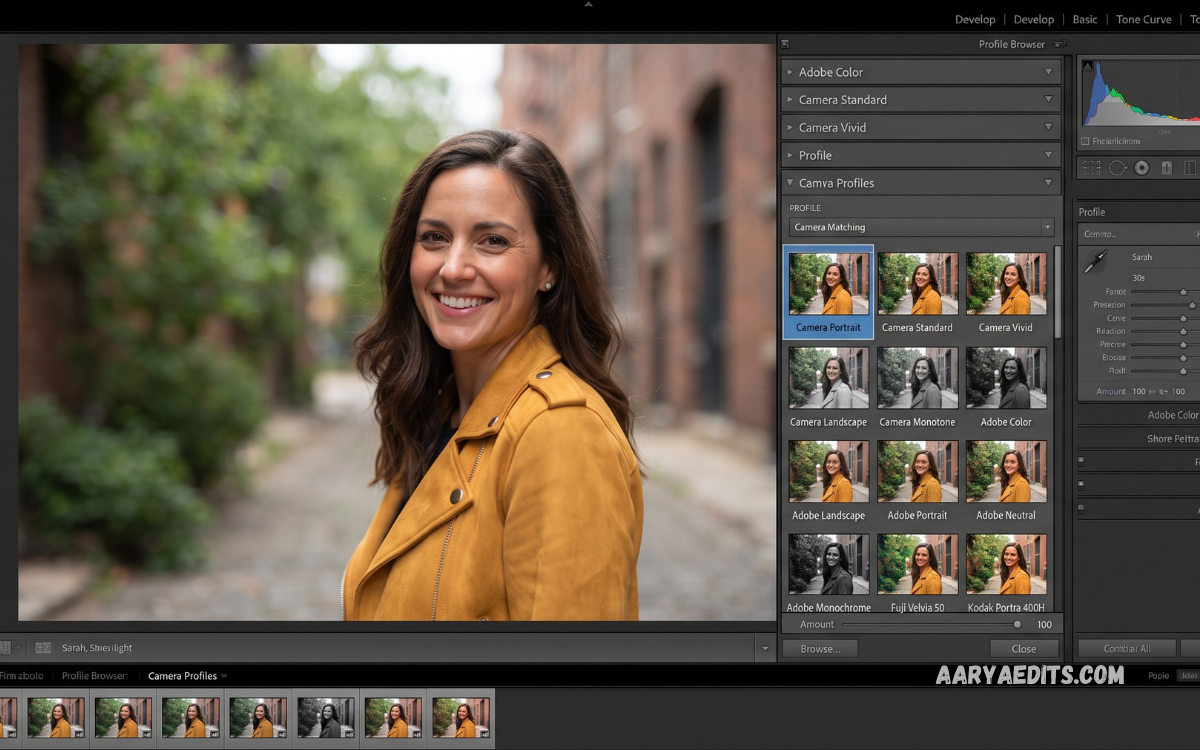
Lightroom Camera Profiles are one of the most useful tools for photographers who want better color, tone, and overall image quality during RAW photo editing. A camera profile changes how Adobe Lightroom interprets the colors and tonal information captured by your camera, giving you a strong starting point before applying other adjustments.
Many photographers focus on exposure, white balance, contrast, highlights, and shadows while overlooking camera profiles. However, choosing the right profile can dramatically change the appearance of a photograph without permanently altering the original RAW data. Understanding profiles can make your Lightroom workflow faster, more consistent, and more professional.
What Are Lightroom Camera Profiles?
Lightroom Camera Profiles are predefined color-rendering instructions that determine how Lightroom displays a RAW photograph. They influence the interpretation of colors, contrast, saturation, and tonal characteristics while maintaining the flexibility of RAW editing.
Unlike traditional presets, profiles are designed primarily to establish the visual foundation of an image. A profile can be selected before making detailed adjustments, allowing photographers to begin editing from a preferred color and tonal appearance.
Why Lightroom Camera Profiles Matter
Camera profiles matter because RAW files contain extensive image information that requires interpretation by editing software. Lightroom uses a profile to translate that information into a visible photograph.
Different profiles can produce noticeably different results from the same RAW file. One profile may deliver natural colors, another may provide stronger contrast, while another may create a more vivid appearance. Selecting the appropriate profile can therefore reduce the amount of correction required later.
Lightroom Profiles vs Presets
Profiles and presets serve different purposes, although both can influence the appearance of photographs. A preset generally contains a collection of editing adjustments such as exposure, contrast, color grading, sharpening, and other settings.
A profile works more fundamentally with the way Lightroom renders the RAW image. You can apply a profile and then use a preset or manually adjust the photograph. This makes profiles particularly useful as the first stage of a professional editing workflow.
Main Types of Lightroom Camera Profiles
Lightroom provides several profile categories designed for different editing needs. The available options can vary depending on the camera model, RAW format, and Lightroom version.
Adobe Profiles
Adobe profiles are designed to provide general-purpose interpretations of RAW photographs. Common options include Adobe Color, Adobe Landscape, Adobe Portrait, Adobe Neutral, Adobe Vivid, and Adobe Monochrome.
Adobe Color is often a reliable starting point because it provides balanced color and contrast. Adobe Landscape is designed for stronger landscape-oriented color rendering, while Adobe Portrait can produce a more suitable interpretation for skin tones.
Camera Matching Profiles
Camera Matching profiles are designed to resemble the color rendering associated with camera manufacturers’ picture styles. Depending on the camera, Lightroom may provide options that correspond to in-camera styles.
These profiles can be especially useful for photographers who want their Lightroom images to look closer to the JPEG previews produced by their cameras.
Creative Profiles
Creative profiles provide more stylized visual effects. They can introduce distinctive color, contrast, or monochrome characteristics without requiring extensive manual editing.
Creative profiles are useful when developing a recognizable editing style, especially for social media photography, travel images, creative portraits, and artistic projects.
Black and White Profiles
Monochrome profiles provide a foundation for black-and-white editing. They remove the emphasis on color and allow photographers to concentrate on luminance, contrast, texture, highlights, and shadows.
A good monochrome profile can make the initial conversion more effective before additional black-and-white adjustments are applied.
How to Find Lightroom Camera Profiles
Finding profiles in Lightroom is relatively simple. Open a RAW photograph in the Develop module and locate the Profile section near the top of the Basic panel.
Select the profile browser to view available categories. Depending on your Lightroom version and camera, you may see Adobe, Camera Matching, Legacy, Artistic, B&W, Modern, Vintage, or other profile groups.
How to Choose the Best Camera Profile
There is no single best profile for every photograph. The ideal choice depends on the subject, lighting conditions, camera, lens, and desired final appearance.
For natural-looking photographs, start with Adobe Color or a suitable Camera Matching profile. For landscapes, compare landscape-oriented profiles and examine greens, blues, and overall contrast. For portraits, pay particular attention to skin tones and subtle color transitions.
Lightroom Camera Profiles for Portrait Photography
Portrait photography requires careful color management because skin tones are highly sensitive to profile changes. A profile that increases saturation or contrast too aggressively can make skin appear unnatural.
Adobe Portrait can be a useful starting point for many portrait images. However, Camera Matching profiles may also produce excellent results when you prefer the appearance associated with your camera’s picture styles.
Lightroom Camera Profiles for Landscape Photography
Landscape photographs often benefit from profiles that provide stronger color separation and contrast. Adobe Landscape can be a useful starting point for scenes containing skies, vegetation, mountains, and dramatic lighting.
However, stronger profiles should not automatically be considered better. Excessive saturation can make vegetation appear unnatural and can reduce subtle color transitions in skies.
Lightroom Camera Profiles for Street Photography
Street photography often benefits from profiles that preserve realistic colors while maintaining sufficient contrast. Adobe Color can provide a balanced starting point, while Camera Matching profiles may help recreate the appearance of a particular camera style.
For black-and-white street photography, a monochrome profile can emphasize light, shadow, architecture, expressions, and geometric shapes.
Lightroom Camera Profiles for Product Photography
Product photography requires accurate and consistent color reproduction. Profile selection becomes particularly important when photographs must represent real product colors.
A neutral or color-accurate profile may be preferable for commercial work. After choosing the profile, calibrate white balance and make careful color adjustments. Consistency across a product collection is often more important than creating an aggressive visual style.
How Profiles Affect RAW Photos
A RAW file contains substantially more information than the final image displayed on screen. Lightroom uses a profile to interpret that information and create the initial visual representation.
Changing a profile does not mean that the original RAW file has been permanently rewritten. Lightroom applies the adjustment non-destructively, allowing you to experiment with different profiles without damaging the original capture.
Camera Profiles and White Balance
Camera profiles and white balance work together but perform different functions. White balance controls the overall color temperature and tint of an image, while the profile determines how Lightroom interprets and renders the RAW data.
If an image has incorrect white balance, changing the profile may not completely solve the problem. Correct the white balance first or as part of the initial editing process, then evaluate how different profiles handle the resulting colors.
Camera Profiles and Color Grading
Profiles can establish the basic color character of an image before color grading begins. This makes them useful in workflows where photographers want consistent results across large collections.
After selecting a suitable profile, use Lightroom’s Color Mixer, Color Grading, and other tools to refine the image. Starting with a profile that already matches your intended style can reduce the need for extreme color adjustments.
Creating a Consistent Lightroom Workflow
A consistent workflow can improve both editing speed and image quality. Begin by importing the RAW files, checking exposure and white balance, and selecting an appropriate camera profile.
Next, make fundamental tonal adjustments before refining colors and details. Once the base appearance is established, apply creative adjustments such as color grading, sharpening, and local corrections.
Should You Always Use the Same Profile?
Using the same profile for every photograph is not always the best approach. Different lighting conditions and subjects can benefit from different interpretations.
For example, a portrait photographed indoors under soft light may look better with a different profile than a landscape photographed during golden hour. The goal should be consistency in visual quality rather than blindly using one profile.
Read Also: Lightroom Export Settings: Complete Guide for High-Quality Photos
Common Mistakes When Using Camera Profiles
One common mistake is selecting a profile based only on how dramatic it looks. A highly saturated profile may appear impressive initially but can create difficult-to-correct colors later.
Another mistake is changing profiles after completing a detailed edit without checking the entire image again. Since profiles can influence color and tonal rendering, switching profiles may affect the balance of previous adjustments.
Tips for Better Lightroom Camera Profile Results
Compare profiles before making major edits. Use the profile that creates the strongest starting point for your intended result rather than simply choosing the most vivid option.
Zoom into important areas such as skin, foliage, skies, and product surfaces when comparing profiles. Small color differences can become more noticeable during detailed editing.
Lightroom Camera Profiles for Professional Editing
Professional photographers often treat profiles as part of their image-development process rather than as a final effect. The profile establishes a foundation, while exposure, white balance, tone, color, local adjustments, and finishing tools build the final image.
For photographers processing hundreds or thousands of images, choosing an appropriate profile at the beginning can also improve consistency and reduce repetitive corrections.
Are Camera Profiles Different for Every Camera?
Yes, available profiles can vary by camera model. Lightroom may include manufacturer-specific Camera Matching profiles based on supported camera systems.
Adobe profiles are designed to provide broader compatibility, while camera-specific profiles can provide rendering characteristics associated with particular camera models or picture styles.
How to Compare Profiles Efficiently
The easiest method is to open the profile browser and move through the available options while watching the photograph. Pay attention to skin tones, highlights, shadows, saturation, and color transitions.
Do not judge a profile only from a small preview. Evaluate the entire photograph and consider how much additional editing will be required.
Frequently Asked Questions
What are Lightroom Camera Profiles?
Lightroom Camera Profiles control how Adobe Lightroom interprets and renders the colors and tonal characteristics of RAW photographs. They provide a starting point for further editing.
Which Lightroom profile is best?
There is no universal best profile. Adobe Color is a useful general starting point, while Adobe Portrait, Adobe Landscape, Camera Matching, and other options may work better for specific subjects.
Do Lightroom profiles affect RAW files?
Profiles affect how Lightroom renders the RAW photograph but do not permanently alter the original RAW file. Lightroom editing remains non-destructive.
Are profiles better than presets?
Profiles and presets serve different purposes. Profiles establish a rendering foundation, while presets generally apply collections of editing adjustments. They can be used together.
Can I change a camera profile after editing?
Yes. However, changing the profile can alter the appearance of colors and tones, so review your previous adjustments after switching.
Do camera profiles improve photo quality?
A suitable profile can improve the appearance and editing starting point of a RAW photograph. It does not add missing detail or increase the original camera’s physical image resolution.
Why are some Lightroom profiles missing?
Available profiles depend on factors such as your Lightroom version, camera model, RAW format, and supported profile collection. Updating Lightroom can sometimes provide access to newer profile support.
Should I use Camera Matching profiles?
Camera Matching profiles can be useful when you want Lightroom results that resemble your camera’s in-camera picture styles. They are especially useful for photographers who prefer a familiar camera-specific rendering.
Can profiles be used with presets?
Yes. A profile can establish the image’s base rendering, after which a preset can apply additional adjustments. This combination can create a consistent editing workflow.
Are Lightroom Camera Profiles useful for beginners?
Yes. Profiles are beginner-friendly because they allow photographers to change the fundamental appearance of a RAW image quickly while keeping the editing process flexible.
How do I choose a profile for portraits?
Start by comparing profiles that produce natural-looking skin tones. Adobe Portrait or a suitable Camera Matching profile may be useful starting points, followed by careful white-balance and tonal adjustments.
Can Lightroom profiles create a professional editing style?
Profiles can contribute to a recognizable style, but professional results usually come from combining profile selection with consistent exposure, color, tonal, and finishing adjustments.
Conclusion
Lightroom Camera Profiles provide an important foundation for RAW photo editing. They influence how Lightroom interprets colors and tones, allowing photographers to establish a preferred visual direction before making detailed adjustments.
Understanding profiles can improve editing efficiency, color consistency, and creative control. Whether you photograph portraits, landscapes, products, street scenes, or everyday moments, experimenting with different profiles can help you discover a workflow that produces more predictable and professional results.
