

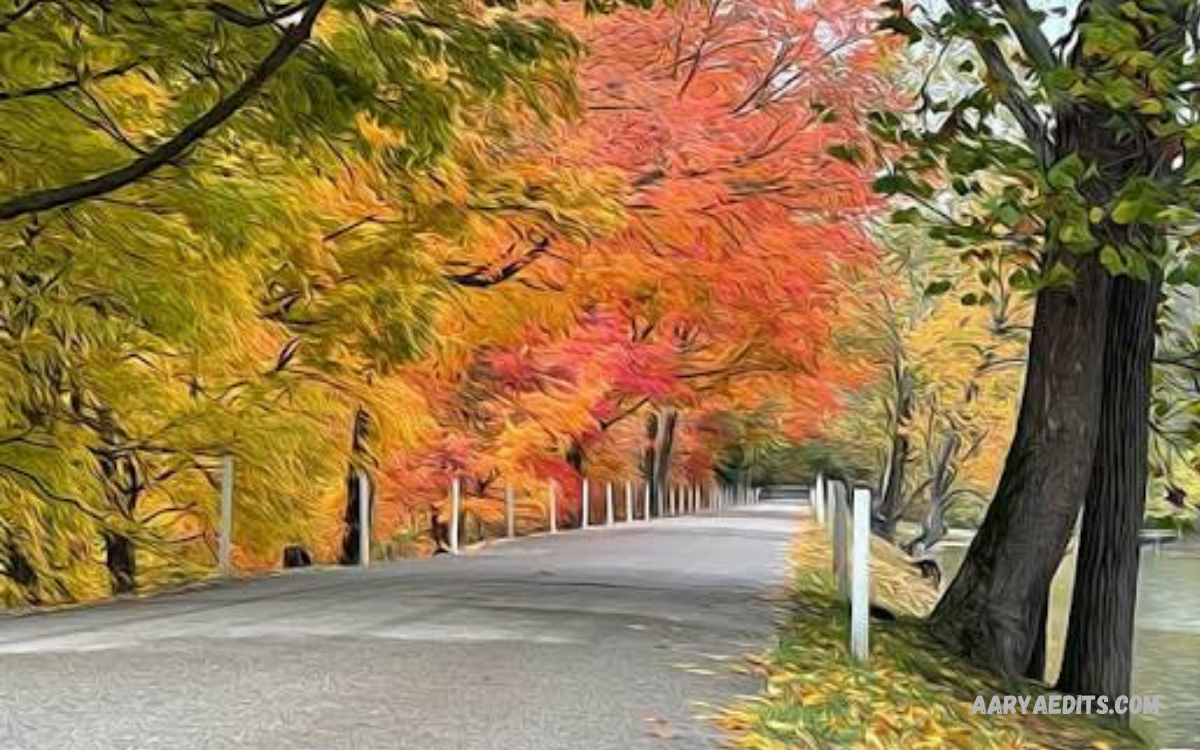
PicsArt filters for photos help transform ordinary pictures into creative, colorful, and professional-looking images. Whether you’re editing selfies, portraits, landscapes, travel photos, or social media posts, the right filter can improve a photo’s overall look.
Photo filters can change colors, adjust contrast, create vintage styles, add cinematic moods, and highlight important details. With the right combination of filters and editing tools, users can develop a consistent photography style without complicated editing techniques.
What Are PicsArt Filters for Photos?
PicsArt photo filters are preset visual effects that modify an image’s appearance. These effects can change color tones, brightness, saturation, contrast, shadows, and other visual characteristics.
Filters help create different moods and photography styles. A warm filter can make a picture feel cozy, while a cool filter can produce a calm, modern appearance. Black-and-white filters emphasize shapes and contrast, whereas colorful filters make selected details stand out.
Best PicsArt Filters for Photos
The best PicsArt filters for photos depend on the image type and the result you want. Portraits often benefit from balanced colors and natural skin tones, while landscapes may look attractive with enhanced greens, blues, and contrast.
Experiment with several filter styles to find the effects that suit your images. Avoid selecting a filter only because it looks impressive in the preview. Check whether it preserves important details, maintains natural colors, and complements the subject.
Vintage Filters for Photos
Vintage filters create a nostalgic appearance inspired by traditional film photography. These effects commonly feature faded colors, warm tones, softer contrast, and slightly muted highlights. They work particularly well for street photography, old buildings, travel memories, portraits, and lifestyle pictures.
To create a vintage look, start with an image with balanced lighting and clear details. Apply a suitable retro effect, then adjust its strength until the colors look natural for your chosen style. You can also experiment with warmth, fade, and grain when the relevant controls are available.
Aesthetic Filters for Photos
Aesthetic filters help create visually coordinated photographs with carefully balanced colors and a recognizable mood. Popular styles include soft pastel tones, warm beige colors, muted greens, bright whites, and gentle pink highlights.
Consistency is important when creating aesthetic photo collections. Choose a small group of complementary colors and apply similar editing principles to related images. For example, a warm, slightly faded style can tie together several travel photographs, while a clean, bright look can suit product photos.
Black-and-White Filters for Photos
Black-and-white filters remove color information and emphasize contrast, texture, composition, and lighting. This style works well for expressive portraits, architectural photography, street scenes, silhouettes, and photographs with interesting shadows.
For stronger monochrome photographs, focus on the relationship between highlights and shadows. Increase contrast carefully to create definition without losing important details in dark or bright areas. You can also adjust brightness and exposure before applying the effect.
Cinematic Filters for Photos
Cinematic filters create a dramatic appearance inspired by movie color grading. These styles may include deeper shadows, controlled highlights, cooler backgrounds, warmer skin tones, and carefully balanced contrast.
To achieve a cinematic style, start with a photograph that has enough detail in its brightest and darkest areas. Select a suitable filter, then reduce its intensity if the colors become too strong. Adjust warmth, contrast, and saturation to support the intended mood.
Colorful Filters for Photos
Colorful filters enhance photo vibrancy by adjusting saturation, color balance, and contrast. These effects can make flowers, landscapes, food, fashion, and travel images more visually engaging.
When using colorful filters, focus on the most important colors in the photograph. Increase vibrancy gradually and check whether skin tones, skies, plants, and background objects still appear believable.
Soft Filters for Portrait Photos
Soft filters can create a gentle appearance by reducing harsh contrast and emphasizing smooth tonal transitions. They work well for portraits, family photos, lifestyle images, and photos taken in bright daylight.
For portrait editing, preserve natural skin texture and important facial details. Avoid combining strong smoothing effects with filters that already soften the image. Instead, make small adjustments to brightness, warmth, and contrast, then review the result at full size.
How to Apply PicsArt Filters for Photos
Applying PicsArt filters to photos is straightforward. Open the PicsArt application, select the photo you want to edit, and explore the available editing options. Depending on the application version, filters may appear under an effects or similar editing section.
After selecting a filter, adjust its intensity if the application provides that option. Compare the edited image with the original to determine whether the effect improves the composition and colors. Then make additional adjustments, such as brightness, contrast, saturation, or sharpness.
How to Choose the Right Filter
Choosing the right filter starts with understanding your photograph’s purpose. A portrait may need balanced skin tones, while a landscape might benefit from richer environmental colors.
Consider the existing lighting before applying an effect. Photos captured in warm sunlight may look overly orange with another warm filter, while images taken in dim environments may lose important shadow details.
PicsArt Filters for Instagram Photos
Instagram photographs often benefit from filters that create consistent colors and a recognizable visual identity. Warm tones, subtle contrast, pastel colors, and clean highlights can work well for lifestyle photography, portraits, travel images, and everyday moments. The best choice depends on your account’s theme and the atmosphere you want your photographs to communicate.
If you publish several photographs together, use a similar editing approach to connect them visually. This does not mean every image must have identical brightness or color settings. Instead, maintain a shared style while adjusting each picture to its lighting and composition. Consistent editing can make a collection look organized without making every photograph appear repetitive.
PicsArt Filters for Selfies
Selfie filters can enhance lighting, adjust color tones, and create different creative moods. Some styles emphasize bright highlights and warm colors, while others introduce cooler tones or a softer appearance.
For natural-looking selfies, start by correcting exposure and white balance as needed. Select a filter that complements the existing light, then keep the intensity at a comfortable level. Avoid excessive sharpening or smoothing, as these adjustments may remove useful details. A balanced photograph with realistic colors often looks more appealing than one heavily altered by multiple effects.
PicsArt Filters for Landscape Photos
Landscape photography can benefit from filters that enhance skies, greenery, mountains, beaches, and city views. Warm effects can emphasize sunsets, while cooler styles may complement oceans, rainy streets, and cloudy skies.
Start by checking the original exposure and color balance. If the sky is already bright, avoid effects that remove cloud details. For green landscapes, watch for excessive saturation that makes plants appear unnatural.
PicsArt Filters for Food Photography
Food photography benefits from filters that preserve accurate colors while clarifying textures and ingredients. Warm tones may complement baked goods, coffee, and cooked dishes, while neutral effects can work well for fresh fruit, salads, and colorful meals.
When editing food images, check the whites, highlights, and natural colors of the ingredients. Too much warmth can make fresh foods look yellow, while too much saturation can create unrealistic reds and greens. Apply a subtle filter and adjust brightness to reveal texture.
PicsArt Filters for Travel Photography
Travel photographs capture destinations, architecture, local culture, landscapes, and memorable experiences. PicsArt filters can tie these images together with warm colors, cinematic contrast, vintage effects, or bright natural tones.
Different locations may require different adjustments. Bright beach scenes can need reduced highlights, while nighttime city photographs may require careful shadow control. Apply a filter that complements the lighting and atmosphere of each location.
How to Adjust Filter Intensity
Filter intensity determines how strongly an effect changes the original photograph. High intensity can create bold colors and dramatic contrast, while lower intensity often produces a subtler look.
A useful approach is to begin with the default effect and gradually reduce or increase its strength. Compare the result with the original photograph at regular intervals. Before finalizing the image, check skin tones, shadows, highlights, and background colors.
Read Also: Aesthetic Digital Art Ideas: Creative Concepts and Techniques for Modern Illustrators
Combine Filters With Other Editing Tools
Filters are only one part of photo editing. Brightness, contrast, exposure, saturation, highlights, shadows, cropping, and sharpness can fix problems a filter alone cannot solve. Using these tools thoughtfully lets you customize a preset and achieve a result that better suits the image.
Begin with basic corrections before adding creative effects. Crop unnecessary distractions, improve exposure, and correct color balance when needed. Apply a filter after these adjustments, then make small finishing changes. Avoid stacking multiple strong effects without checking their combined impact.
Common Mistakes When Using PicsArt Filters
One common mistake is applying a filter at maximum intensity without checking the original photograph. This can produce oversaturated colors, unnatural skin tones, excessive contrast, or missing details. Another problem is choosing an effect that conflicts with the subject. For example, a dramatic color treatment may not suit a product photograph that requires accurate representation.
Another mistake is applying the same settings to every image, regardless of lighting conditions. A filter that works well in daylight may look different on a nighttime photograph or an indoor selfie. Always preview the finished result, zoom in to check details, and compare it with the original. Saving an unedited copy also lets you experiment again later.
Tips for Professional-Looking Photo Filters
Professional-looking editing usually depends on balance rather than the number of effects used. Choose filters that complement the photograph’s lighting, composition, and subject. Make gradual adjustments, preserve important details, and avoid unnecessary color changes.
Developing a consistent style can also improve your editing results. Track the colors, contrast, and warmth you prefer for different photographs. However, do not force every picture into the same settings when the lighting differs.
Are PicsArt Filters Free to Use?
PicsArt offers a mix of free editing features and premium content, though filter and effect availability can change with app updates, subscription plans, and regional access. Some effects may be available for free, while others may require a paid subscription.
Before purchasing a subscription, explore the free filters and editing tools to understand whether they meet your needs. Consider which features you use regularly and whether premium effects provide meaningful benefits for your projects. Avoid assuming that every filter shown in a tutorial is available to every user. Application versions and account plans may provide different editing options.
How to Save Photos After Applying Filters
After completing your edits, review the image carefully before saving it. Check the colors, sharpness, cropping, and overall composition to ensure that the final photograph matches your expectations.
For social media, choose a resolution and aspect ratio suitable for the platform where you intend to publish the image. Keep an original copy if you may want to edit the photograph again. Avoid repeatedly saving and recompressing the same image, as this can reduce quality in some formats..
Frequently Asked Questions
What Are the Best PicsArt Filters for Photos?
The best filters depend on the photograph and your preferred editing style. Vintage filters create a nostalgic mood, cinematic effects add drama, and soft filters can complement portraits. Experiment with different options to discover which effects work best for your images.
Can I Use PicsArt Filters for Free?
Yes, PicsArt provides free editing options, although some filters and advanced effects may require a subscription. Features can change over time, so check the app for current access and pricing before buying premium features.
How Can I Make Photos Look Professional With PicsArt?
Start by correcting exposure and color balance, then apply a suitable filter at a moderate intensity. Adjust contrast and sharpness carefully, preserve important details, and compare the edited image with the original before saving.
Which PicsArt Filters Work Best for Selfies?
Filters that maintain natural colors and balanced lighting often work well for selfies. Soft, warm, or subtle aesthetic effects can complement portraits, but the best option depends on the lighting and the look you want.
How Do I Find Filters in PicsArt?
Open a photograph in PicsArt and explore the available effects or filter options in the editing interface. The exact menu names and locations may vary depending on the application version and device.
Can PicsArt Filters Improve Dark Photos?
Filters can improve the look of dark photos, but they can’t restore details that were never captured. When the relevant tools are available, adjust exposure, brightness, and shadows first, then apply a suitable filter.
Do PicsArt Filters Reduce Photo Quality?
Applying a filter does not automatically mean a photograph will lose quality. However, exporting at a lower resolution or repeatedly recompressing an image can reduce detail. Use appropriate export settings to preserve image quality.
Can I Use PicsArt Filters for Instagram Posts?
Yes, you can use PicsArt filters to prepare photographs for Instagram and other social media platforms. Choose a suitable aspect ratio, maintain balanced colors, and export the image at an appropriate resolution for your intended post.
How Can I Create a Consistent Photo Editing Style?
Choose a preferred color palette, apply similar editing principles across related photos, and adjust individual images to match their lighting. Consistency comes from maintaining a recognizable look rather than applying identical settings to every picture.
Are PicsArt Filters Suitable for Landscape Photography?
Yes, filters can enhance landscapes by adjusting color, contrast, and atmosphere. Choose effects that complement the natural scene, preserve detail in skies and shadows, and avoid excessive saturation that makes the environment look unrealistic.
Conclusion
PicsArt photo filters offer an accessible way to experiment with color, mood, contrast, and creative photography styles. From vintage and cinematic effects to soft portrait filters and colorful landscape treatments, different options can help transform an image while supporting its original subject.
Whether you are editing selfies, food pictures, travel memories, or social media posts, focus on balance and consistency. Combine filters with basic editing tools, avoid excessive adjustments, and compare the finished image with the original.
