

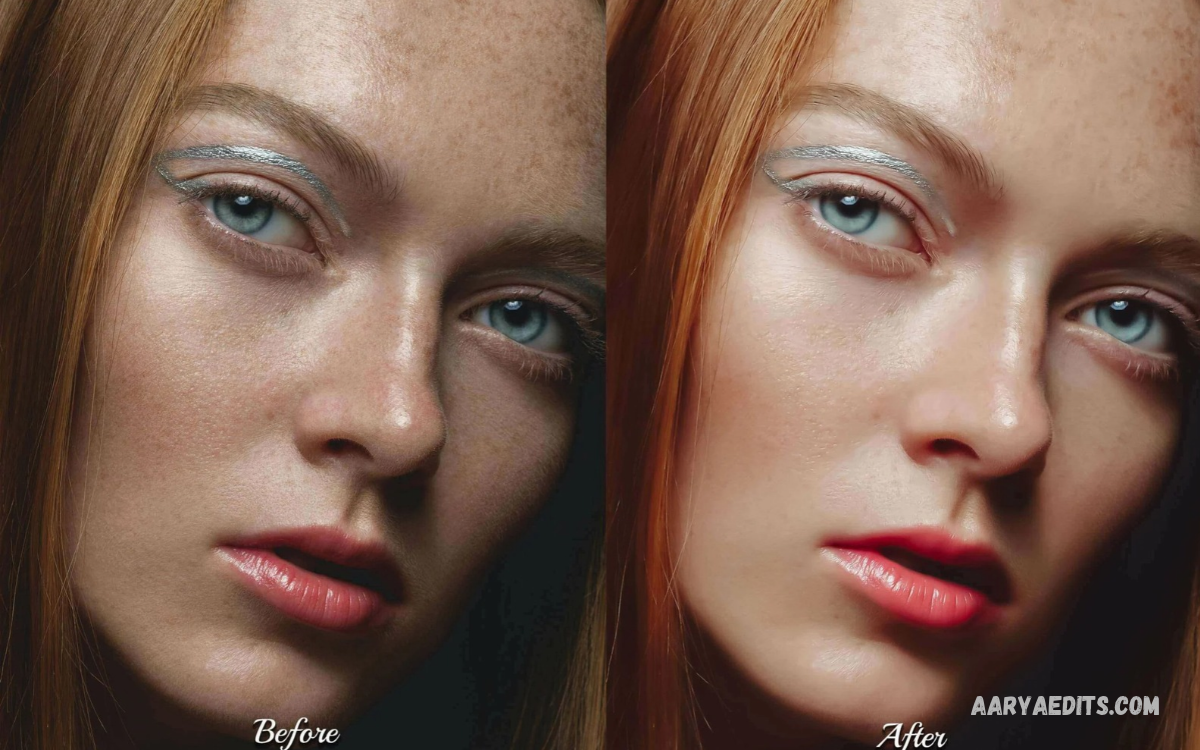
Skin tone plays a major role in portrait photography because natural-looking skin can make an image feel balanced, professional, and visually appealing. A good Lightroom Skin Tone Editing Guide helps photographers improve skin color without creating an artificial appearance.
Adobe Lightroom gives photographers precise control over color through Temperature, Tint, Exposure, HSL, Color Mixer, Color Grading, Masking, and other editing tools. When these features are combined correctly, you can achieve smooth and realistic skin tones while maintaining natural facial details.
Understanding Skin Tone Before Lightroom Editing
Before making any adjustments, study the original photograph carefully. Skin can appear different depending on lighting, camera settings, white balance, background colors, and the surrounding environment.
Different people naturally have different skin undertones, so the goal should not be to make every portrait look identical. Instead, focus on creating accurate and pleasing color while preserving the subject’s natural appearance.
Correct White Balance First
White Balance is one of the most important Lightroom settings for achieving natural skin. Temperature controls the overall blue-to-yellow balance, while Tint controls the green-to-magenta balance. If the original image has incorrect white balance, skin correction becomes much harder because the entire color environment may be inaccurate.
Start by adjusting Temperature until the skin looks naturally warm without becoming orange or yellow. Then adjust Tint to remove unwanted green or magenta color. Small changes are usually more effective than dramatic adjustments because skin tones respond strongly to subtle white balance changes.
Adjust Exposure for Natural Skin Brightness
Exposure affects the overall brightness of the photograph and should normally be corrected before detailed skin color adjustments. If the portrait is too dark, increasing Exposure can reveal natural skin color and facial details. If the image is overexposed, lowering Exposure can help restore tonal balance.
Pay close attention to highlights because facial areas such as the forehead, cheeks, and nose can become overly bright. Use Highlights and Whites to control bright areas without making the entire portrait too dark. The objective is balanced skin brightness with visible texture and natural facial dimension.
Use the Color Mixer for Skin Tone Correction
The Color Mixer is one of the most useful tools for Lightroom skin tone editing. Skin commonly contains orange, red, and yellow color information, so these channels can be adjusted individually. This provides more control than changing global saturation or temperature.
Open the Color Mixer and examine the Hue, Saturation, and Luminance settings for Orange and Red. Small Hue adjustments can correct unwanted color shifts, while Saturation can reduce excessive intensity. Luminance can brighten or darken the selected color range and is particularly useful for creating clean, balanced skin.
Adjust Orange Hue Carefully
Orange is often the most important color channel for portrait skin because many natural skin tones contain strong orange components. If the skin appears too red, slightly shifting Orange Hue toward yellow can create a softer appearance. If the skin appears too yellow, moving the hue in the opposite direction may restore balance.
Avoid making large Hue changes because extreme adjustments can produce unnatural skin. The correct setting depends on lighting, camera profile, complexion, and image style. A professional Lightroom Skin Tone Editing Guide should prioritize subtle corrections instead of applying the same numerical settings to every photograph.
Control Orange Saturation
Orange Saturation can significantly change how strong the skin color appears. High saturation can make faces look overly orange, especially in photographs captured under warm indoor lighting or strong sunlight. Reducing Orange Saturation slightly can create a more refined and natural portrait.
However, excessive desaturation can make skin look gray, dull, or lifeless. Make small adjustments while viewing the complete portrait rather than focusing only on the face. The surrounding clothing, background, and lighting should also remain visually consistent after the color correction.
Adjust Orange Luminance
Orange Luminance controls the brightness of orange-colored areas within the photograph. Increasing it slightly can make skin appear brighter and cleaner without significantly changing the overall exposure. This technique can be particularly effective for portraits with darker or uneven facial lighting.
Avoid pushing Luminance too far because excessive brightness can remove natural depth from facial features. The best result usually comes from a moderate adjustment combined with proper Exposure, Highlights, and Masking settings. Skin should look brighter while maintaining texture and dimensionality.
Use Red Channel for Facial Color
The Red channel can become important when a portrait contains visible redness around the cheeks, nose, ears, or other facial areas. Slightly reducing Red Saturation can help control unwanted redness while maintaining the natural warmth of the complexion.
Red Hue and Luminance should be adjusted carefully because aggressive changes can affect lips, clothing, hair, and other objects containing red tones. If the adjustment needs to target only the face, Lightroom Masking provides a more precise solution than applying a global Color Mixer adjustment.
Use HSL Adjustments for Better Control
HSL stands for Hue, Saturation, and Luminance. These controls allow you to change individual colors without significantly affecting unrelated parts of the image. For portrait editing, HSL can be used to refine orange, red, yellow, and sometimes magenta tones.
A strong Lightroom Skin Tone Editing Guide uses HSL as a correction tool rather than a fixed preset formula. Every photograph has different lighting and color characteristics. Instead of copying settings from another image, evaluate the actual skin and make adjustments according to the photograph’s unique conditions.
Use Masking for Precise Skin Editing
Masking is one of Lightroom’s most powerful features for professional portrait editing. Instead of changing the entire image, you can create a mask that targets the subject or specific facial areas. This allows skin adjustments to remain isolated from the background, clothing, and other objects.
Use Select People or other masking options when available to target the subject accurately. You can then adjust Exposure, Temperature, Tint, Texture, Clarity, Saturation, and other settings within the selected area. Masking creates much more control than applying aggressive global adjustments.
Improve Skin Color With Selective Color
Selective color correction can help when one part of the face looks different from another. For example, a photograph may contain slightly red cheeks but a neutral forehead. Applying one global adjustment may fix one area while damaging another.
Create additional masks for specific areas when necessary and make subtle corrections. Use localized Temperature, Tint, Saturation, and Exposure changes to bring different skin areas closer together. The objective is not perfect uniformity but a balanced complexion that still looks natural.
Reduce Facial Redness Naturally
Facial redness is common in portraits because of lighting, skin characteristics, camera processing, or environmental conditions. Redness can often be controlled through a combination of Red Saturation reduction and localized masking. Avoid removing all red tones because natural skin contains subtle variations.
For stronger redness, create a face or skin mask and reduce Saturation slightly. You can also make a small Tint adjustment if the redness is related to a color cast. Zoom out regularly to evaluate the complete image because an adjustment that looks good at high magnification may appear unnatural at normal viewing size.
Balance Yellow Skin Tones
Yellow skin tones can appear because of warm indoor lighting, tungsten bulbs, golden-hour sunlight, or incorrect white balance. If the complexion looks excessively yellow, start by checking Temperature before making detailed Color Mixer adjustments.
After correcting Temperature, inspect Yellow and Orange channels in the Color Mixer. Reduce Yellow Saturation carefully if necessary, then refine Orange Hue and Saturation. This two-stage approach usually produces a more natural result than aggressively changing a single color channel.
Correct Green Skin Color Casts
Green color casts can appear in photographs taken under fluorescent lighting, near vegetation, or around strongly colored surfaces. These casts can make skin look unhealthy or unnatural. Tint is often the first setting to inspect when green is visible across the entire portrait.
If the green cast is localized, create a mask and adjust Tint rather than changing the entire photograph. A small move toward magenta can neutralize green contamination. Always compare the edited image with the original to ensure that the correction improves the portrait without introducing excessive magenta.
Use Texture and Clarity Carefully
Texture and Clarity affect the appearance of skin detail. Lowering Texture slightly can create a smoother appearance while preserving important facial structure. Clarity can also be reduced for a softer portrait effect, but excessive reduction may make the face look artificial.
Professional portrait editing should preserve recognizable skin texture instead of completely removing pores and fine details. Use subtle adjustments and consider applying them through a skin mask. This creates smoother skin while keeping eyes, eyebrows, hair, lips, and other important details sharp.
Avoid Excessive Skin Smoothing
One of the most common portrait editing mistakes is excessive skin smoothing. Heavy smoothing can remove natural texture and create a plastic appearance. Modern portrait editing works best when imperfections are reduced without completely eliminating realistic skin detail.
Use Masking, Texture, and Clarity with restraint. If a portrait needs stronger retouching, address specific distractions rather than applying heavy smoothing across the entire face. A professional result should look edited when compared with the original but still appear natural when viewed independently.
Use Color Grading for Final Skin Balance
Color Grading can influence the overall mood of a portrait after the main skin correction is complete. Shadows, midtones, and highlights can receive subtle color adjustments to create a cinematic or editorial appearance. Midtones are especially important because skin often occupies this tonal region.
Keep skin-friendly color relationships in mind when using Color Grading. Excessive orange, red, purple, or green grading can change the complexion dramatically. A subtle color treatment can enhance the image, while aggressive grading can destroy the natural skin balance created during earlier corrections.
Use Curves for Advanced Skin Tone Editing
The Tone Curve provides advanced control over brightness and contrast. A gentle curve can improve facial depth while maintaining natural skin tones. Adjusting highlights and shadows carefully can create a polished appearance without relying heavily on global contrast.
RGB curves can also influence color, but they require more experience because changing individual color channels can introduce color casts. Beginners should first master White Balance, Color Mixer, Exposure, and Masking before using advanced curve-based color corrections.
Maintain Natural Skin Highlights
Natural highlights are essential for dimensional portraits. The forehead, nose, cheeks, and chin may naturally reflect light, so completely removing highlights can make the face look flat. Instead, control bright areas while preserving realistic light direction.
Use Highlights, Whites, and localized Exposure adjustments to manage excessive brightness. If only one facial area is too bright, use a mask rather than lowering global Highlights. This maintains the overall lighting character and produces a more professional final image.
Create Consistent Skin Tones Across Photos
Consistency becomes important when editing wedding photography, fashion sessions, family portraits, or social media collections. Images captured under different lighting conditions can have noticeably different skin tones even when photographed during the same session.
Choose a reference image with the most accurate skin tone and use it as a visual target. Apply similar White Balance, Color Mixer, and Masking principles to other images, then fine-tune each photograph individually. Presets can speed up the process, but manual adjustments are still important for consistency.
Lightroom Skin Tone Editing for Outdoor Portraits
Outdoor portraits often contain changing sunlight, reflected colors, and environmental tones. Golden-hour lighting can create beautiful warmth, while shade can introduce blue or green color casts. Begin by correcting White Balance before refining individual skin colors.
For outdoor portraits, preserve some of the natural warmth rather than completely neutralizing the photograph. Use Color Mixer and Masking to control excessive orange or red tones. The final skin should match the lighting environment while remaining believable and visually balanced.
Lightroom Skin Tone Editing for Indoor Portraits
Indoor lighting can produce strong yellow, orange, green, or mixed color casts. Different artificial lights may also illuminate the face with different colors, creating uneven skin. White Balance correction should therefore be a major part of the indoor portrait workflow.
After neutralizing the main color cast, use Masking to refine individual areas of the face. Color Mixer adjustments can then control excessive orange or red tones. Keeping the correction subtle helps preserve the atmosphere of the original indoor environment.
Lightroom Skin Tone Editing for Darker Skin
Darker skin tones require the same principle of natural color accuracy but may respond differently to brightness and color adjustments. Avoid treating darker skin simply by increasing Exposure or Luminance aggressively because this can remove depth and natural tonal richness.
Focus on accurate White Balance, controlled highlights, balanced saturation, and localized adjustments. Orange and Red channels can still be useful, but the exact values should depend on the lighting and complexion. Preserving natural undertones is more important than making skin brighter.
Lightroom Skin Tone Editing for Fair Skin
Fair skin can show redness, pink tones, yellow casts, and overexposure more easily under strong lighting. The editing process should therefore focus on maintaining highlight detail and preventing excessive saturation.
Use Exposure and Highlights carefully before adjusting the Color Mixer. If the skin is too red, localized Red Saturation adjustments can help. If the complexion is too yellow, correct White Balance and refine Yellow or Orange tones rather than applying heavy global desaturation.
Lightroom Skin Tone Editing for Mobile
Lightroom Mobile provides many of the same essential editing controls available in desktop Lightroom. Users can adjust Temperature, Tint, Exposure, Color Mixer, Texture, Clarity, and Masking directly from a smartphone, making professional portrait editing accessible while traveling or creating social media content.
A practical mobile workflow starts with White Balance and Exposure, followed by Color Mixer and selective Masking. Save frequently used settings as presets, but avoid applying identical settings to every image. Lighting differences require individual corrections for the most natural result.
Common Lightroom Skin Tone Editing Mistakes
A frequent mistake is increasing orange saturation because many beginners associate warm skin with healthy skin. Another common problem is excessive smoothing, which removes texture and facial detail. Overusing Clarity, Color Grading, or global Saturation can also make portraits look heavily processed.
Another mistake is editing skin without checking the complete image. A face may look attractive when zoomed in but appear too orange or too bright when viewed normally. Always evaluate the portrait at multiple zoom levels and compare the Before and After versions before finalizing the edit.
Best Lightroom Skin Tone Editing Workflow
A reliable workflow starts with Exposure and White Balance, followed by contrast and highlight adjustments. Next, use Color Mixer to refine Red, Orange, and Yellow tones. After that, create a skin mask for localized corrections involving color, brightness, Texture, or Clarity.
Finish the edit with subtle Color Grading and overall color balancing. Compare the final image with the original and check skin at normal viewing size. This workflow is flexible enough for professional portraits, social media photographs, wedding images, fashion photography, and everyday mobile photography.
Before and After Skin Tone Comparison
The Before and After comparison is one of the best ways to evaluate whether your Lightroom edits are successful. Look for changes in skin brightness, warmth, redness, saturation, and texture. The edited version should improve the photograph without making the subject appear significantly different from reality.
Pay particular attention to facial highlights and shadows during comparison. If the edited skin looks overly orange, gray, pink, yellow, or plastic, reduce the intensity of the relevant adjustments. A successful Lightroom Skin Tone Editing Guide should help you develop judgment rather than simply follow fixed numerical settings.
Best Settings for Natural Skin Tone
There is no universal Lightroom setting that works perfectly for every portrait. A useful starting point may involve moderate Temperature and Tint corrections, controlled Orange Saturation, balanced Orange Luminance, and small Red Saturation adjustments. These values should always be treated as starting points rather than fixed rules.
Lighting conditions, camera profiles, exposure, complexion, and editing style can change the ideal settings significantly. Instead of searching for one perfect preset, learn how each Lightroom control affects skin. This approach produces more consistent results and allows you to edit portraits from different cameras and lighting environments.
Final Tips for Professional Skin Tone Editing
Always begin with correction before creative styling. Correct White Balance, Exposure, and unwanted color casts first, then refine skin using Color Mixer and Masking. Keep changes subtle and preserve natural texture because realistic skin generally looks more professional than heavily processed skin.
Use the Before and After view regularly and avoid editing only by numerical values. Your eyes should remain the primary reference for evaluating skin tone. With practice, Lightroom becomes a powerful tool for creating balanced, clean, natural, and professional-looking portraits.
Frequently Asked Questions
What Is the Best Lightroom Setting for Skin Tone?
There is no single best setting because skin tone depends on lighting, camera profile, exposure, and natural complexion. Start with White Balance, then refine Orange and Red channels through the Color Mixer.
How Do I Make Skin Tone More Natural in Lightroom?
Correct White Balance first and reduce excessive orange, red, or yellow saturation carefully. Use Masking when adjustments need to affect only the skin rather than the entire photograph.
How Do I Fix Orange Skin in Lightroom?
Reduce Orange Saturation slightly and inspect Orange Hue and Luminance. Also check Temperature because excessive warmth can make skin appear orange even when Color Mixer settings are balanced.
How Do I Fix Red Skin in Lightroom?
Use the Red channel in Color Mixer to reduce unwanted redness carefully. For localized redness, create a face or skin mask and reduce Saturation only in affected areas.
Should I Increase Orange Luminance for Skin?
A small increase in Orange Luminance can brighten skin and create a cleaner appearance. Avoid excessive increases because they can remove facial depth and make the complexion look unnaturally bright.
Is Lightroom Good for Skin Retouching?
Yes, Lightroom provides powerful tools for color correction, localized adjustments, texture control, and basic skin retouching. For advanced pixel-level retouching, Lightroom can also be combined with dedicated image-editing software.
How Do I Smooth Skin in Lightroom?
Use a skin mask and apply a subtle Texture or Clarity reduction. Avoid extreme smoothing because it can remove natural pores and make the subject look artificial.
Can Lightroom Fix Uneven Skin Tone?
Yes, Lightroom can correct uneven skin tones through Masking, Color Mixer, Exposure, Temperature, and Tint adjustments. Localized masks provide greater precision than global adjustments.
How Do I Edit Skin Tone on Lightroom Mobile?
Start with Exposure and White Balance, then use Color Mixer to control Orange, Red, and Yellow tones. Use available Masking tools for localized skin adjustments and finish with subtle Texture or Clarity changes.
How Do I Keep Skin Tone Natural After Editing?
Make small adjustments and frequently compare the edited image with the original. Preserve natural texture, avoid excessive saturation, and evaluate the portrait at normal viewing size before exporting.
Conclusion
A professional Lightroom skin tone editing guide relies on controlled color correction rather than aggressive filters or fixed presets. White Balance, Exposure, Color Mixer, Masking, Texture, Clarity, and Color Grading can work together to create natural and polished skin while preserving realistic facial detail.
The most important skill is learning how to recognize unwanted color casts and make subtle corrections. Practice with different lighting conditions, complexions, and camera profiles to develop a consistent workflow.
