

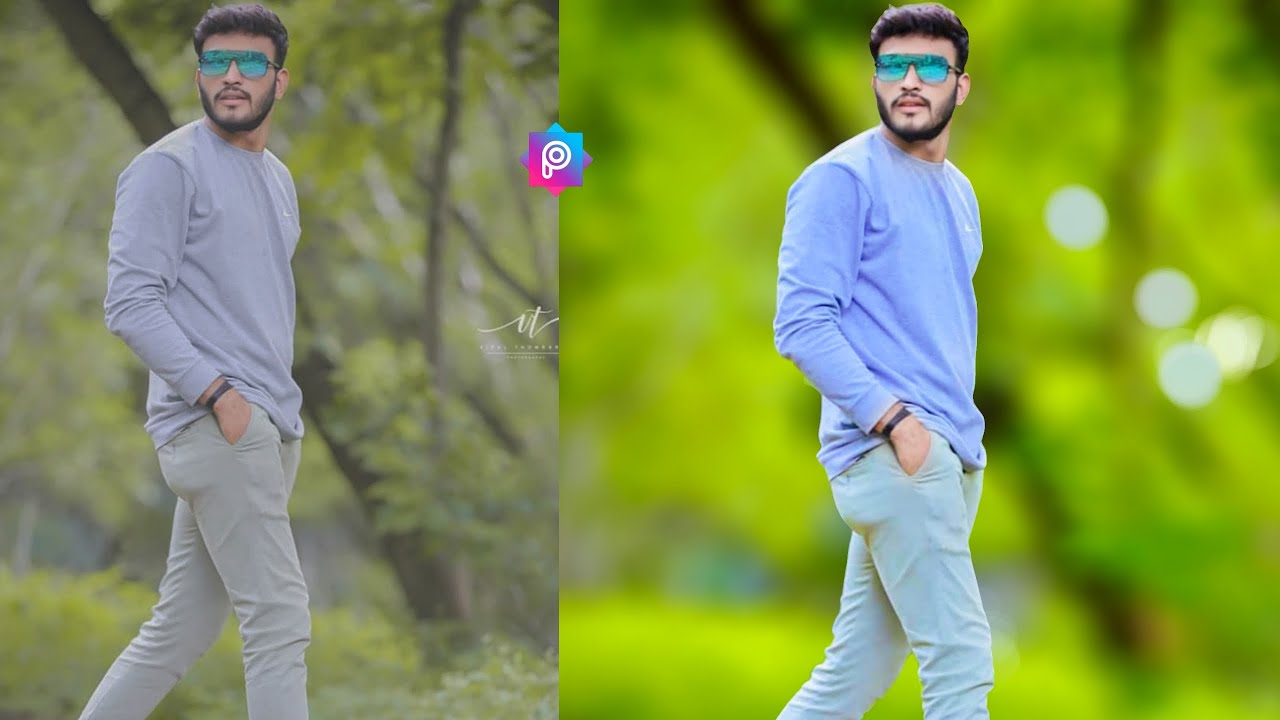
PicsArt Blur Background is a useful photo-editing technique for creating attractive images with a soft, professional background. The effect keeps the main subject clear while reducing background distractions, helping portraits, products, social media photos, and creative designs look more polished.
PicsArt provides several editing tools that can help users create a blurred background without requiring advanced photo-editing skills. By combining selection, blur, masking, and adjustment tools, users can create an effect similar to professional camera depth of field directly from a mobile device.
What Is PicsArt Blur Background?
PicsArt Blur Background refers to the process of applying a blur effect to the background of an image while keeping the primary subject relatively sharp. This technique creates visual separation between the subject and surrounding elements, making the main area of the photograph more noticeable.
The effect can produce a depth-of-field appearance commonly associated with professional cameras. PicsArt users can apply different levels of blur depending on the image, subject, and desired style. A subtle blur usually creates a natural appearance, while stronger blur can produce a dramatic creative effect.
Why Use PicsArt Blur Background?
A blurred background can improve an image by reducing distracting objects, colors, patterns, and unwanted visual details. When the background becomes softer, viewers naturally focus more attention on the person, product, object, or central design element.
PicsArt Blur Background can also make ordinary smartphone photographs look more refined. The technique works particularly well for portraits, profile pictures, product images, Instagram posts, thumbnails, and promotional graphics where the main subject needs stronger visual emphasis.
How PicsArt Blur Background Works
PicsArt uses editing tools that allow users to modify selected portions of an image. Instead of applying blur equally across the entire photograph, users can isolate the background and control where the effect appears, creating a more realistic separation between foreground and background.
The editing process generally involves opening an image, selecting the appropriate blur effect, identifying the background area, and adjusting the intensity. Careful masking or selection is important because inaccurate edges can make the final result appear artificial.
How to Blur Background in PicsArt
Open PicsArt and import the photograph that requires background editing. Select the appropriate editing tools and locate the blur effect available within the editor. Depending on the app version, tool names and interface positions can change, so the exact layout may vary.
Apply the blur effect to the image and use selection or masking controls to limit the effect to the background. Keep the main subject outside the blurred area, then adjust the blur strength until the subject and background have a natural visual relationship.
Select the Main Subject Carefully
Subject selection is one of the most important steps when creating a PicsArt Blur Background effect. Hair, shoulders, fingers, clothing edges, and small objects can contain complicated shapes that require careful editing to produce clean boundaries.
Use a precise selection whenever possible and inspect the edges after applying the blur. If the blur overlaps the subject, reduce the affected area or refine the mask. Clean edges help the finished photograph maintain a realistic appearance.
Adjust Blur Intensity
Blur intensity should match the photograph and the intended visual style. A low or moderate setting usually produces a natural background effect, while an extremely strong setting can make the image look heavily edited and reduce background context.
For portraits, moderate blur often works well because it separates the person without completely removing environmental details. For creative graphics or product images, stronger blur can sometimes create a more dramatic result when used carefully.
Create a Natural Depth Effect
A realistic background blur normally contains gradual visual softness rather than an identical blur level across every background object. Objects closer to the subject may appear slightly more defined than distant elements, depending on the original scene.
When editing manually, consider the distance between the subject and different background elements. A balanced blur can create depth and make the photograph appear more similar to an image captured with a camera using a wide aperture.
PicsArt Blur Background for Portraits
Portrait photography is one of the most common uses for PicsArt Blur Background. A soft background helps direct attention toward the face while reducing distracting scenery, furniture, crowds, walls, or other objects behind the person.
For portrait editing, avoid excessive blur around hair and clothing edges. A natural transition around the subject creates a cleaner professional appearance. Slight color and brightness adjustments can also complement the background blur without overpowering the original photograph.
PicsArt Blur Background for Product Photos
Product photographs can benefit from background blur when the goal is to emphasize a specific item. A softened background reduces competing details and helps the product become the primary visual element within the composition.
This technique can work for small business images, social media promotions, online listings, advertisements, and creative product presentations. Keep the product itself sharp and use a controlled blur around surrounding objects to maintain clarity.
PicsArt Blur Background for Instagram Photos
Instagram-style images often benefit from clean compositions with a strong focal point. PicsArt Blur Background can transform a busy environment into a softer visual backdrop, helping the subject stand out within a square, portrait, or landscape composition.
Choose blur intensity according to the image format and background complexity. After applying the effect, check the complete image rather than focusing only on the subject. The final result should remain balanced when viewed as a complete social media post.
PicsArt Blur Background for Profile Pictures
Profile pictures usually require immediate visual clarity because the image may appear at a small size. Blurring the background can help the face or main subject remain recognizable while removing unnecessary environmental distractions.
Use a moderate blur for profile photographs and maintain sharp facial details. Avoid applying blur across important facial features, hair, or clothing edges. A clean background creates a simple appearance that works well across different profile formats.
Using Blur With Background Replacement
PicsArt users can combine background blur with other editing techniques to create more creative compositions. A blurred original background can provide a smooth transition when additional elements, text, graphics, or overlays are introduced.
When adding new background elements, maintain consistent lighting and perspective. The foreground subject should remain visually connected to the new composition. Blur can help blend layers, but it should not be used to hide obvious editing mistakes.
Using Blur With Background Removal
Background removal and background blur serve different purposes. Background removal eliminates the original environment, while blur keeps the environment visible but reduces its visual importance.
Users can choose between these techniques based on the purpose of the image. Blur is useful when the original setting contributes to the story or atmosphere, while background removal can work better for isolated products, logos, stickers, thumbnails, and graphic compositions.
PicsArt Blur Background for Selfies
Selfies can look more polished when the background contains distracting objects or complex surroundings. Applying a controlled blur allows the face to remain the main focus while maintaining enough environmental detail to preserve the original photograph.
For selfies, edge accuracy is particularly important around hair and facial contours. Avoid aggressive blur settings that create visible halos around the subject. A subtle effect usually provides a cleaner result and preserves the natural character of the image.
How to Make Blur Look Professional
Professional-looking blur depends on more than simply increasing the blur strength. The effect should support the subject, match the original lighting, and maintain realistic edges between sharp and soft areas.
Inspect the image at different zoom levels after editing. Check the subject outline, hair, clothing, hands, and background objects. If the effect looks obvious, reduce the blur or refine the selection until the transition becomes smoother.
Common PicsArt Blur Background Mistakes
One common mistake is applying excessive blur to the entire background without considering the subject boundaries. Strong blur can create an unnatural appearance, especially when objects near the subject remain visually connected to sharp areas.
Another mistake is creating rough edges around the subject. Visible halos, missing hair details, or blurred clothing can reduce image quality. Taking extra time to refine the selection usually produces a significantly better final result.
Avoid Overusing Blur
Blur should enhance an image rather than become the main visual feature. Excessive blur can remove useful context and make a photograph appear artificial, particularly when the original background contains recognizable objects that contribute to the composition.
A professional edit normally uses restraint. Start with a lower blur level and gradually increase it while viewing the entire image. Stop when the subject receives enough emphasis without making the background appear unnaturally distorted.
Improve Background Blur With Lighting
Lighting plays an important role in how a blurred background appears. A background with suitable brightness and contrast can complement the subject, while an overly bright or dark background can still distract viewers even after blur is applied.
After creating the blur effect, consider small adjustments to brightness, contrast, saturation, or exposure. These changes should remain subtle. The goal is to create visual harmony between the sharp foreground and softer background.
Improve Background Blur With Color
Color adjustments can make the blurred background work more effectively with the main subject. Reducing excessive background saturation can prevent bright colors from competing with the person or object in the foreground.
A consistent color relationship creates a more professional composition. For example, a colorful subject may benefit from a softer neutral background, while a simple subject may work with a slightly richer background that still remains visually subdued.
PicsArt Blur Background for Creative Designs
Blur is not limited to realistic photography. Designers can use blurred backgrounds for posters, banners, thumbnails, announcements, wallpapers, and social media graphics.
A soft background can provide space for text and other design elements without creating excessive visual competition. When typography is added, maintain enough contrast between the text and background so the message remains easy to read.
Using Blur Behind Text
A blurred image can provide an attractive background for headlines and promotional messages. Blurring reduces small visual details, creating a cleaner area where text can be placed without completely removing the original photograph.
Choose text placement carefully and consider background brightness. If the background remains visually strong, additional contrast or a subtle overlay may improve readability. The blur should support the message rather than make the entire design look unfinished.
PicsArt Blur Background for YouTube Thumbnails
YouTube thumbnails often rely on strong focal points and clear visual hierarchy. A blurred background can help separate a person, object, or headline from the surrounding scene and make the composition easier to understand.
Use moderate blur and maintain strong subject clarity. Avoid blurring important objects that help explain the thumbnail topic. The final design should remain recognizable even when displayed at a smaller size.
PicsArt Blur Background for Business Images
Businesses can use background blur to create cleaner promotional photographs without completely replacing the original environment. This approach can work for personal branding, product promotions, service advertisements, and social media campaigns.
The main subject should remain sharp and visually dominant. Keep the editing consistent across related images so the brand maintains a professional visual identity. Excessive effects can make business photography appear less authentic.
PicsArt Blur Background and Portrait Depth
Portrait depth depends on the relationship between the subject, camera perspective, and background. Digital blur can simulate part of this effect, but realistic results require careful control of the transition between sharp and soft areas.
A convincing result usually has clear subject separation and a gradual background transition. Pay attention to objects that overlap the subject because these areas can reveal unrealistic editing when blur is applied incorrectly.
How to Fix Uneven Blur
Uneven blur can occur when the selected area does not cover the entire intended background. Small sharp patches may remain around the subject, creating an inconsistent appearance.
Review the complete background after applying the effect. Refine the selected area where necessary and adjust the blur gradually. Checking the image at normal viewing size can help identify inconsistencies that are difficult to notice while zoomed in.
How to Keep Hair Sharp
Hair is one of the most challenging areas when creating a blurred background. Individual strands can extend into the background, making automatic selections less precise.
Use careful masking around detailed hair areas and avoid creating a hard artificial boundary. A natural transition is usually more convincing than trying to preserve every single strand with an overly complicated selection.
How to Blur Background Without Losing Quality
Start with a high-quality original photograph whenever possible. Editing a low-resolution image can make edges, facial details, and textures appear less convincing after multiple adjustments.
Save or export the final image using an appropriate quality setting. Avoid repeatedly saving and compressing the same image because repeated processing can reduce clarity. Keeping an original copy also allows future edits without starting from a degraded version.
Read Also: Professional YouTube Shorts Editing Techniques and Tips
PicsArt Blur Background on Mobile
One major advantage of PicsArt is the ability to perform advanced-looking photo edits from a mobile device. Users can create background blur effects without relying on desktop photo-editing software.
The mobile workflow is useful for quick social media content, personal photography, school projects, product posts, and creative designs. Touch-based controls also provide direct interaction with selection and masking areas.
PicsArt Blur Background Editing Tips
Always begin with a clear photograph where the main subject is distinguishable from the background. A strong subject-background separation makes digital blur easier to apply and generally produces a more convincing result.
Work gradually instead of applying maximum blur immediately. Review the edges, compare the edited image with the original, and make small adjustments. Professional editing usually comes from controlled changes rather than heavy effects.
Benefits of PicsArt Blur Background
The main benefit of PicsArt Blur Background is improved visual focus. By reducing background distractions, the technique helps viewers notice the subject more quickly and creates a cleaner overall composition.
Another benefit is flexibility. Users can apply the technique to portraits, products, selfies, social media images, thumbnails, promotional graphics, and creative projects. The same basic editing principle can support many different photography styles.
Limitations of Digital Background Blur
Digital blur cannot always reproduce the exact appearance of optical camera blur. Complex scenes with overlapping objects, transparent elements, detailed hair, or similar colors can make accurate selections difficult.
Automatic tools may also require manual correction. The final result depends on the original image quality and the accuracy of the selected subject. Understanding these limitations helps users set realistic expectations when editing.
PicsArt Blur Background vs Camera Blur
Camera-generated background blur occurs through optical and computational photography processes during image capture. Digital PicsArt Blur Background is applied after the photograph has already been taken.
Both approaches can create attractive results, but digital editing offers greater control after capture. Users can decide which areas should remain sharp and how strongly the background should be softened, giving them flexibility that may not be available in the original photograph.
Best Practices for PicsArt Blur Background
Use high-resolution images, select the subject carefully, and apply moderate blur whenever a natural appearance is the priority. Review complicated edges and avoid applying identical blur treatment to every part of a three-dimensional scene.
Keep the original image before editing so changes can be reversed or refined later. Compare the finished image with the original and make sure the blur improves the composition rather than simply adding a noticeable effect.
Frequently Asked Questions
How do I blur a background in PicsArt?
Open your image in PicsArt, select the blur editing option, and use selection or masking controls to apply the effect primarily to the background. Adjust the intensity for a natural result.
Can PicsArt blur only the background?
Yes, background-focused editing can be achieved by separating the main subject from the background and applying the blur effect to the selected background area rather than the entire photograph.
How much blur should I use in PicsArt?
Use enough blur to reduce distractions while keeping the photograph natural. Moderate blur generally works well for portraits, selfies, products, and social media images.
Can I blur a background without blurring the person?
Yes. Carefully select or mask the subject before applying the background blur. Inspect hair, clothing, hands, and other edges to prevent unwanted blur.
Does PicsArt work for product background blur?
Yes. Background blur can emphasize a product by reducing surrounding distractions. Keep the product sharp and use a controlled blur around the surrounding environment.
Can PicsArt create DSLR-style background blur?
PicsArt can simulate a shallow-depth-of-field appearance through digital editing. The result depends on the original image, subject separation, selection accuracy, and blur settings.
Why does my PicsArt background blur look fake?
Excessive blur, rough subject edges, halos, and inconsistent masking can make the effect appear artificial. Reduce the blur and refine the subject boundary for a smoother result.
Conclusion
PicsArt Blur Background provides a practical way to improve photographs by separating the main subject from distracting surroundings.
The most effective results come from subtle editing rather than excessive effects. Start with a strong original photograph, protect important subject details, refine the background carefully, and adjust the final composition until the blur feels natural and supports the main visual message.
